How to View Message History
WhatsApp & Messaging
Use message history in UpBlick to understand what was sent to a customer, when it happened, and which workflow it belonged to. Depending on the message type, you can review this history from customer records, review request activity, or campaign reports.
Where to look for message history
- Customer record: best for one customer’s journey
- Review Requests: best for review-request and reminder activity
- Campaign Reports: best for marketing or bulk campaign activity
Option 1: View history from the customer record
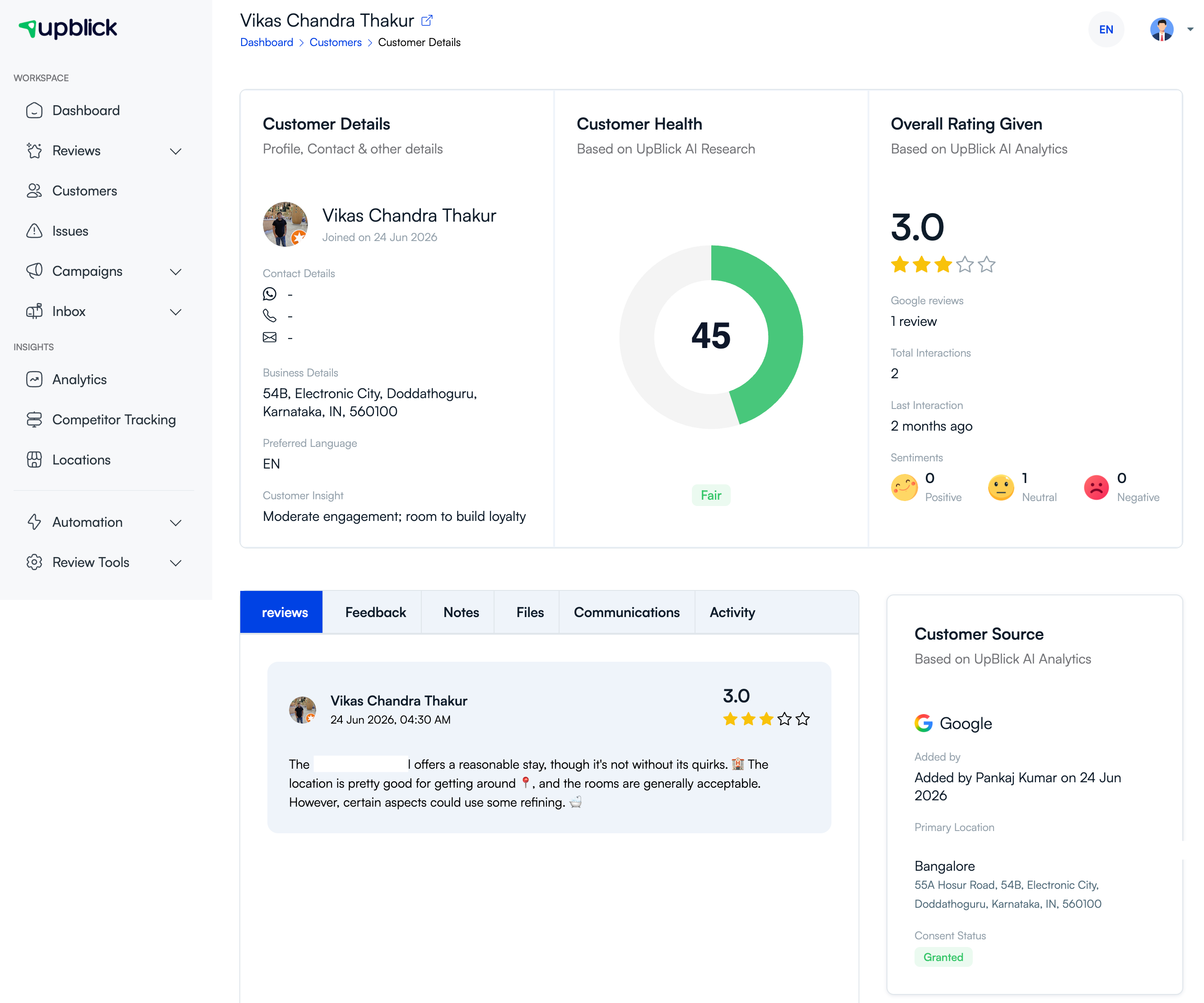
- Open Customers.
- Find the customer you want to review.
- Open the customer detail page.
- Review the available tabs, especially communication- or activity-related history.
This is the best place to understand what one customer received over time and how their interaction progressed.
Option 2: View review-message history
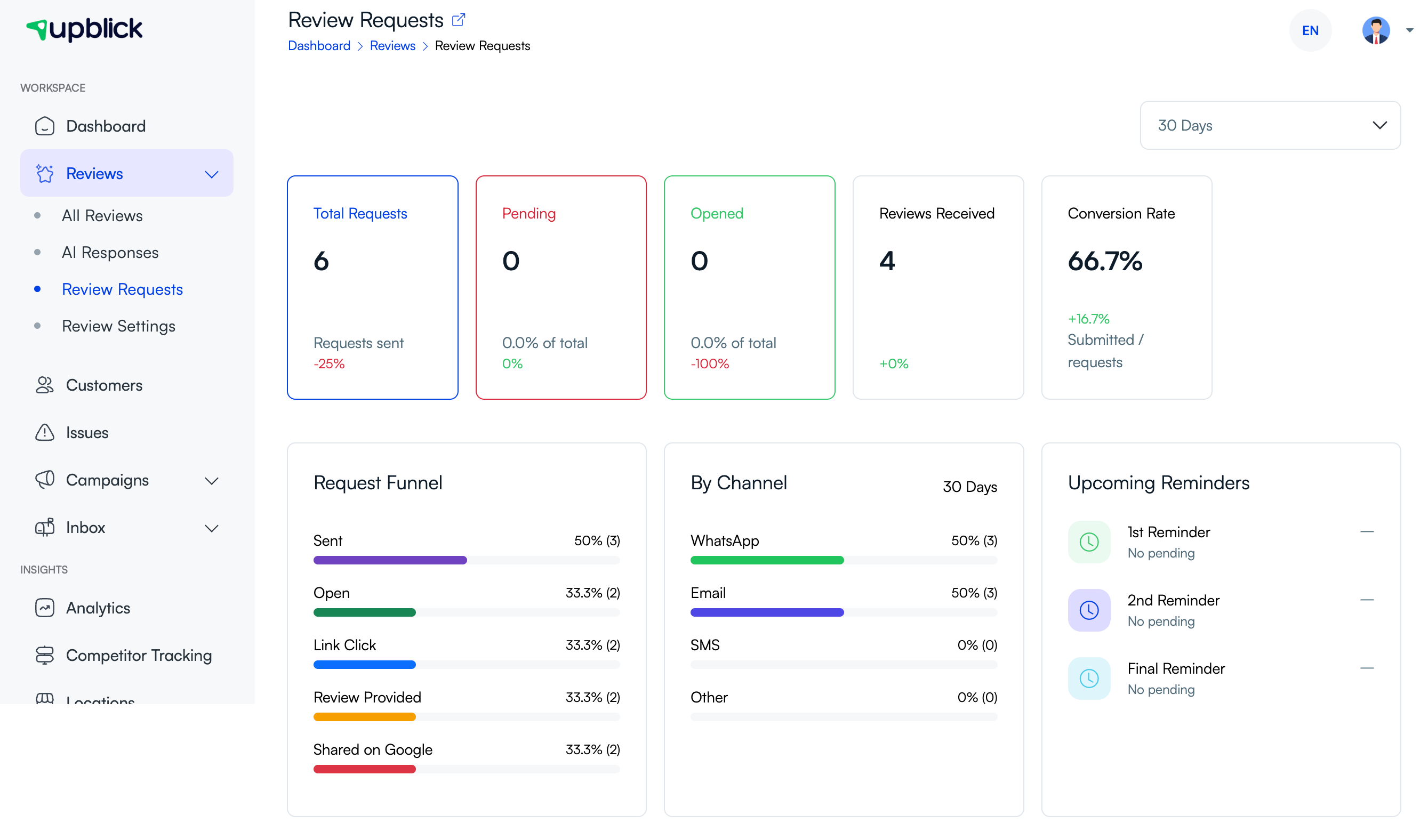
- Open Reviews > Review Requests.
- Review the request funnel and by-channel activity.
- Use this view to understand request, reminder, and related review-message progress.
This view is useful when the history you need is tied to review collection rather than general marketing messages.
Option 3: View campaign message history
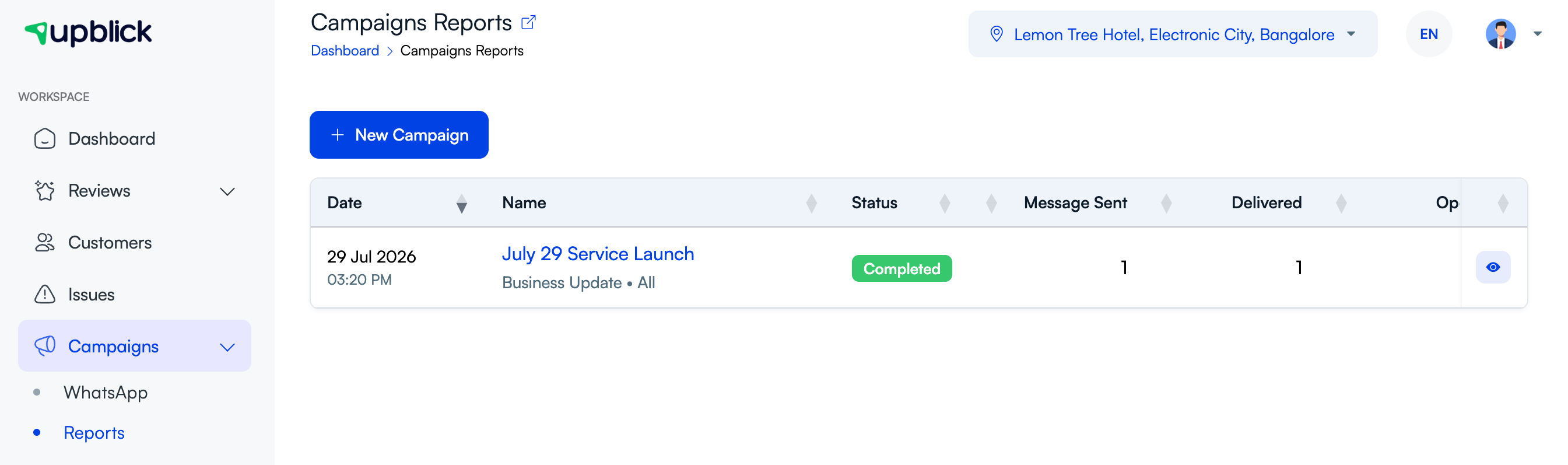
- Open Campaigns > Reports.
- Review the campaign list.
- Open a campaign to inspect its detailed performance and activity.
This is the better view for bulk WhatsApp campaigns, promotional sends, and message performance over time.
What to check in message history
- When the message was sent
- Which workflow or campaign it belonged to
- Whether the message was delivered or opened
- Whether follow-ups happened after it
- Whether the customer completed the intended action
Frequently asked questions
Where should I look first for one customer’s message history?
Start with the customer’s detail page because it gives the most person-specific context.
Where should I look for campaign-level message history?
Use Campaigns > Reports, then open the campaign you want to review.
Related Articles
Turn every customer touchpoint into review growth
Use UpBlick to collect feedback, request Google reviews, recover bad experiences, and understand customer sentiment.
Need help with UpBlick?
Use these guides to set up review collection, customers, WhatsApp automation, issue recovery, and reporting.
Start growing reviews with UpBlick