How to Check Message Delivery Status
WhatsApp & Messaging
Use delivery status in UpBlick to confirm whether a WhatsApp message actually reached the customer after it was sent. Delivery status helps you separate “message was queued” from “message was delivered.”
Where to check delivery status
- Review Requests: for review-request and reminder flows
- Campaign Reports: for bulk campaigns and promotional sends
- Customer history: for customer-specific communication context
Check delivery for review-related messages
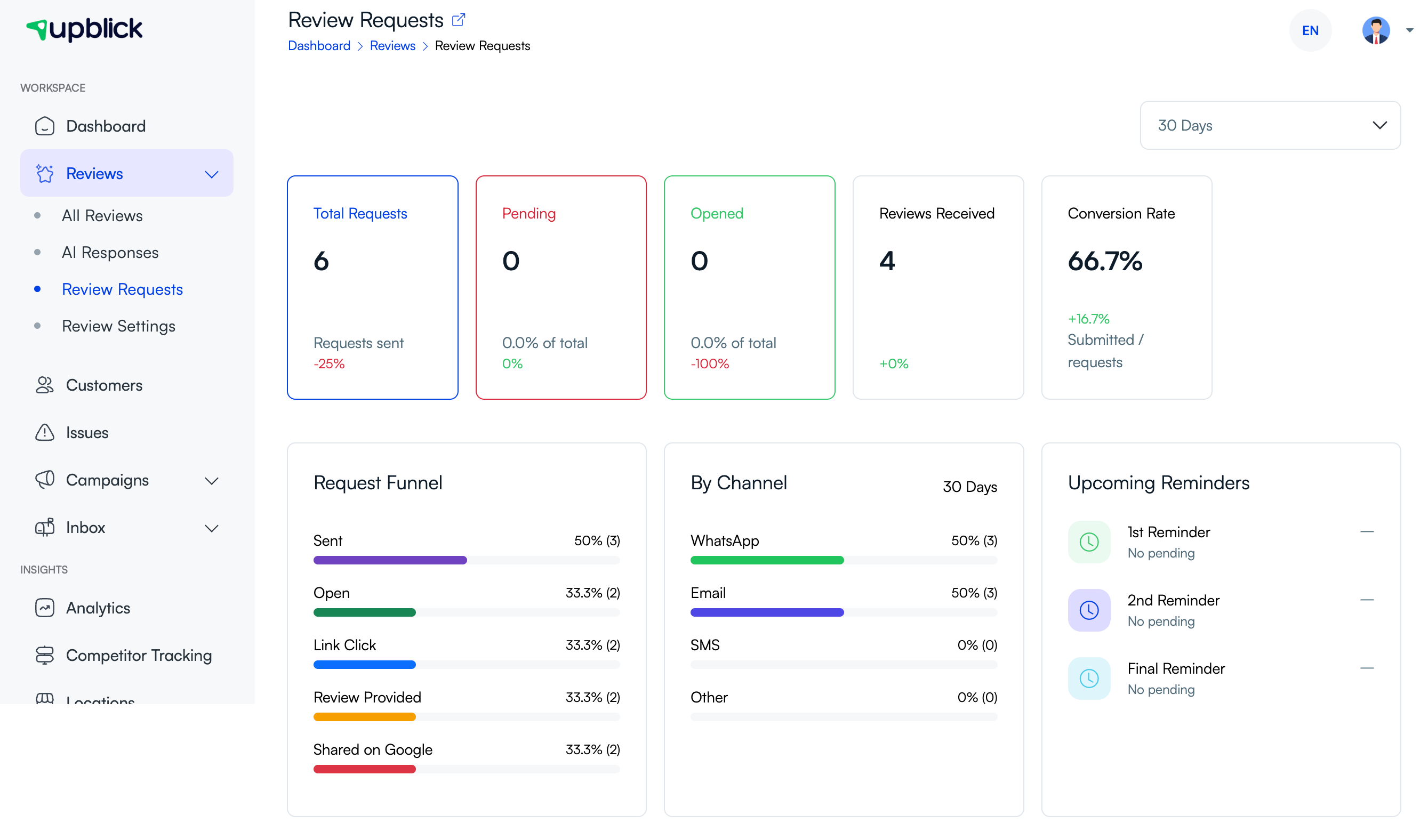
- Open Reviews > Review Requests.
- Review the request funnel and by-channel activity.
- Use this view to understand whether the request moved through the expected stages.
Check delivery for campaigns
- Open Campaigns > Reports.
- Open the campaign you want to inspect.
- Review metrics such as Total Sent, Total Delivered, and Delivery Rate.

How to interpret the numbers
- Sent means UpBlick attempted the message.
- Delivered means the message reached the customer.
- Opened means the customer interacted with the delivered message.
- Failed means the message did not complete delivery successfully.
If delivery looks wrong
Review the connected WhatsApp channel, the customer’s saved phone details, the selected location, and whether the customer was eligible to receive the message in the first place.
Frequently asked questions
What should I check first?
Start with whether the message was Sent and then whether it was Delivered. Those two numbers tell you whether the problem is before or after delivery.
Why is delivery more important than send count?
Because a sent message is only an attempt. Delivery tells you whether the customer actually received it.
Related Articles
Turn every customer touchpoint into review growth
Use UpBlick to collect feedback, request Google reviews, recover bad experiences, and understand customer sentiment.
Need help with UpBlick?
Use these guides to set up review collection, customers, WhatsApp automation, issue recovery, and reporting.
Start growing reviews with UpBlick