How to View Customer History?
Customers
Customer history gives you a complete view of a customer’s profile, review activity, feedback, communication, and engagement with your business. Use it when you want to understand what happened before following up with a customer.
Step 1: Open Customers
From the UpBlick sidebar, select Customers. The Customers page shows customer totals, filters, search, and the customer list for the selected location.
Step 2: Find the customer
Search for the customer by name, phone number, WhatsApp number, email address, or another available customer detail. You can also use filters to narrow the list.
Step 3: Open the customer details page
Select the customer name or the available view action. UpBlick opens the customer details page, where you can review the customer’s profile and activity history.
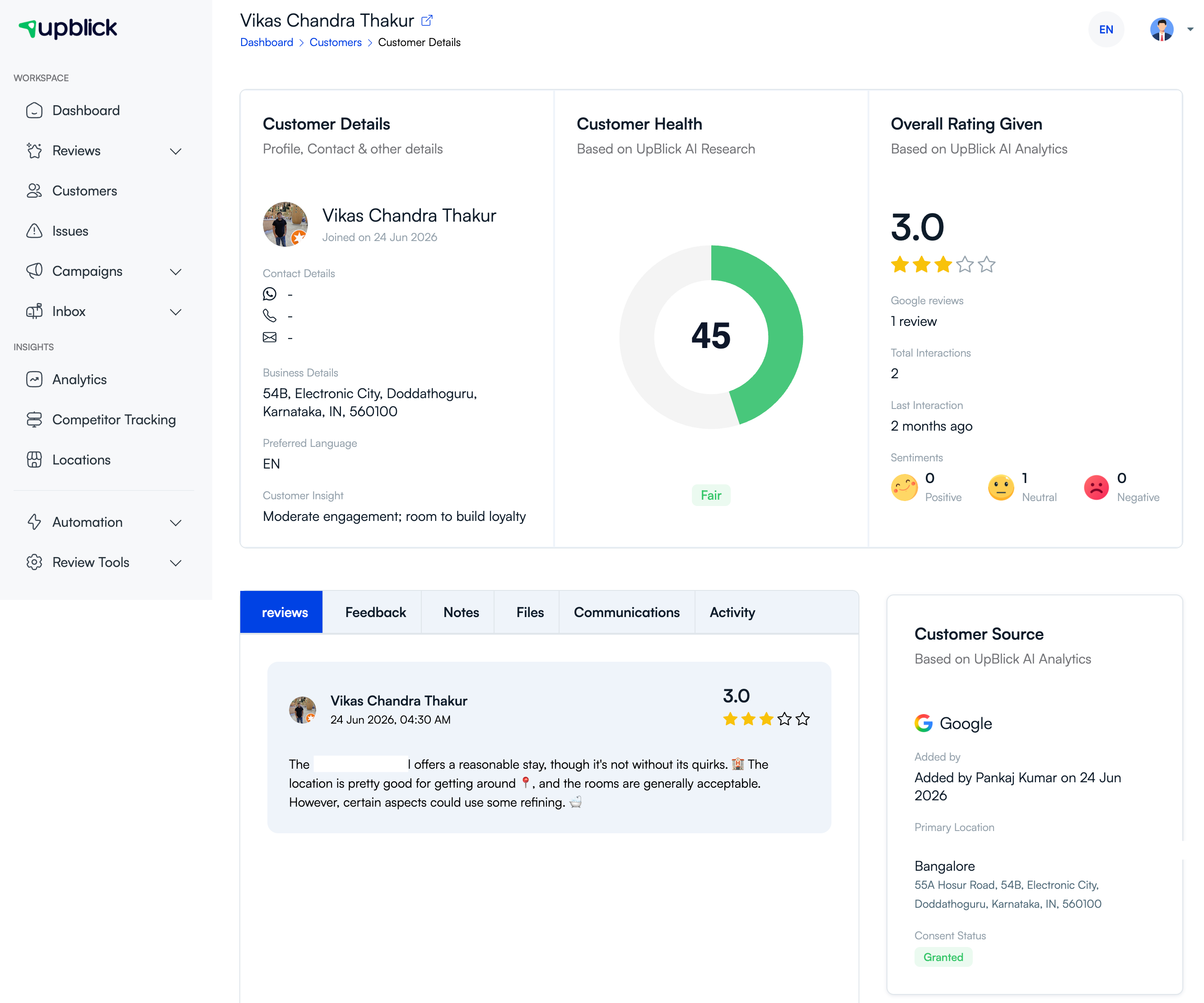
What you can see in customer history
The customer details page may include the following sections depending on the customer’s activity and your account setup:
- Customer Details: Name, join date, contact details, business details, preferred language, and customer insight.
- Customer Health: An AI-assisted health score that helps you understand the customer’s overall engagement.
- Overall Rating Given: Rating, review count, interaction count, last interaction, and sentiment summary.
- Customer Source: Where the customer came from, who added the customer, primary location, and consent status.
- Reviews: Reviews connected to the customer.
- Feedback: Feedback submitted through the UpBlick review journey.
- Notes: Internal notes added by your team.
- Files: Any customer-related files if file storage is used.
- Communications: Message and follow-up history.
- Activity: Timeline-style customer actions and interactions.
Use the tabs to review specific history
The customer details page includes tabs such as Reviews, Feedback, Notes, Files, Communications, and Activity. Select a tab to focus on that part of the customer record.
Reviews
Use the Reviews tab to see review activity connected to the customer, including rating, review text, review date, and review source when available.
Feedback
Use the Feedback tab to understand what the customer said before or during the review journey. This can help your team identify what went well or what needs attention.
Communications
Use the Communications tab to check previous messages, review requests, reminders, thank-you messages, or follow-up communication connected to the customer.
Activity
Use the Activity tab to understand the sequence of customer interactions over time, such as when the customer was added, contacted, responded, or reviewed.
How to update customer details from history
If you notice incorrect customer information while viewing history, open the edit option for the customer record and update the details.
- Open the customer record.
- Select the edit or update action.
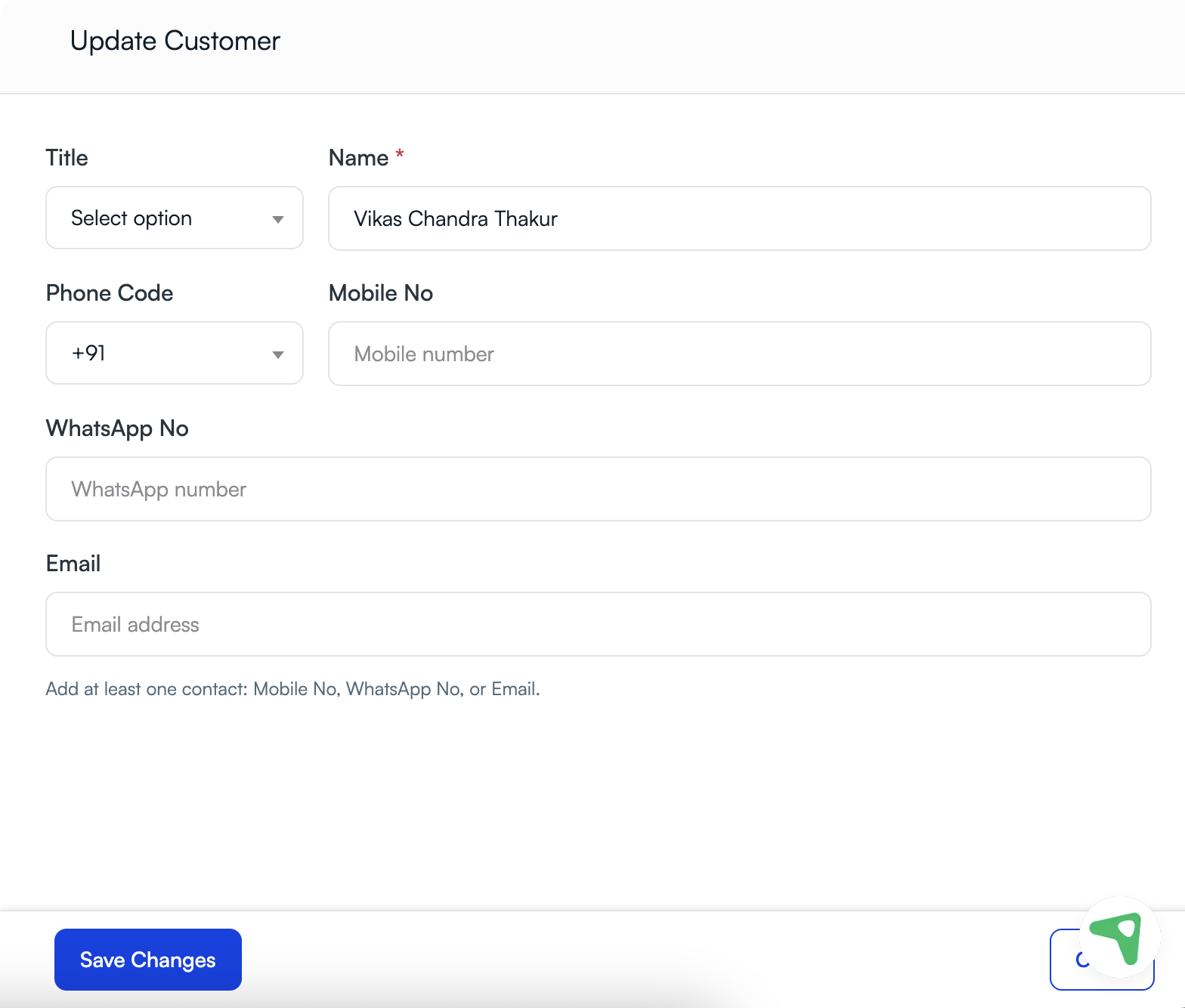
- Update the name, title, phone code, mobile number, WhatsApp number, or email address.
- Confirm that the customer has consented to be contacted through any updated channel.
- Select Save Changes.
Tips
- Check customer history before sending another review request or reminder.
- Use the customer’s last interaction to decide whether follow-up is appropriate.
- Review sentiment and feedback before responding to unhappy customers.
- Keep contact details accurate so future messages reach the right customer.
- Check consent status before contacting a customer through WhatsApp, SMS, email, or phone.
Troubleshooting
Frequently asked questions
Can I see reviews from a customer?
Yes. Open the customer details page and select the Reviews tab to view review activity connected to that customer.
Can I see whether a customer gave consent?
Yes. The customer source or details section can show the customer’s consent status when consent information is available.
Can I edit customer information from the history page?
Yes, when your role has permission and an edit or update action is available. Use it to correct customer details before future communication.
Why is customer activity missing?
The customer may be new, may not have received messages yet, or may not have submitted feedback or reviews. Check the Activity and Communications tabs for available history.
Related Articles
Turn every customer touchpoint into review growth
Use UpBlick to collect feedback, request Google reviews, recover bad experiences, and understand customer sentiment.
Need help with UpBlick?
Use these guides to set up review collection, customers, WhatsApp automation, issue recovery, and reporting.
Start growing reviews with UpBlick