How to Segment Customers?
Customers
Customer segmentation means organizing customers into useful groups so you can understand their activity, send more relevant follow-ups, and avoid treating every customer the same way.
Common ways to segment customers
| Segment type | Use it to find | Example action |
|---|---|---|
| Location | Customers connected to a specific branch. | Compare activity or send location-specific follow-up. |
| Review status | Reviewed, requested, or not reviewed customers. | Follow up with customers who have not responded yet. |
| Tags | Customers grouped by service, visit type, campaign, or interest. | Create a targeted customer list for a future campaign. |
| Source | Customers added from Google, manual entry, import, QR, or another source when available. | Understand which channels bring in customer activity. |
| Consent | Customers who can be contacted through approved channels. | Avoid messaging customers without proper permission. |
| Sentiment or feedback | Positive, neutral, or negative customer experiences. | Prioritize service recovery or thank-you follow-up. |
Step 1: Open Customers
From the UpBlick sidebar, select Customers. The Customers page shows customer totals, review-status cards, status filters, search, and the customer list.

Step 2: Segment by location
If you manage multiple branches, start with location. Select the location at the top of UpBlick before filtering or searching customers. This keeps customer activity, review requests, and reporting tied to the correct business branch.
Step 3: Segment by review status
Use review-related totals or filters to understand where customers are in the review journey:
- Reviewed: Customers who have already left a review.
- Requested: Customers who have been asked for a review.
- Not Reviewed: Customers who have not yet left a review.
This helps you decide whether to send a request, wait, follow up, or avoid duplicate outreach.
Step 4: Segment with tags
Use tags to group customers in a way that matches your business. For example:
- New customer.
- Repeat customer.
- High-value customer.
- Service type, product type, or visit reason.
- Campaign source.
- Follow-up required.
Use consistent tag names. For example, choose either VIP or High Value instead of using both for the same meaning.
Step 5: Segment from customer history
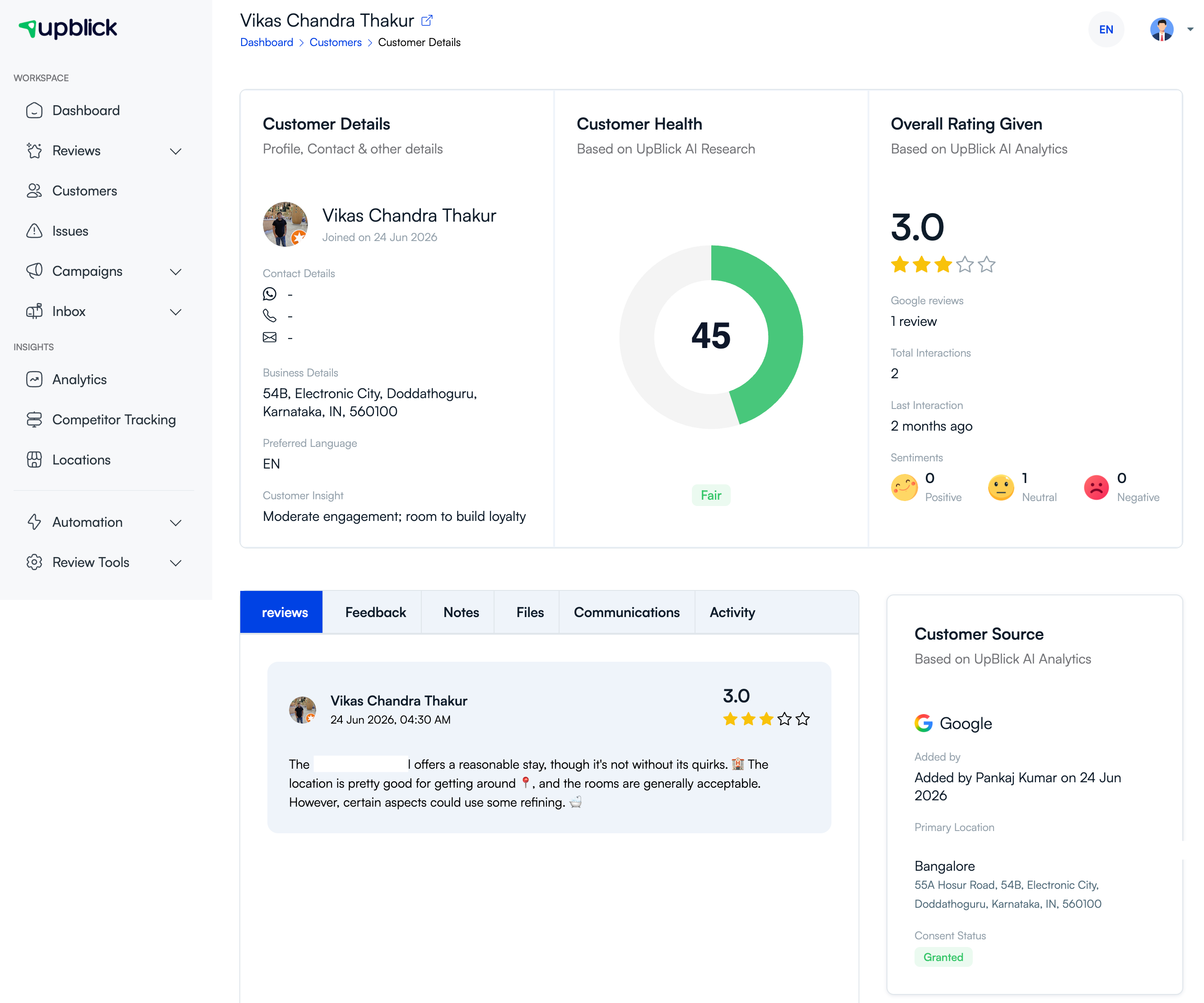
Open a customer record to review details such as overall rating, source, sentiment, consent status, communications, and activity. These details can help you decide which group the customer belongs to.
Step 6: Use segments for the right action
After grouping customers, choose the action that fits the segment:
- Send a review request to eligible customers who have not been asked yet.
- Send a reminder only when a previous request has not produced a review.
- Follow up personally with customers who gave negative feedback.
- Send thank-you messages to customers who completed a review.
- Use permitted campaign messaging for customers with the right consent and relevance.
Best practices
- Keep segmentation simple at first: location, review status, and tags are often enough.
- Use clear tag names that your team understands.
- Do not create sensitive or unnecessary customer labels.
- Review consent before sending any message.
- Clean up duplicate records before using a segment for outreach.
- Use customer activity to avoid over-messaging the same person.
Troubleshooting
Frequently asked questions
What is a customer segment?
A customer segment is a group of customers organized by shared information, such as location, review status, tag, consent, source, or activity.
Do I need tags to segment customers?
No. You can also segment customers by location, status, source, consent, or activity. Tags are useful when you want custom groups that match your business.
Can segmentation help with review collection?
Yes. Segmentation helps you identify eligible customers who have not been asked for a review, customers who need reminders, and customers who may need personal follow-up.
Related Articles
Turn every customer touchpoint into review growth
Use UpBlick to collect feedback, request Google reviews, recover bad experiences, and understand customer sentiment.
Need help with UpBlick?
Use these guides to set up review collection, customers, WhatsApp automation, issue recovery, and reporting.
Start growing reviews with UpBlick