How Does UpBlick Review Collection Work?
Reviews & Review Collection
UpBlick review collection connects a business location, a customer entry point, a selected review journey, and measurable follow-up activity.
The exact customer experience depends on the location’s Review Collection mode. A customer may provide feedback before seeing Google sharing options, go directly to Google, or submit feedback only for business analysis.
The review collection journey
Step 1: The business configures the location
Review collection starts with the correct UpBlick business location. The location provides the context for:
- The business name shown to the customer.
- The Google Review Link used for Google sharing.
- The QR Code and Public Review URL.
- Customer, request, feedback, and review reporting.
- Review Collection, form, and reminder settings.
For a multi-location business, each branch should use its own review destination and collection materials.
Step 2: The business selects a Review Collection mode
In Reviews > Review Settings, the business chooses one of these modes:
- Collect Feedback & Suggest an AI-Assisted Review: Collect feedback, prepare editable drafts, and offer Google sharing when the location has a Google Review Link.
- Send Customers Directly to Google: Open the Google review page without first showing the UpBlick feedback form.
- Collect Feedback for Business Analysis: Collect and analyze feedback without directing the customer to Google.
The selected mode controls what happens after the customer opens the link.
Step 3: The business prepares the request experience
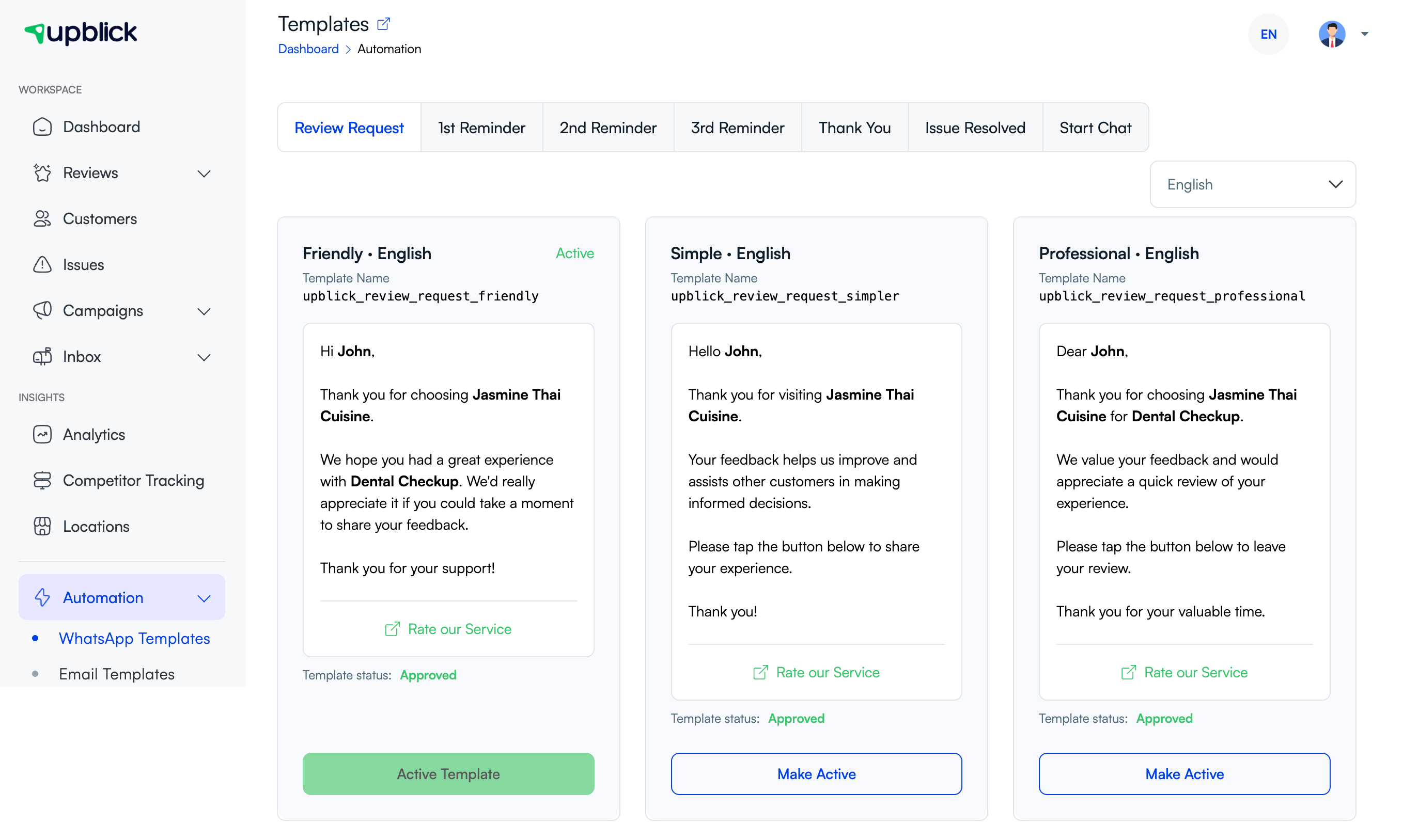
For WhatsApp requests, the business selects an approved Review Request template. Friendly, Simple, and Professional templates can be available in supported languages, and one template can be marked active as the default.
Step 4: The customer receives or discovers the review link
The customer can enter the journey through:
- A review request sent after the customer is added to UpBlick.
- A WhatsApp or email review request.
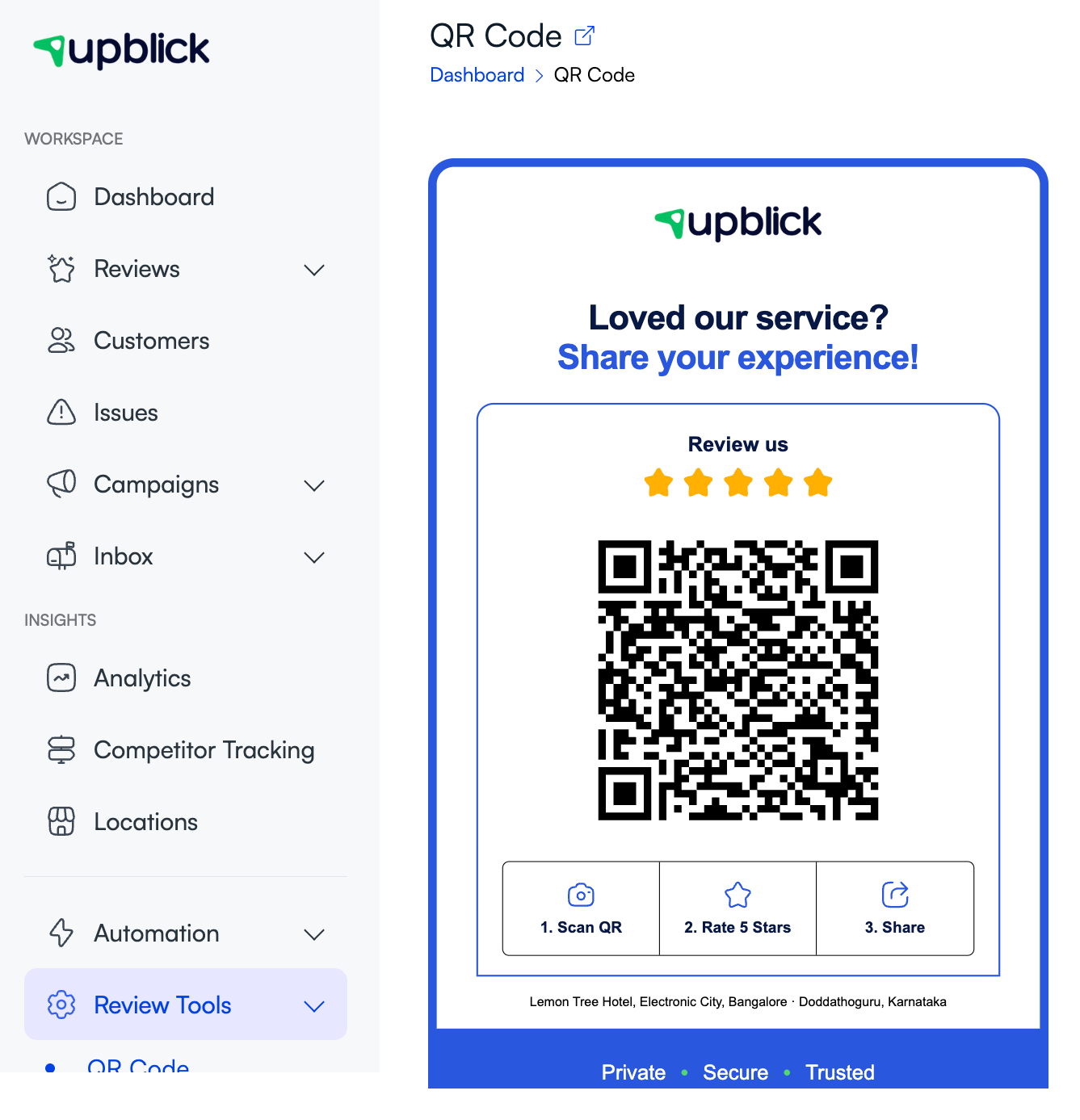
- A location-specific QR Code Standee.
- An NFC card containing the location’s Public Review URL.
- The Write review action in a website Review Widget.
Request links can be connected to a customer record. QR, NFC, and widget access can also open the location’s public review journey for customers who were not sent an individual request.
Step 5: UpBlick opens the configured journey
When the customer opens the link, UpBlick checks the location’s current Review Collection mode.
- In direct-to-Google mode, UpBlick redirects the customer to the saved Google review destination.
- In either feedback mode, UpBlick opens the customer feedback form.
The customer can use the review journey in a web browser without creating an UpBlick business account or installing an UpBlick app.
Step 6: The customer shares feedback
When feedback collection is active, the customer can be asked to:
- Rate the overall experience.
- Select the service they used.
- Choose what stood out.
- Select the team member who helped them.
- Continue to the review-draft step.
The exact questions depend on the location’s Form settings. Disabled questions are not shown.
Step 7: UpBlick prepares review drafts
For feedback-based journeys, UpBlick can use the submitted rating and answers to prepare AI-assisted review drafts. The customer can:
- Choose one of the suggested drafts.
- Change the draft language when supported.
- Edit the selected draft.
- Write their own review instead.
- Review the final rating and wording.
The AI-assisted draft is a writing aid. The customer remains responsible for the final content.
Step 8: The customer completes the selected outcome
The outcome depends on the Review Collection mode:
- Feedback with Google sharing: The customer can copy the final review and choose Share on Google. They complete publication on Google themselves.
- Direct to Google: The customer completes the rating and review directly on Google.
- Business analysis: UpBlick saves the feedback and thanks the customer without offering Google publication.
UpBlick does not publish a Google Review automatically or guarantee that a customer will finish the Google step.
Step 9: UpBlick records available activity
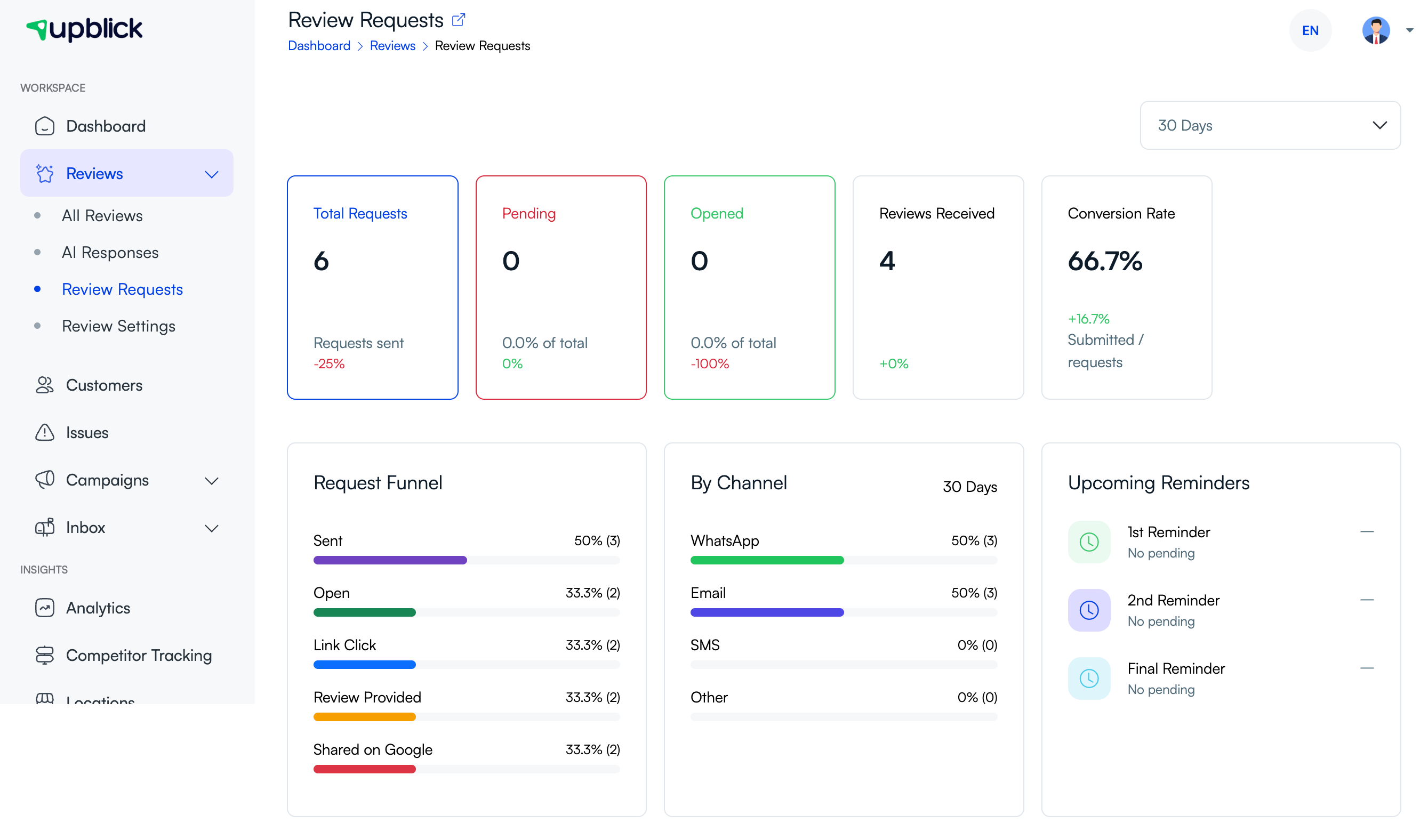
UpBlick organizes request-linked activity such as:
- Requests sent and pending.
- Requests opened and links clicked.
- Feedback or reviews received.
- Reviews reported as shared on Google.
- Performance by communication channel.
- Conversion through the request funnel.
Feedback and review records can also support customer history, review management, issues, sentiment analysis, and business insights.
Step 10: UpBlick supports follow-up
If a request remains incomplete and reminders are enabled, the configured review journey can include first, second, and final reminder steps. Upcoming reminder activity appears on the Review Requests page when applicable.
After a completed review, the configured journey can also use a thank-you message. Businesses should stop further review reminders after completion or opt-out.
Example customer journeys
WhatsApp request with feedback
The business adds the customer and sends an approved WhatsApp Review Request template. The customer opens the link, rates the experience, answers the configured questions, reviews an AI-assisted draft, and can choose to share it on Google.
QR code with direct Google routing
The customer scans the location’s QR code. Because the location uses direct-to-Google mode, UpBlick opens the saved Google review page without displaying the feedback form.
NFC card for feedback analysis
The customer taps the NFC card and completes the UpBlick feedback form. UpBlick stores the feedback for analysis, but the business-analysis mode does not direct the customer to Google.
What the business should review regularly
- The Review Collection mode for every location.
- The Google Review Link and Public Review URL.
- Approved request and reminder templates.
- Form questions, services, highlights, and staff options.
- Request funnel and channel performance.
- Customer feedback, negative experiences, and recurring themes.
- Reminder frequency and customer opt-outs.
Troubleshooting
Frequently asked questions
Does every customer see the same review journey?
Customers using the same business location follow that location’s current Review Collection and Form settings. Different locations can use different settings.
Does UpBlick always collect feedback before Google?
No. Direct-to-Google mode skips the UpBlick feedback form. The other two modes collect feedback first.
Can a customer edit an AI-assisted review draft?
Yes. The customer can choose, edit, or replace a suggested draft before completing the journey.
Who publishes the Google Review?
The customer does. UpBlick can provide the destination and an editable draft, but it does not publish the Google Review on the customer’s behalf.
Are reminders always sent automatically?
No. Reminder activity depends on the configured reminder settings, approved templates, request status, and available communication channel.
Related Articles
Turn every customer touchpoint into review growth
Use UpBlick to collect feedback, request Google reviews, recover bad experiences, and understand customer sentiment.
Need help with UpBlick?
Use these guides to set up review collection, customers, WhatsApp automation, issue recovery, and reporting.
Start growing reviews with UpBlick