अपब्लिक व्यवसायों को अधिक गूगल समीक्षाएँ प्राप्त करने में कैसे मदद करता है?
समीक्षाएँ और समीक्षा संग्रह
अपब्लिक अनुरोध प्रक्रिया को आसान, अधिक सुसंगत और मापने योग्य बनाकर व्यवसायों को अधिक वास्तविक गूगल समीक्षा अवसर बनाने में सहायता करता है।
यह ग्राहकों के लिए समीक्षाएँ नहीं बनाता या प्रकाशित नहीं करता। इसके बजाय, यह सही समय पर वास्तविक ग्राहकों से सही व्यावसायिक स्थान पूछने में मदद करता है, ग्राहकों को गूगल समीक्षा पृष्ठ तक एक आसान रास्ता देता है, और व्यवसाय को यात्रा के प्रत्येक चरण से सीखने में मदद करता है।
मुख्य तरीके से अपब्लिक मदद करता है
1. प्रत्येक स्थान को सही गूगल समीक्षा लिंक से जोड़ता है
प्रत्येक समीक्षा यात्रा के लिए सही गंतव्य की आवश्यकता होती है। अपब्लिक गूगल समीक्षा लिंक को व्यावसायिक स्थान से कनेक्ट रखता है ताकि अनुरोध, क्यूआर कोड, एनएफसी कार्ड और वेबसाइट समीक्षा क्रियाएं ग्राहकों को सही शाखा की ओर भेज सकें।
यह कई स्टोर, क्लीनिक, रेस्तरां, सैलून, कार्यालय या सेवा स्थानों वाले व्यवसायों के लिए विशेष रूप से महत्वपूर्ण है।
2. समीक्षा अनुरोध को ग्राहक वर्कफ़्लो का हिस्सा बनाता है
हर अनुरोध को याद रखने के लिए कर्मचारियों पर निर्भर रहने के बजाय, अपब्लिक व्यवसाय को एक ग्राहक जोड़ने और उसी वर्कफ़्लो के हिस्से के रूप में एक समीक्षा अनुरोध भेजने की सुविधा देता है।
बिज़नेस किसी ग्राहक को बिना भेजे और चुने भी बचा सकता है समीक्षा अनुरोध भेजें बाद में जब समय अधिक उपयुक्त होगा।
3. सुसंगत व्हाट्सएप अनुरोध टेम्पलेट्स का समर्थन करता है
स्वीकृत व्हाट्सएप टेम्प्लेट समीक्षा अनुरोधों के लिए स्पष्ट, पुन: प्रयोज्य शब्द प्रदान करते हैं। व्यवसाय ग्राहक की बातचीत से मेल खाने वाली भाषा और लहजा चुन सकते हैं और पसंदीदा टेम्पलेट को सक्रिय के रूप में चिह्नित कर सकते हैं।
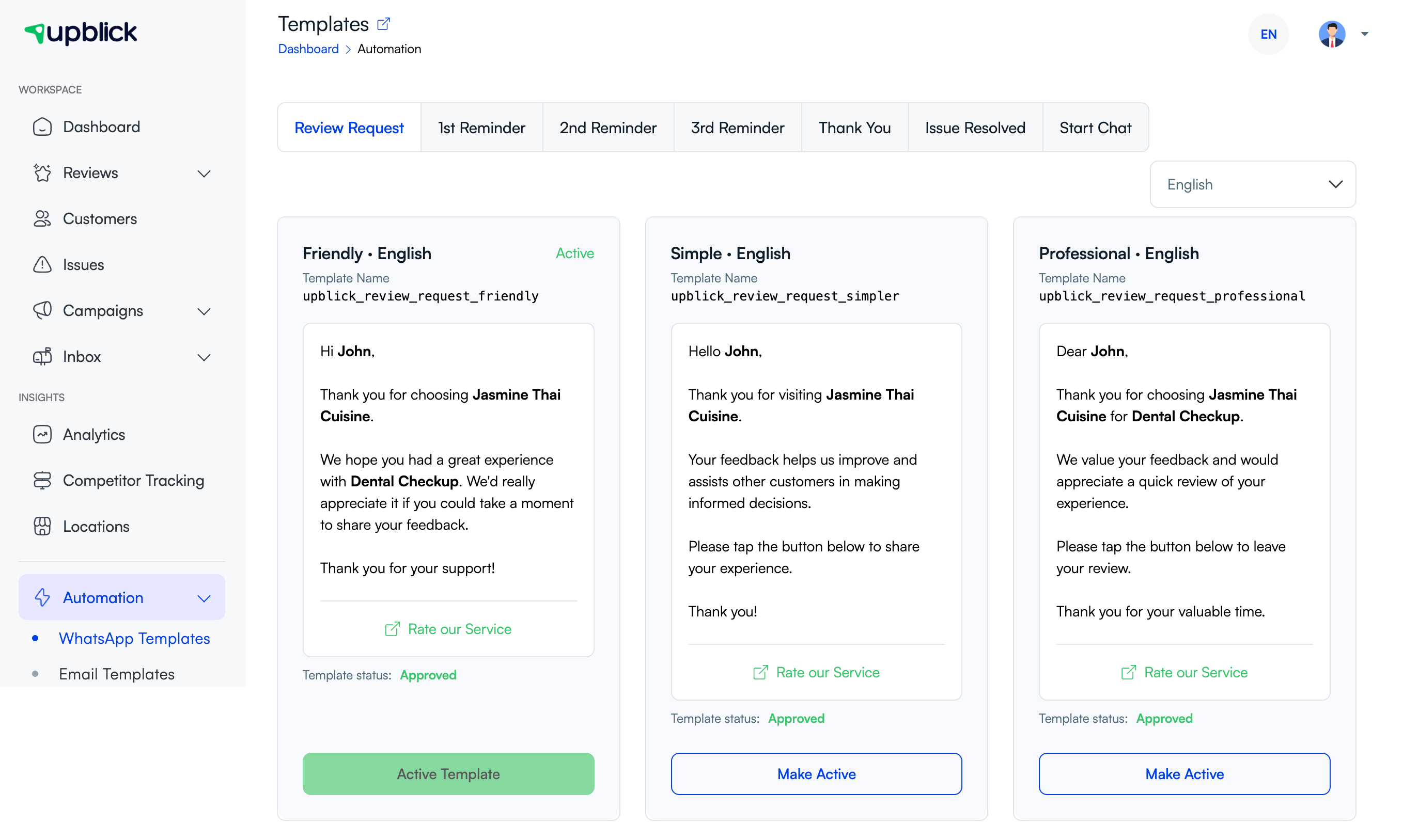
4. व्यक्तिगत ग्राहकों को त्वरित क्यूआर पथ देता है
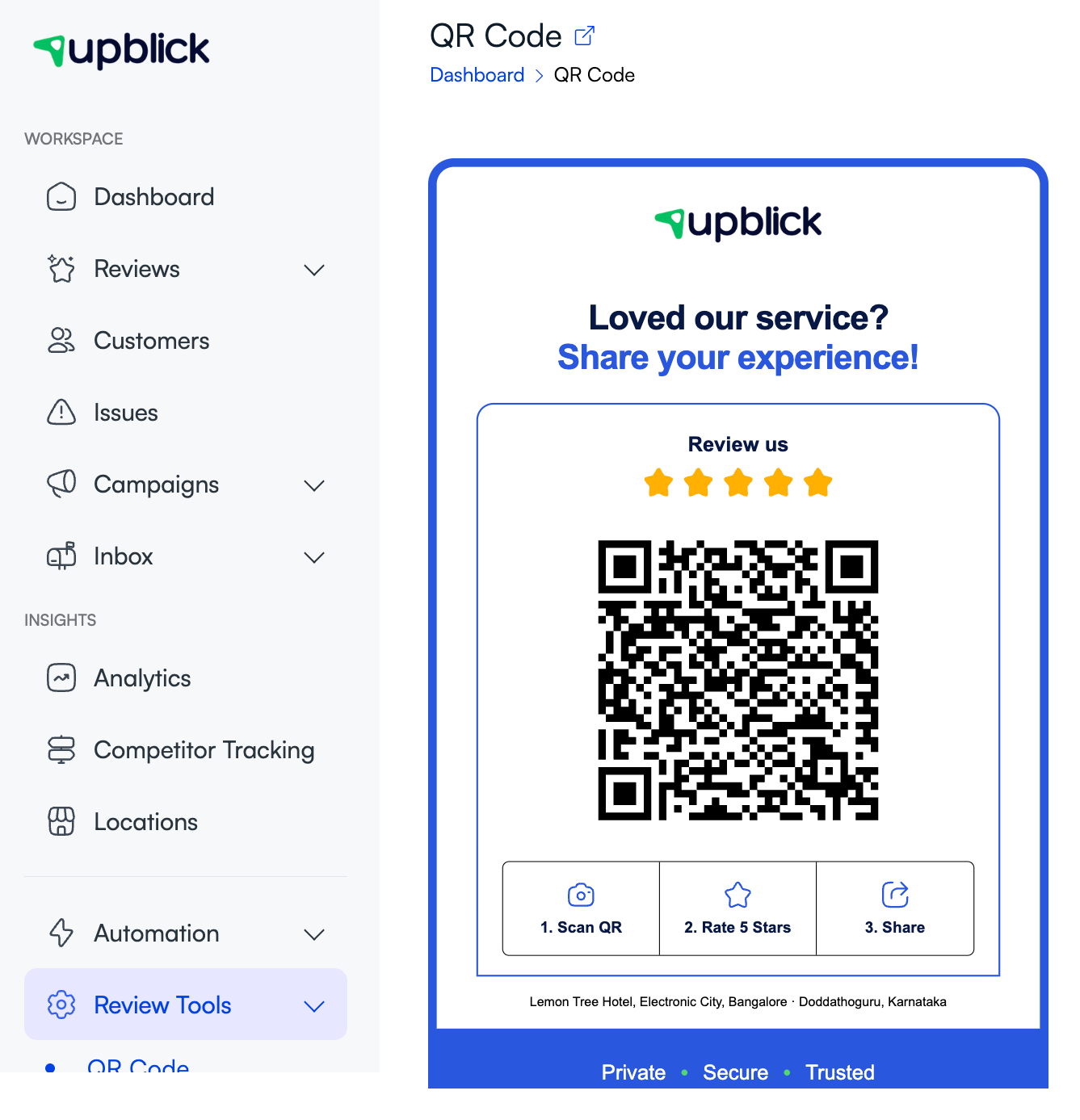
स्थान-विशिष्ट क्यूआर कोड स्टैंड ग्राहक को फोन से स्कैन करके समीक्षा यात्रा शुरू करने की सुविधा देता है। यह चेकआउट काउंटर, रिसेप्शन डेस्क, प्रतीक्षा क्षेत्र, रेस्तरां टेबल और सेवा-समाप्ति बिंदुओं पर अच्छी तरह से काम करता है।
एक दृश्यमान क्यूआर कोड समीक्षा के अवसरों को पकड़ने में मदद करता है जबकि अनुभव अभी भी ताज़ा है।
5. एनएफसी कार्ड के साथ टैप-टू-रिव्यू का समर्थन करता है
एक एनएफसी कार्ड समान स्थान-विशिष्ट सार्वजनिक समीक्षा वेब पता संग्रहीत कर सकता है। संगत फ़ोन वाला ग्राहक कार्ड टैप करता है और बिना टाइप किए या खोजे समीक्षा यात्रा खोलता है।
व्यवसाय एनएफसी का समर्थन नहीं करने वाले फोन के लिए फ़ॉलबैक के रूप में कार्ड के बगल में एक क्यूआर कोड स्टैंड रख सकते हैं।
6. वेबसाइट ट्रैफ़िक को समीक्षा के अवसरों में बदल देता है
समीक्षा विजेट किसी व्यावसायिक वेबसाइट पर समीक्षा जानकारी प्रदर्शित कर सकता है और इसमें शामिल हो सकता है समीक्षा लिखें वेबसाइट आगंतुकों के लिए बटन। व्यवसाय जनरेट किए गए विजेट कोड को एक उपयुक्त वेबसाइट पेज में नकल करते हैं और प्रकाशित समीक्षा कार्रवाई का परीक्षण करते हैं।

7. संपादन योग्य कृत्रिम बुद्धिमत्ता सहायता से लेखन घर्षण को कम करता है
में प्रतिक्रिया एकत्रित करें & कृत्रिम बुद्धिमत्ता-सहायता प्राप्त समीक्षा का सुझाव दें मोड, ग्राहक अपने अनुभव के बारे में सवालों के जवाब देते हैं। अपब्लिक उन उत्तरों का उपयोग समीक्षा ड्राफ्ट तैयार करने के लिए कर सकता है।
ग्राहक सुझाए गए शब्दों को चुनता है, संपादित करता है, बदलता है या अनदेखा करता है। वे अंतिम रेटिंग को नियंत्रित करते हैं और गूगल प्रकाशन की समीक्षा और उसे स्वयं पूरा करते हैं।
8. डायरेक्ट-टू-गूगल विकल्प प्रदान करता है
जब व्यवसाय सबसे छोटी यात्रा चाहता है, ग्राहकों को सीधे गूगल पर भेजें पहले अपब्लिक फीडबैक फॉर्म दिखाए बिना सहेजे गए गूगल समीक्षा पृष्ठ को खोलता है।
यह एक अतिरिक्त कदम हटाता है, लेकिन इसका मतलब यह भी है कि व्यवसाय गूगल खुलने से पहले समान संरचित अपब्लिक फीडबैक एकत्र नहीं करता है।
9. सम्मानजनक अनुस्मारक का समर्थन करता है
ग्राहक समीक्षा करने का इरादा रखते हैं लेकिन भूल जाते हैं। जब रिमाइंडर वर्कफ़्लो, टेम्प्लेट और संचार चैनल कॉन्फ़िगर किए जाते हैं तो अपब्लिक पहले, दूसरे और अंतिम अनुस्मारक चरणों का समर्थन करता है।
व्यवसायों को एक सीमित अनुस्मारक अनुक्रम का उपयोग करना चाहिए और ग्राहक की समीक्षा, ऑप्ट आउट करने, या आगे संदेश नहीं चाहने के बाद रुक जाना चाहिए।
10. दिखाता है कि यात्रा के दौरान ग्राहक कहां रुकते हैं
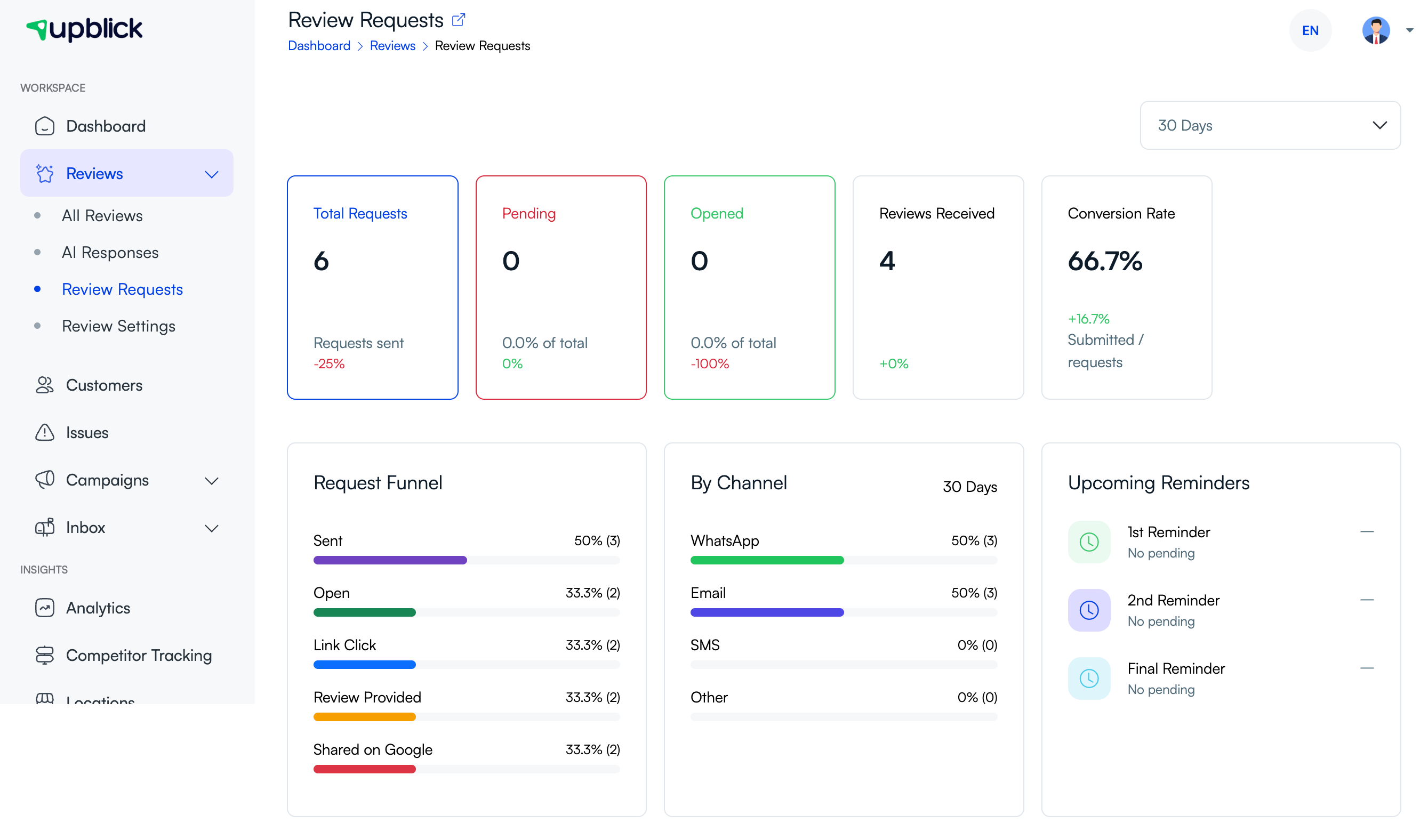
समीक्षा अनुरोध पृष्ठ दिखा सकता है:
- कुल अनुरोध, लंबित अनुरोध और खोले गए अनुरोध।
- प्राप्त समीक्षाएँ और रूपांतरण दर।
- भेजे गए, खोलें, लिंक-क्लिक करें, समीक्षा प्रदान करें, और गूगल पर साझा करें चरण।
- व्हाट्सएप, ईमेल, एसएमएस या अन्य चैनलों द्वारा प्रदर्शन।
- आगामी अनुस्मारक गतिविधि।
यह व्यवसाय को अनुमान लगाने के बजाय अनुरोध समय, टेम्पलेट चयन, चैनल उपयोग और फॉलो-अप में सुधार करने में मदद करता है।
11. अंतर्निहित ग्राहक अनुभव को बेहतर बनाने में मदद करता है
अधिक समीक्षा अनुरोध खराब अनुभव को ठीक नहीं करते हैं। अपब्लिक फीडबैक, भावना, मुद्दे, समीक्षा थीम और व्यावसायिक अंतर्दृष्टि टीमों को यह समझने में मदद करती है कि ग्राहक क्या सराहना करते हैं और क्या सुधार की आवश्यकता है।
बेहतर संचालन अधिक वास्तविक सकारात्मक अनुभव पैदा कर सकता है, जो केवल भेजे गए अनुरोधों की संख्या पर ध्यान केंद्रित करने की तुलना में अधिक टिकाऊ है।
एक व्यावहारिक अपब्लिक समीक्षा वर्कफ़्लो
- सही व्यावसायिक स्थान जोड़ें।
- पुष्टि करें और इसके गूगल समीक्षा लिंक का परीक्षण करें।
- उचित समीक्षा संग्रह मोड का चयन करें।
- फीडबैक-आधारित मोड का उपयोग करते समय फीडबैक फॉर्म को कॉन्फ़िगर करें।
- आवश्यक अनुरोध और अनुस्मारक टेम्पलेट सक्रिय करें।
- सहमति से ग्राहक जोड़ें या क्यूआर, एनएफसी और वेबसाइट एक्सेस प्रदान करें।
- वास्तविक ग्राहक बातचीत के तुरंत बाद पूछें।
- निगरानी करें अनुरोध प्रगति और आगामी अनुस्मारक।
- ग्राहकों की समस्याओं की समीक्षा और जांच पर प्रतिक्रिया दें।
- ग्राहक अनुभव और संग्रह प्रक्रिया को बेहतर बनाने के लिए रुझानों का उपयोग करें।
क्यों कई संग्रह विधियां एक साथ बेहतर काम करती हैं
ग्राहक सभी व्यवसाय के साथ एक ही तरह से बातचीत नहीं करते हैं:
- एक वॉक-इन ग्राहक क्यूआर कोड पसंद कर सकते हैं।
- एक ग्राहक काउंटर पर एनएफसी कार्ड टैप करना पसंद कर सकता है।
- एक ग्राहक जो पहले ही जा चुका है उसे व्हाट्सएप या ईमेल की आवश्यकता हो सकती है।
- एक वेबसाइट विज़िटर समीक्षा विजेट का उपयोग कर सकता है।
एकाधिक प्रवेश बिंदुओं का उपयोग प्रत्येक विधि को सही स्थान और समीक्षा वर्कफ़्लो से कनेक्ट रखते हुए छूटे हुए अवसरों को कम करता है।
समीक्षाओं में हेरफेर किए बिना अपब्लिक का उपयोग करें
अपब्लिक का उपयोग वास्तविक, निष्पक्ष ग्राहक प्रतिक्रिया का अनुरोध करने के लिए किया जाना चाहिए। व्यवसायों को चाहिए:
- वास्तविक बातचीत के बाद वास्तविक ग्राहकों को आमंत्रित करें।
- केवल सकारात्मक समीक्षा छोड़ने की उम्मीद वाले लोगों को चुनने के बजाय लगातार योग्य ग्राहकों से पूछें।
- गूगल समीक्षा को कभी भी अवरुद्ध या हतोत्साहित न करें क्योंकि ग्राहक ने नकारात्मक अनुभव की सूचना दी है।
- किसी समीक्षा को पोस्ट करने, बदलने या हटाने के लिए कभी भी भुगतान, छूट, मुफ्त सामान या अन्य प्रोत्साहन की पेशकश न करें।
- कभी भी ग्राहकों पर कोई विशिष्ट रेटिंग छोड़ने या विशिष्ट शब्द शामिल करने का दबाव न डालें।
- ग्राहकों को किसी भी कृत्रिम बुद्धिमत्ता-सहायता वाले ड्राफ्ट और अंतिम प्रकाशन निर्णय को नियंत्रित करने की अनुमति दें।
वर्तमान प्लेटफ़ॉर्म नियमों के लिए, गूगल के अधिकारी की समीक्षा करें मैप्स निषिद्ध और प्रतिबंधित सामग्री नीति अधिक समीक्षाएँ प्राप्त करने के लिए.
आपके परिणामों पर क्या प्रभाव पड़ता है?
समीक्षा के परिणाम निम्नलिखित कारकों के आधार पर भिन्न होते हैं:
- वास्तविक ग्राहक अनुभव की गुणवत्ता।
- अनुरोध समय और संदेश स्पष्टता।
- ग्राहक की सहमति और संपर्क सटीकता।
- चयनित संचार चैनल।
- क्या सही स्थान और समीक्षा लिंक का उपयोग किया गया है।
- अनुस्मारक की संख्या और आवृत्ति।
- क्या व्यवसाय प्रतिक्रिया देता है और फीडबैक पर कार्य करता है।
- ग्राहक की गूगल पर प्रकाशित करने की इच्छा और क्षमता।
अपब्लिक किसी विशिष्ट संख्या में गूगल समीक्षाओं, स्टार रेटिंग, स्थानीय रैंकिंग या व्यावसायिक परिणाम की गारंटी नहीं देता है।
समस्या निवारण
अक्सर पूछे जाने वाले प्रश्न
क्या अपब्लिक स्वचालित रूप से गूगल समीक्षाएँ प्रकाशित करता है?
नहीं. ग्राहक अंतिम रेटिंग, शब्दांकन और गूगल प्रकाशन चरण को नियंत्रित करता है।
मुझे कौन सी समीक्षा संग्रह विधि का उपयोग करना चाहिए?
ज्ञात ग्राहकों के लिए व्हाट्सएप या ईमेल, व्यक्तिगत ग्राहकों के लिए क्यूआर या एनएफसी और वेबसाइट आगंतुकों के लिए समीक्षा विजेट का उपयोग करें। कई व्यवसाय एक साथ कई तरीकों का उपयोग करते हैं।
यदि कोई ग्राहक समीक्षा करना भूल जाता है तो क्या अपब्लिक मदद कर सकता है?
हाँ। एक सहेजा गया ग्राहक बाद में समीक्षा अनुरोध प्राप्त कर सकता है, और कॉन्फ़िगर किए गए अनुस्मारक चरण अधूरे अनुरोधों का पालन कर सकते हैं।
क्या कृत्रिम बुद्धिमत्ता ग्राहक के लिए अंतिम समीक्षा लिखता है?
कृत्रिम बुद्धिमत्ता ग्राहक के उत्तरों के आधार पर ड्राफ्ट का सुझाव दे सकता है। ग्राहक ड्राफ्ट को चुनता है, संपादित करता है, बदलता है या अनदेखा करता है और अंतिम समीक्षा को नियंत्रित करता है।
क्या अपब्लिक अधिक समीक्षाओं की गारंटी देता है?
नहीं. अपब्लिक संग्रह प्रक्रिया में सुधार करता है और समीक्षा के अवसरों को प्रबंधित करना आसान बनाता है, लेकिन ग्राहक भागीदारी और गूगल प्रकाशन की गारंटी नहीं है।
संबंधित लेख
हर ग्राहक संपर्क को समीक्षा वृद्धि में बदलें
अपब्लिक की मदद से प्रतिक्रिया एकत्र करें, गूगल समीक्षाओं का अनुरोध करें, खराब अनुभवों को संभालें और ग्राहक भावना समझें।
क्या आपको अपब्लिक में सहायता चाहिए?
समीक्षा संग्रह, ग्राहक प्रबंधन, व्हॉट्सऐप संदेश, अनुस्मारक और रिपोर्ट समझने के लिए इन मार्गदर्शिकाओं का उपयोग करें।
अपब्लिक के साथ अपनी समीक्षाओं की वृद्धि शुरू करें