How to Import Customers?
Customers
Use customer import when you want to add many customer records at once instead of entering them manually. UpBlick supports CSV, XLS, and XLSX files for bulk customer uploads.
Before you import
- Prepare a CSV, XLS, or XLSX file.
- Include customer names and at least one contact method, such as WhatsApp number, mobile number, or email address.
- Remove records you do not have permission to contact.
- Check that phone numbers use the correct country or phone code.
- Select the correct location in UpBlick before importing.
Step 1: Open Customers
From the UpBlick sidebar, select Customers. Then select Add Customer above the customer list.

Step 2: Select Import from File
In the Add Customers panel, select the Import from File tab.
Step 3: Choose the location
Use the Location field to confirm where the imported customers should be saved. This matters because review requests, reports, and customer activity are location-specific.
Step 4: Upload your customer file
- Select Choose File.
- Choose your CSV, XLS, or XLSX customer file.
- Review the selected file name before continuing.
Duplicate records for the selected location are automatically removed during the import process.
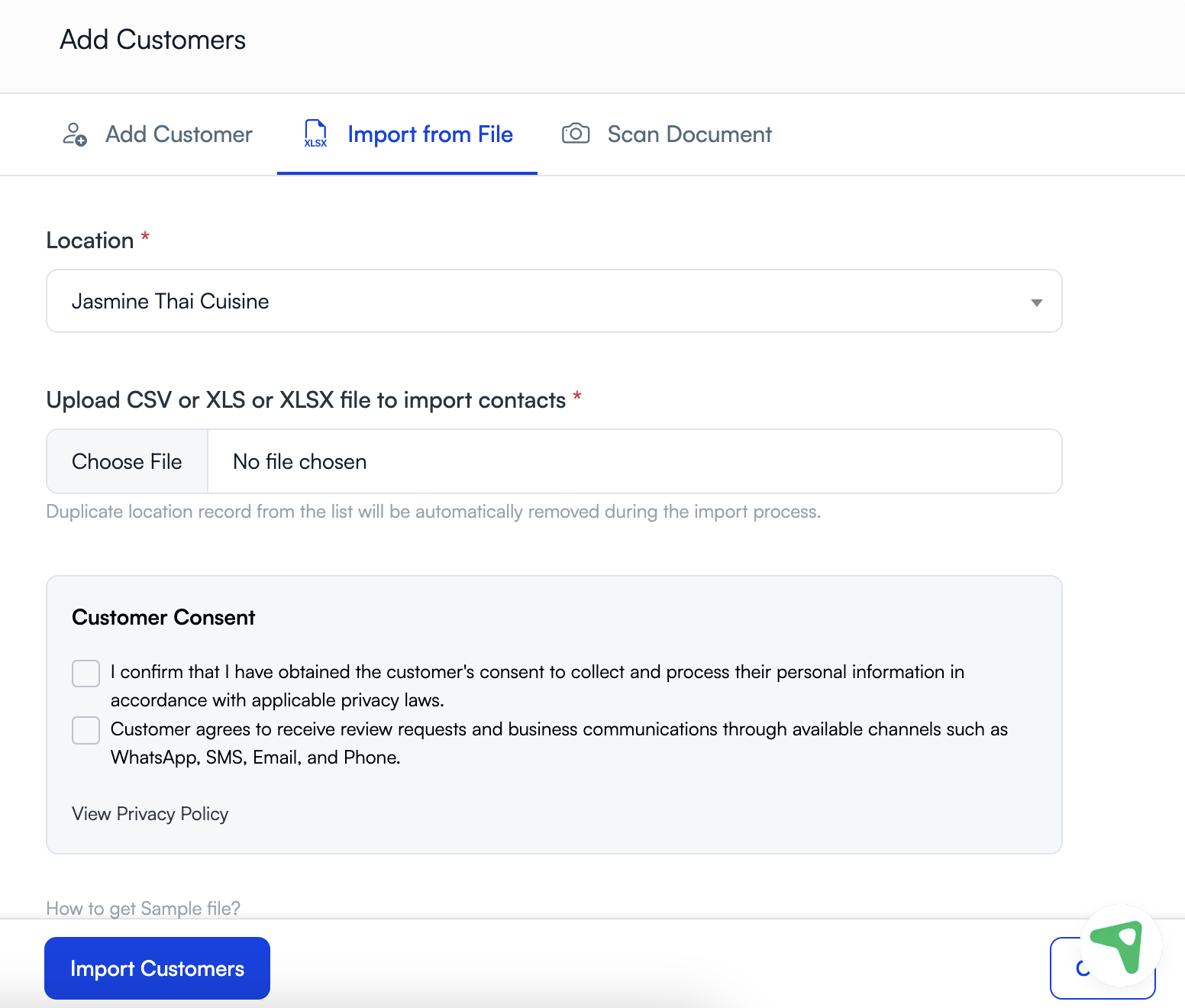
Step 5: Confirm customer consent
Review the customer consent section. Confirm the checkboxes only when you have obtained the required permission to collect, process, and contact those customers according to applicable privacy laws.
Step 6: Import customers
Select Import Customers. UpBlick uploads the file, removes duplicate location records, and creates customer records for valid rows.
What happens after import
- Valid customer records are added to the selected location.
- Duplicate records for that location are skipped or removed from the import list.
- Invalid or incomplete rows may be ignored or require correction.
- Customer records can be searched, segmented, edited, and used for permitted follow-up.
Tips for a clean import
- Use one row per customer.
- Keep name, phone, WhatsApp number, and email fields in separate columns.
- Remove extra notes from phone-number fields.
- Use consistent tags if you plan to segment customers later.
- Import customers into the correct location instead of mixing all branches together.
- Start with a small test file if you are importing a large list for the first time.
Troubleshooting
Frequently asked questions
Which file formats can I import?
UpBlick supports CSV, XLS, and XLSX files for customer imports.
Will UpBlick remove duplicate customers?
Duplicate location records are automatically removed during the import process.
Can imported customers receive review requests?
Yes, if the required contact details, consent, and communication setup are available. Send review requests only to customers you are allowed to contact.
Related Articles
Turn every customer touchpoint into review growth
Use UpBlick to collect feedback, request Google reviews, recover bad experiences, and understand customer sentiment.
Need help with UpBlick?
Use these guides to set up review collection, customers, WhatsApp automation, issue recovery, and reporting.
Start growing reviews with UpBlick