How to Create a Message Template
WhatsApp & Messaging
Use message templates in UpBlick to prepare repeatable WhatsApp communication before sending it to customers. Templates help your team stay consistent across review requests, reminders, thank-you messages, issue follow-ups, and other approved messaging flows.
What message templates are used for
A template gives your team a ready-to-use message structure so you do not have to rewrite the same communication every time. In UpBlick, templates can support workflows such as:
- Review requests
- Follow-up reminders
- Thank-you messages
- Issue resolution follow-ups
- Other customer communication supported in your account
Before you create or activate a template
- Select the correct business location.
- Connect the WhatsApp channel first.
- Know the exact purpose of the message.
- Choose the language your customers expect.
- Keep the message clear, short, and aligned with your brand tone.
Step 1: Open WhatsApp Templates
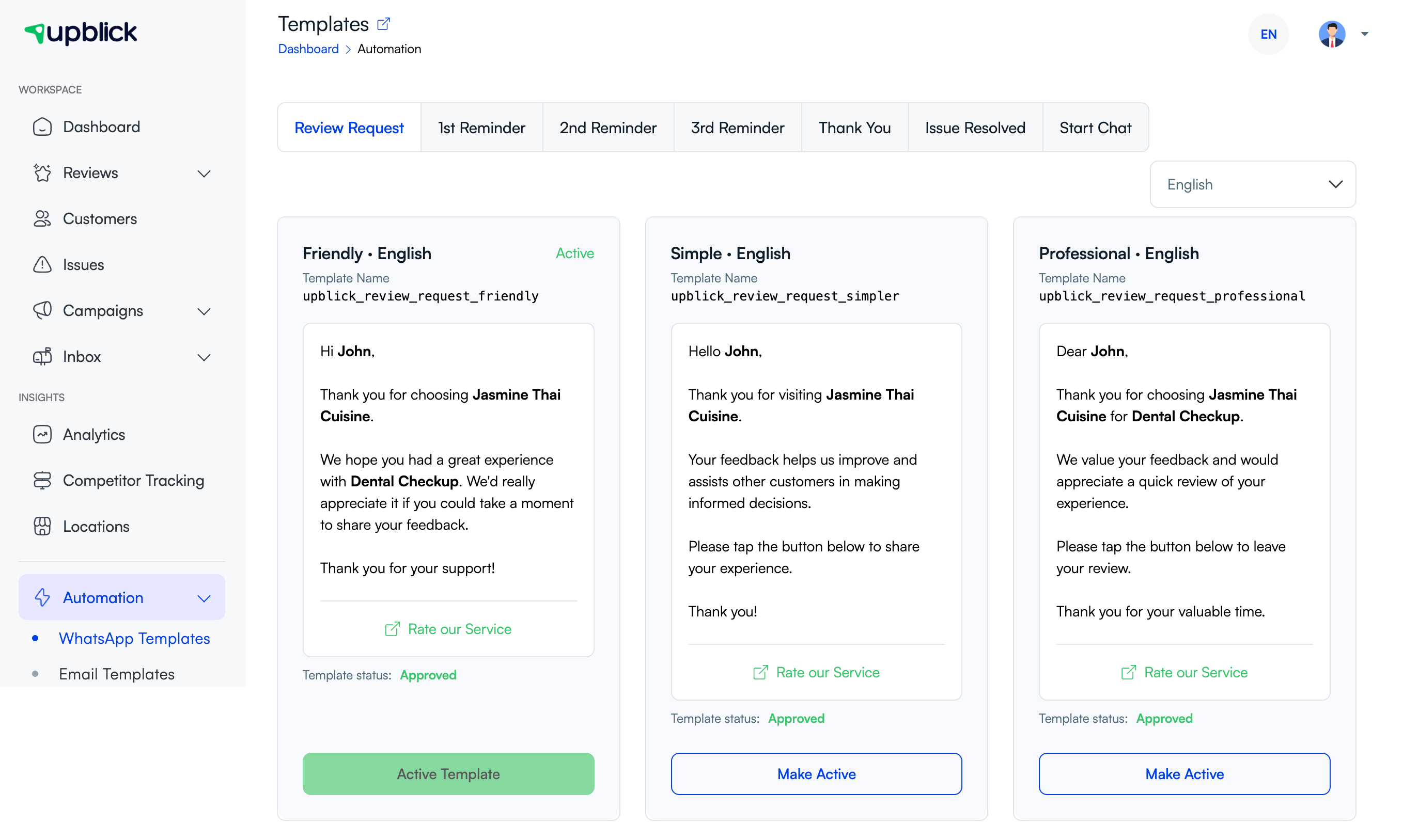
- Open Automation.
- Select WhatsApp Templates.
- Choose the message category you want to work on, such as Review Request, 1st Reminder, 2nd Reminder, or Thank You.
This helps you keep each template aligned to a specific customer workflow.
Step 2: Choose the message type and language
Pick the template section that matches what you want the customer to receive. Then use the language selector to review the template version that fits your audience.
If you send messages in more than one language, keep the wording aligned across versions so the customer experience stays consistent.
Step 3: Review the template content
When creating or preparing a template, check that it:
- Clearly states why the customer is being contacted.
- Uses the correct business name and tone.
- Matches the workflow, such as request, reminder, or thank-you.
- Includes the right call to action.
- Does not promise something the workflow does not actually do.
Step 4: Submit or prepare the template for approval
If your account supports adding or editing templates directly, create the template in the relevant section and then submit it through the available approval flow. If your template already exists in the list, review its current status before trying to use it in a live send.
A template that is pending approval is not ready for customer delivery yet.
Step 5: Activate the template after approval
- Return to the correct template tab.
- Review the approved template card.
- Select Make Active on the version you want your team to use by default.
Only one template should usually act as the default for a specific message type and language at a time.
Step 6: Test the template in a real workflow
After activating it, send a safe internal test through the intended workflow to confirm that:
- The right template is being used.
- The wording looks correct.
- The customer journey opens as expected.
- The message matches the selected location and use case.
Template writing tips
- Keep the message focused on one action.
- Use simple wording that is easy to understand on mobile.
- Match the tone to the purpose of the message.
- Avoid overloading the message with too many details.
- Review every language version before activating it.
Troubleshooting
Frequently asked questions
Do I need a separate template for each message type?
Yes, that is usually the better approach. Review requests, reminders, and thank-you messages each serve different purposes and should not reuse the same wording blindly.
Can I use a template before it is approved?
No. If approval is required for the workflow, wait until the template is approved and then activate it before live use.
Why should I test the template after activation?
Testing helps confirm the right wording, language, workflow, and customer journey before the template is used more widely.
Related Articles
Turn every customer touchpoint into review growth
Use UpBlick to collect feedback, request Google reviews, recover bad experiences, and understand customer sentiment.
Need help with UpBlick?
Use these guides to set up review collection, customers, WhatsApp automation, issue recovery, and reporting.
Start growing reviews with UpBlick