व्हॉट्सॲपवर पुनरावलोकन विनंती कशी पाठवायची
व्हॉट्सॲप आणि मेसेजिंग
जेव्हा तुम्ही एखाद्या ग्राहकाला फीडबॅकसाठी विचारू इच्छित असाल तेव्हा अपब्लिक मधील व्हॉट्सअॅप पुनरावलोकन विनंत्या वापरा आणि त्यांची भेट, ऑर्डर किंवा सेवा अनुभवानंतर लगेच त्यांना पुनरावलोकन प्रवासात मार्गदर्शन करा.
एक व्हॉट्सअॅप पुनरावलोकन विनंती तयार होण्यासाठी तीन गोष्टींची आवश्यकता आहे: कनेक्ट केलेले व्हॉट्सअॅप चॅनल, एक मंजूर पुनरावलोकन विनंती टेम्पलेट आणि वैध फोन किंवा व्हॉट्सअॅप नंबरसह ग्राहक रेकॉर्ड.
तुम्ही विनंती पाठवण्यापूर्वी
- योग्य व्यवसाय स्थान निवडा.
- व्हॉट्सअॅप चॅनेल कनेक्ट केले असल्याची पुष्टी करा.
- मंजूर केलेले पुनरावलोकन विनंती टेम्पलेट वापरा.
- ग्राहकाने संदेश प्राप्त करण्यास संमती दिल्याची खात्री करा.
- ग्राहकाचा मोबाईल किंवा व्हॉट्सअॅप नंबर योग्य आहे का ते तपासा.
पायरी 1: व्हॉट्सअॅप कनेक्ट असल्याची पुष्टी करा
- उघडा ऑटोमेशन.
- निवडा चॅनेल.
- उघडा व्हॉट्सअॅप tab.
- ॲक्टिव्ह व्हॉट्सअॅप पर्याय दिसत आहे का ते तपासा कनेक्ट केले.

चरण 2: पुनरावलोकन विनंती टेम्पलेट सक्रिय करा
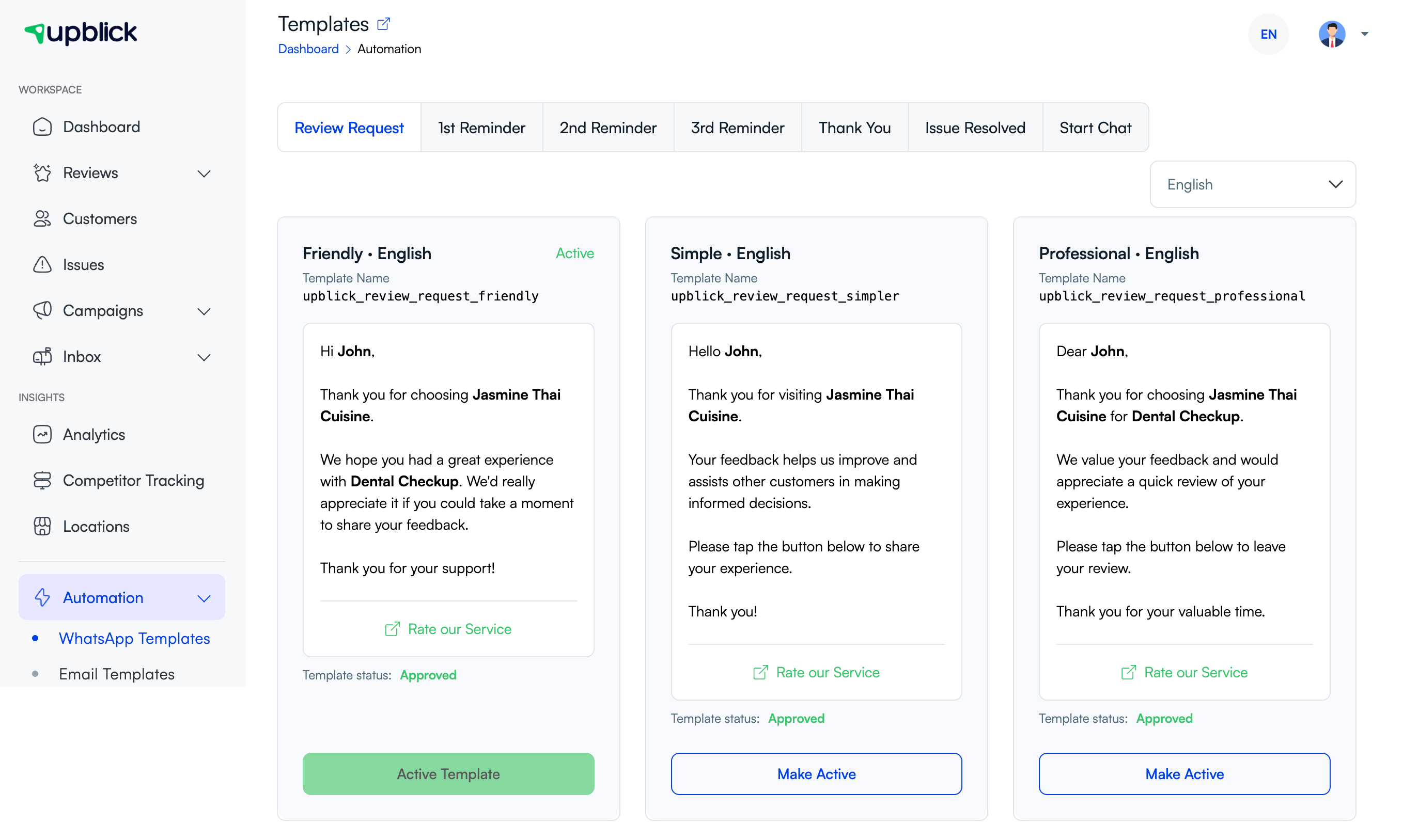
- उघडा ऑटोमेशन > व्हॉट्सअॅप टेम्पलेट्स.
- निवडा पुनरावलोकन विनंती tab.
- योग्य भाषा निवडा.
- मंजूर टेम्पलेट कार्डचे पुनरावलोकन करा.
- निवडा सक्रिय करा तुम्ही डीफॉल्टनुसार वापरू इच्छित असलेल्या टेम्पलेटवर.
चरण 3: ग्राहक निवडा
- उघडा ग्राहक.
- सूचीमधील ग्राहक शोधा.
- ग्राहकाकडे वैध असल्याची पुष्टी करा व्हॉट्सअॅप क्र किंवा मोबाईल नंबर.
- त्या ग्राहकासाठी पुनरावलोकन विनंती क्रिया उघडा.

चरण 4: व्हॉट्सअॅप पुनरावलोकन विनंती पाठवा
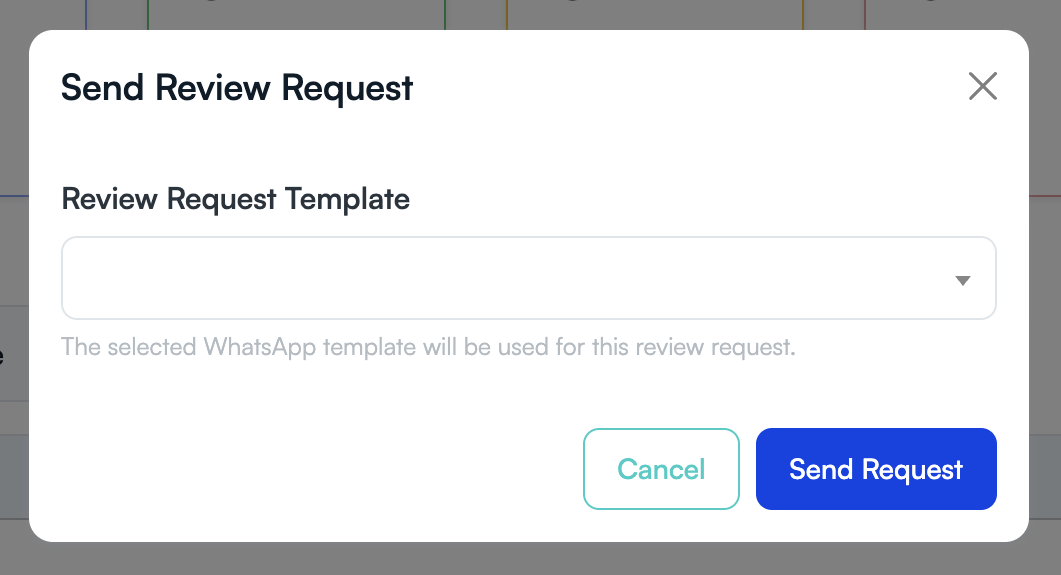
- उघडा पुनरावलोकन विनंती पाठवा window.
- व्हॉट्सअॅप पुनरावलोकन विनंती टेम्पलेट निवडा.
- निवडलेले टेम्पलेट ग्राहक आणि स्थानाशी जुळत असल्याचे तपासा.
- निवडा विनंती पाठवा.
चरण 5: विनंतीचा मागोवा घ्या
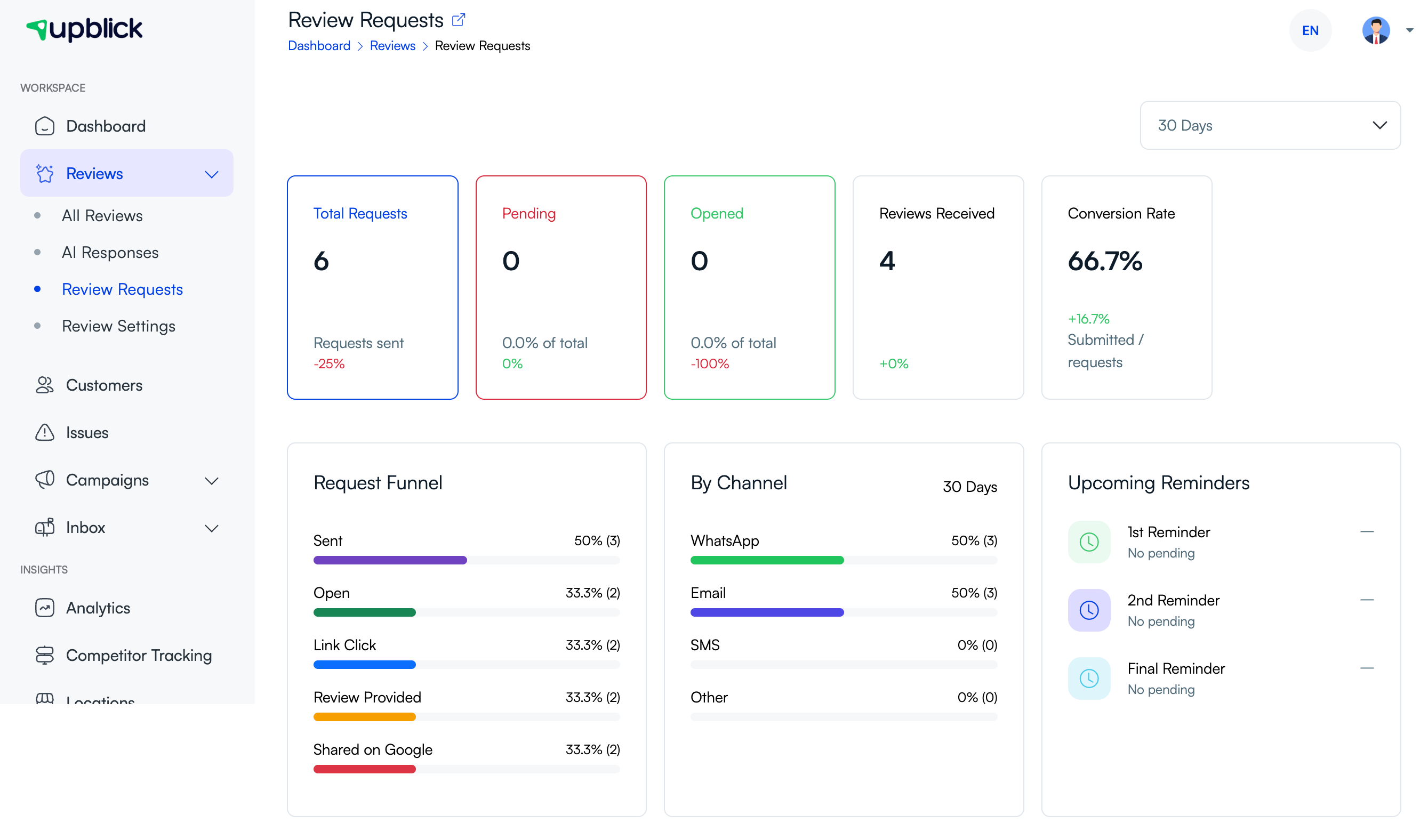
- उघडा > पुनरावलोकन विनंत्यांची पुनरावलोकने.
- विनंती फनेल आणि बाय-चॅनेल क्रियाकलापाचे पुनरावलोकन करा.
- फॉलो-अप सक्षम केले असल्यास आगामी स्मरणपत्रे तपासा.
सर्वोत्तम पद्धती
- ग्राहकाच्या अनुभवानंतर लवकरच विनंती पाठवा.
- शक्य असेल तेव्हा ग्राहकाची पसंतीची भाषा वापरा.
- ग्राहकाचे फोन तपशील अपडेट ठेवा.
- फक्त अशा ग्राहकांना पाठवा ज्यांनी व्हॉट्सअॅप संदेश प्राप्त करण्यास सहमती दर्शविली आहे.
वारंवार विचारले जाणारे प्रश्न
ग्राहकाला अपब्लिक ॲपची आवश्यकता आहे का?
नाही. ग्राहक थेट व्हॉट्सॲपवरून रिव्ह्यू प्रवास उघडू शकतो.
मी एका ग्राहकासाठी वेगळे टेम्पलेट निवडू शकतो का?
होय. तुम्ही इतर प्रत्येकासाठी सक्रिय डीफॉल्ट न बदलता पाठवण्याच्या विंडोमध्ये वेगळे मंजूर टेम्पलेट निवडू शकता.
संबंधित लेख
प्रत्येक ग्राहक संपर्काला पुनरावलोकन वाढीत बदला
अपब्लिकच्या मदतीने अभिप्राय गोळा करा, गुगल पुनरावलोकनांची विनंती करा, खराब अनुभव हाताळा आणि ग्राहक भावना समजून घ्या.
अपब्लिकमध्ये मदत हवी आहे का?
पुनरावलोकन संकलन, ग्राहक व्यवस्थापन, व्हॉट्सअॅप संदेश, स्मरणपत्रे आणि अहवाल समजून घेण्यासाठी या मार्गदर्शिका वापरा.
अपब्लिकसह पुनरावलोकन वाढ सुरू करा