How to Send a Review Request on WhatsApp
WhatsApp & Messaging
Use WhatsApp review requests in UpBlick when you want to ask a customer for feedback and guide them into the review journey right after their visit, order, or service experience.
A WhatsApp review request needs three things to be ready: a connected WhatsApp channel, an approved review request template, and a customer record with a valid phone or WhatsApp number.
Before you send the request
- Select the correct business location.
- Confirm the WhatsApp channel is connected.
- Use an approved review request template.
- Make sure the customer has consented to receive the message.
- Check that the customer’s mobile or WhatsApp number is correct.
Step 1: Confirm WhatsApp is connected
- Open Automation.
- Select Channels.
- Open the WhatsApp tab.
- Check that the active WhatsApp option shows Connected.

Step 2: Activate the review request template
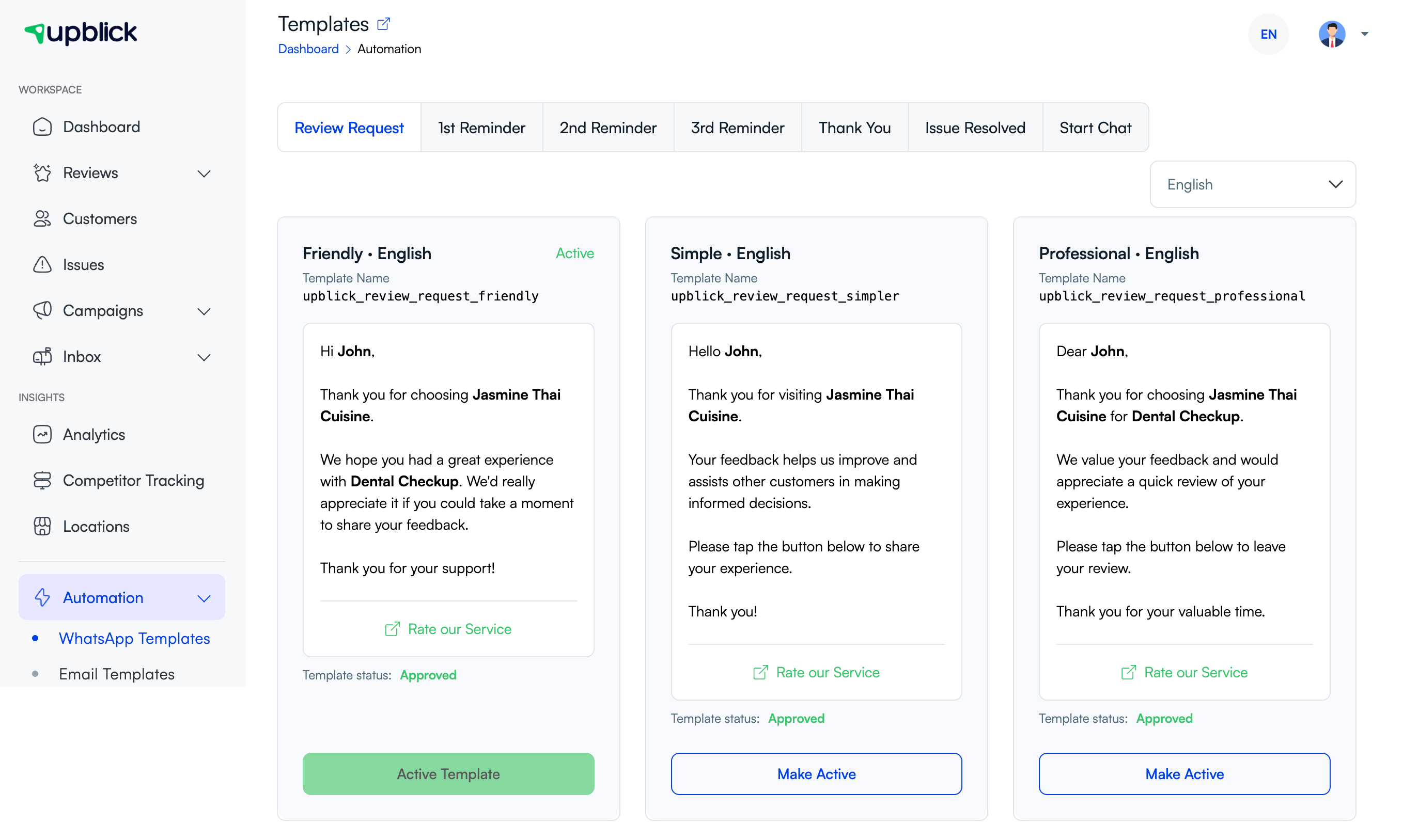
- Open Automation > WhatsApp Templates.
- Select the Review Request tab.
- Choose the right language.
- Review the approved template cards.
- Select Make Active on the template you want to use by default.
Step 3: Select the customer
- Open Customers.
- Find the customer in the list.
- Confirm that the customer has a valid WhatsApp No or mobile number.
- Open the review request action for that customer.

Step 4: Send the WhatsApp review request
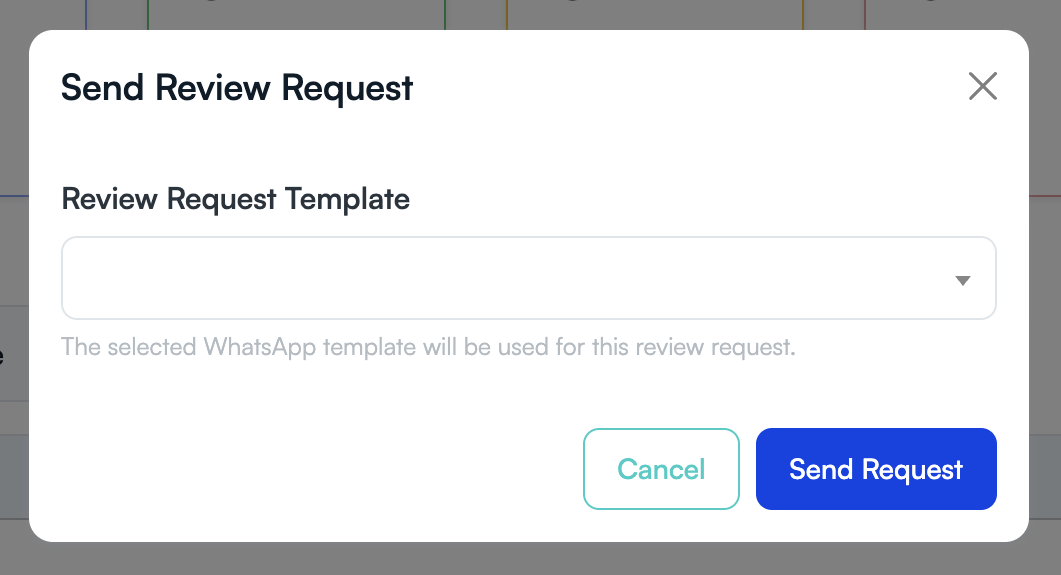
- Open the Send Review Request window.
- Choose the WhatsApp review request template.
- Check that the selected template matches the customer and location.
- Select Send Request.
Step 5: Track the request
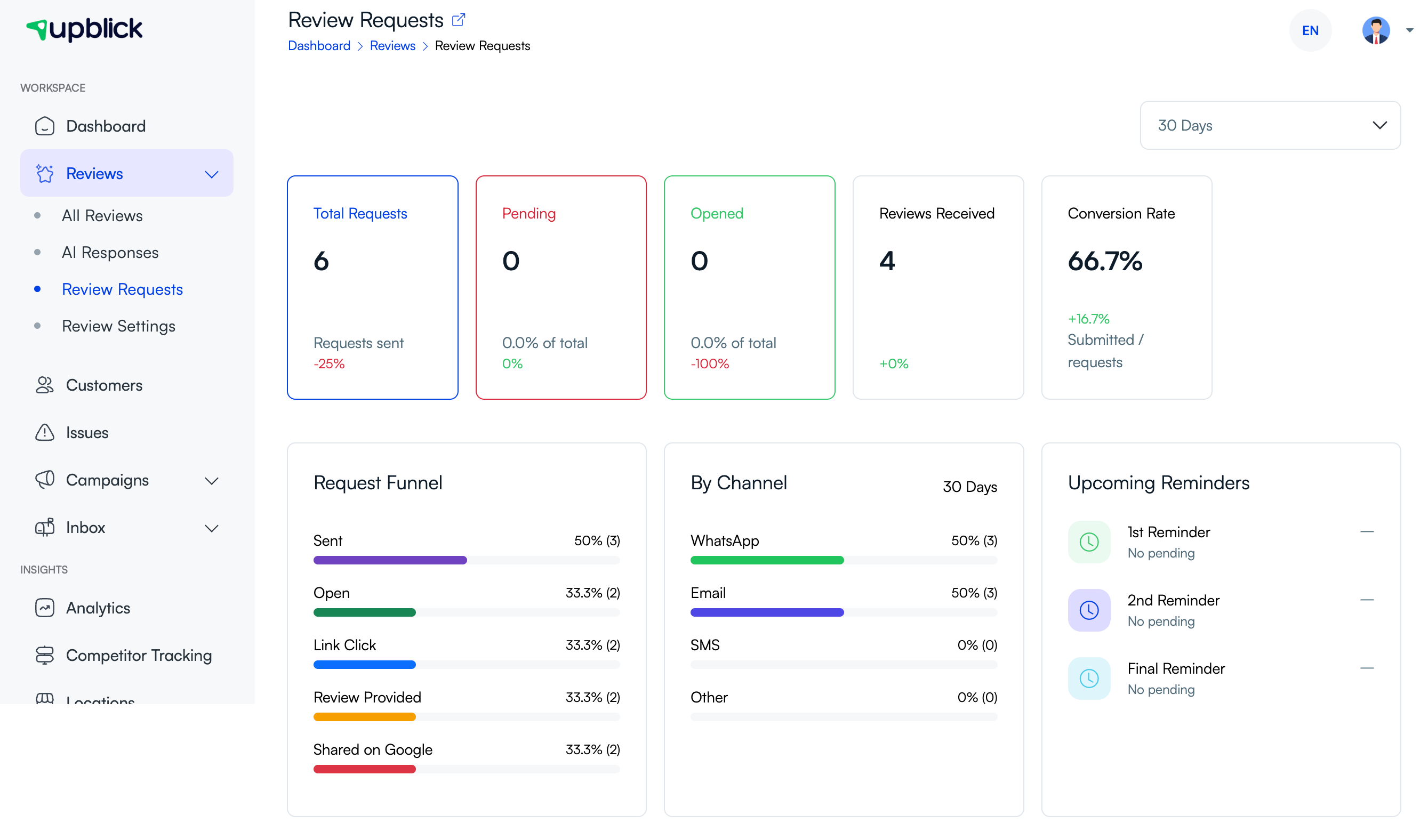
- Open Reviews > Review Requests.
- Review the request funnel and by-channel activity.
- Check upcoming reminders if follow-ups are enabled.
Best practices
- Send the request soon after the customer experience.
- Use the customer’s preferred language when possible.
- Keep customer phone details updated.
- Send only to customers who have agreed to receive WhatsApp messages.
Frequently asked questions
Does the customer need the UpBlick app?
No. The customer can open the review journey directly from WhatsApp.
Can I choose a different template for one customer?
Yes. You can select a different approved template in the send window without changing the active default for everyone else.
Related Articles
Turn every customer touchpoint into review growth
Use UpBlick to collect feedback, request Google reviews, recover bad experiences, and understand customer sentiment.
Need help with UpBlick?
Use these guides to set up review collection, customers, WhatsApp automation, issue recovery, and reporting.
Start growing reviews with UpBlick