Why Was My Review Request Not Sent?
Reviews & Review Collection
A review request may not be sent when UpBlick is missing required customer details, consent, a usable template, a supported delivery channel, or the request has already been recorded for the same customer and location that day.
Quick checklist
| What to check | Why it matters | Where to check |
|---|---|---|
| Customer contact details | UpBlick needs a valid WhatsApp/mobile number, email address, or supported channel. | Customers profile or Add Customer form. |
| Customer consent | Requests should be sent only when the customer has agreed to receive business communication. | Add Customer or Import Customer consent section. |
| Do not send review request | If this option is selected, UpBlick adds the customer without sending a request. | Add Customer form. |
| WhatsApp template | WhatsApp requests need an approved and active review request template. | Automation > WhatsApp Templates. |
| Email template and setup | Email requests need a valid email address and active email review request template. | Automation > Email Templates. |
| Duplicate request rule | UpBlick avoids recording another request for the same customer and location on the same day. | Reviews > Review Requests. |
Check the customer record
Open Customers and review the customer’s saved details. The customer should have at least one usable contact method, such as a WhatsApp number, mobile number, or email address.
For phone-based requests, confirm the international phone code and number are correct. For email requests, check for spelling mistakes, missing domains, or extra spaces.
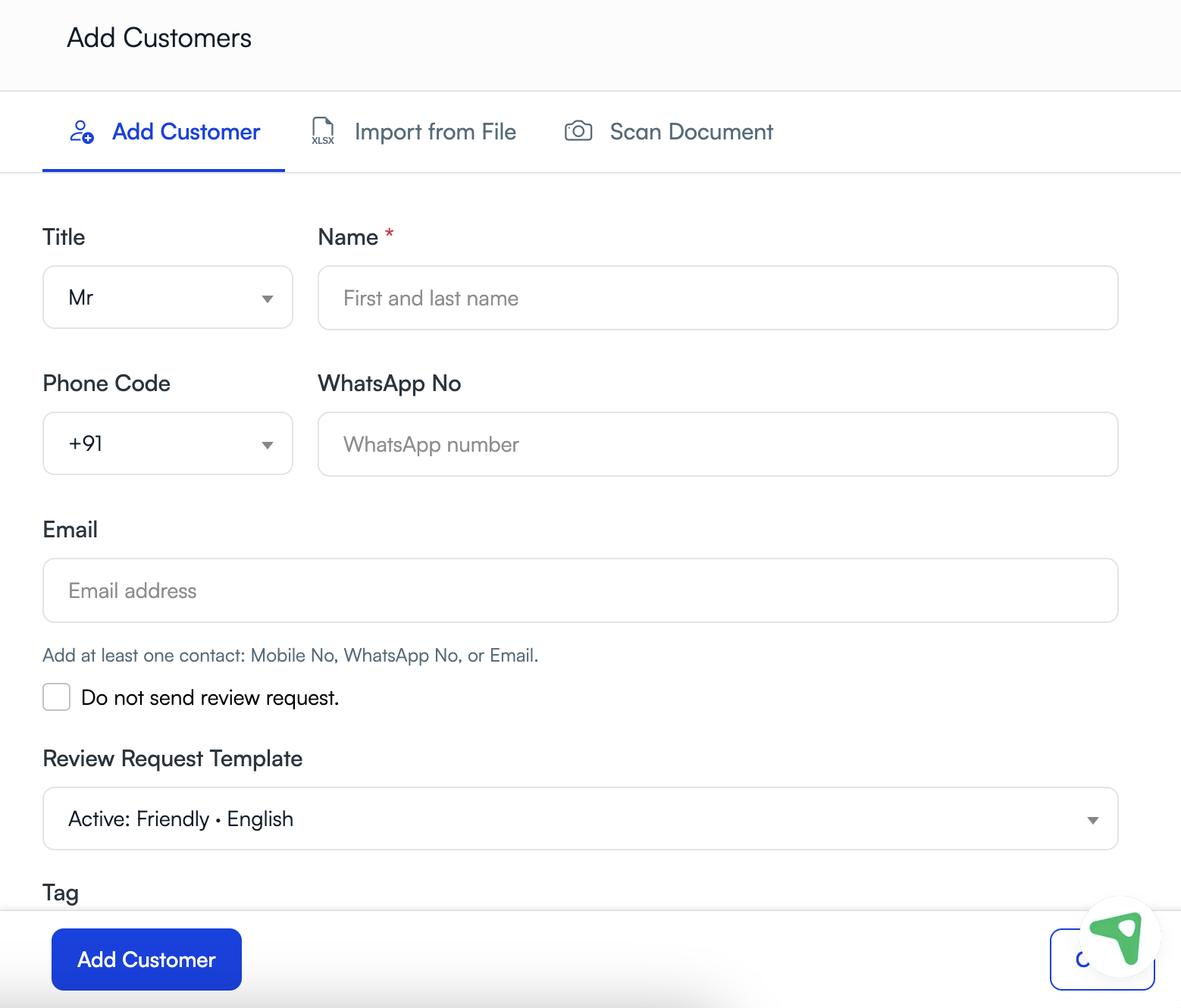
Check the Do not send option
When adding a customer manually, the Do not send review request. checkbox prevents an immediate review request. This is useful when you want to save the customer first and request a review later.
If you expected a request to send immediately, confirm that this option was not selected.
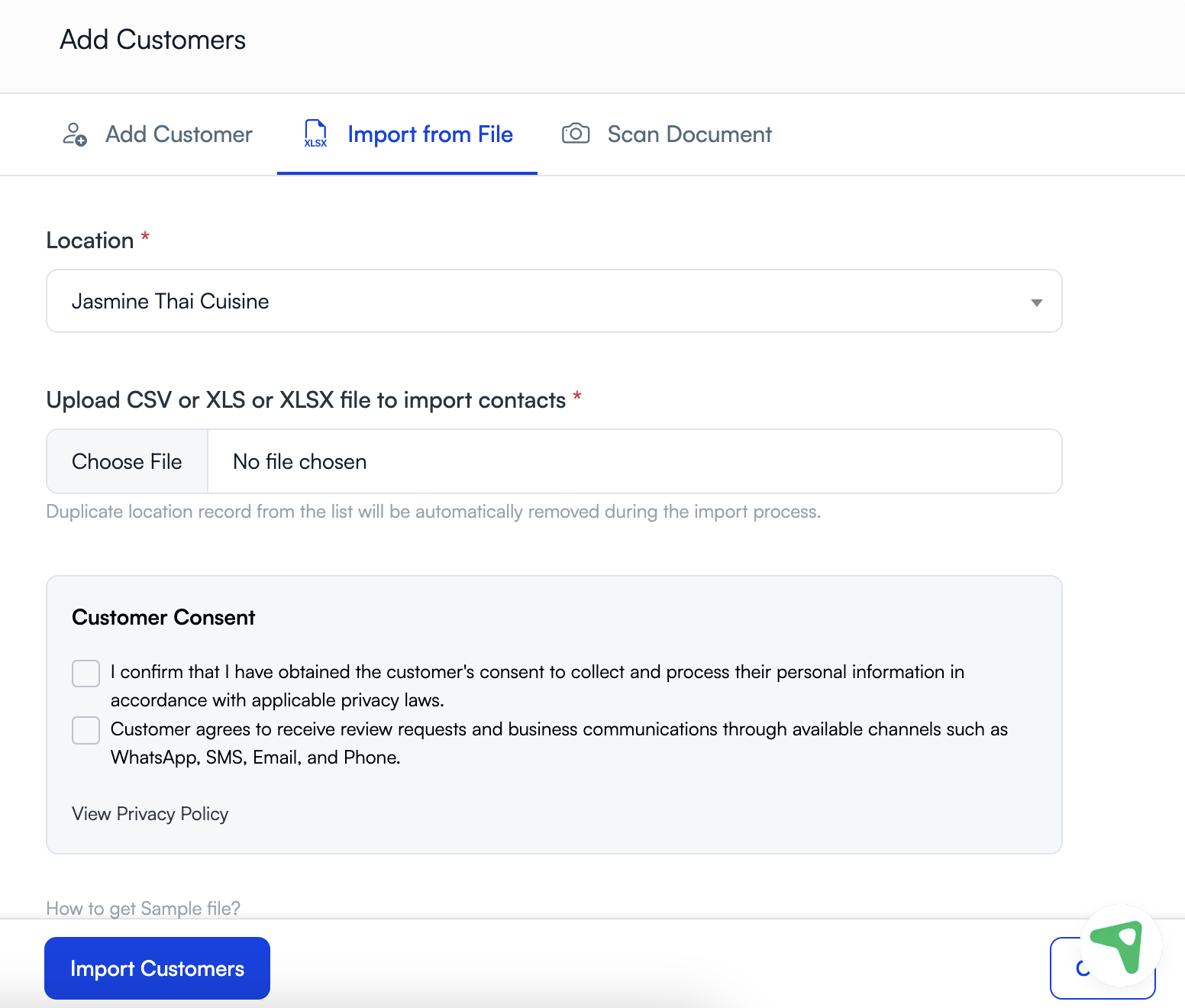
Check consent before importing customers
When importing customers from a file, UpBlick asks you to confirm customer consent. Requests may be blocked or should not be sent if consent has not been obtained.
Check the selected template
If you are sending a WhatsApp review request, the selected review request template must be available and approved. If no template is available, open Automation > WhatsApp Templates and check the Review Request tab.
For email requests, open Automation > Email Templates and confirm that the review request template is active.
Check whether a request already exists today
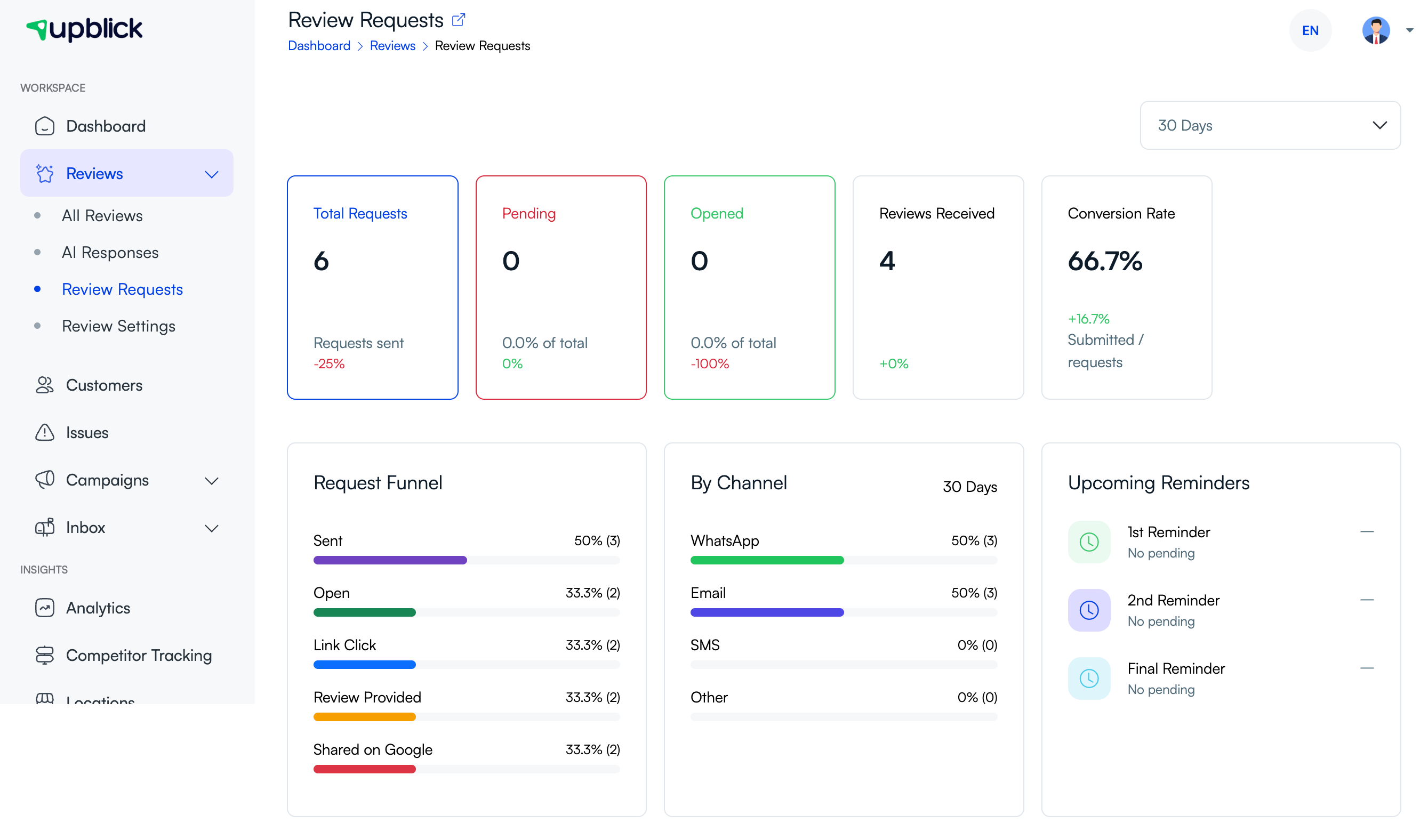
UpBlick avoids another recorded review request for the same customer and location when one already exists on the same day. This helps prevent accidental repeated messages.
Open Reviews > Review Requests and check whether a request is already recorded for that customer or reporting period.
Check the selected location
Review requests are connected to a business location. If the wrong location is selected, the customer may not appear where expected, the wrong template or review link may be used, or you may think a request was not sent when it was sent under another location.
Use the location selector at the top of the app and confirm that the customer, request, and Google Review Link belong to the same location.
Channel-specific reasons
- WhatsApp: missing phone code, invalid number, inactive or unapproved template, unavailable WhatsApp usage, or destination channel rejection.
- Email: invalid email address, inactive email template, sender setup issue, spam filtering, or destination mailbox rejection.
- SMS: invalid mobile number, unsupported country or route, carrier filtering, or unavailable SMS setup.
If a request was queued but the customer did not receive it, troubleshoot it as a delivery issue rather than a send-action issue.
What to do next
- Confirm the customer has a valid contact method.
- Confirm consent and communication preferences.
- Check that Do not send review request. was not selected when sending immediately.
- Confirm the correct business location is selected.
- Check that the required WhatsApp or email template is active.
- Open Reviews > Review Requests to see whether a request was recorded.
- If needed, correct the customer record and send again when your process allows it.
Best practices
- Collect accurate customer contact details at the time of service.
- Confirm consent before sending review requests.
- Keep WhatsApp and email templates active before starting a campaign.
- Test review requests with your own contact before sending to customers.
- Do not repeatedly send the same request on the same day.
- Use Review Requests to monitor request activity instead of guessing.
- Keep the Google Review Link updated for each location.
Troubleshooting
Frequently asked questions
Why did adding a customer not send a review request?
The customer may not have a valid contact method, the required template may be unavailable, or Do not send review request. may have been selected.
Can I send a request without a phone number?
Yes, if the customer has a valid email address and email review requests are configured. WhatsApp or SMS requests need a valid phone number and phone code.
Why can’t I send another request today?
UpBlick avoids another recorded request for the same customer and location on the same day to prevent duplicate messaging.
Does queued mean delivered?
No. Queued means UpBlick has prepared the request for sending. Delivery can still be affected by the destination channel, contact details, templates, or provider rules.
Where can I see request activity?
Open Reviews > Review Requests and select the reporting period you want to inspect.
Related Articles
Turn every customer touchpoint into review growth
Use UpBlick to collect feedback, request Google reviews, recover bad experiences, and understand customer sentiment.
Need help with UpBlick?
Use these guides to set up review collection, customers, WhatsApp automation, issue recovery, and reporting.
Start growing reviews with UpBlick