How to Send a Review Request Through Email?
Reviews & Review Collection
Use an email review request to follow up with a customer after a completed visit, purchase, appointment, or service. UpBlick personalizes the active Review Request email template and includes a unique link to the review journey for the selected business location.
Before you start
Make sure that:
- The correct business location is selected.
- An email channel is connected for that location.
- The customer has agreed to receive the email.
- The customer record contains a valid email address.
- An email template under Review Request is marked Active.
- The location has the correct Google Review Link.
Step 1: Check the email channel
- Open Automation in the sidebar.
- Select Channels.
- Open the Email tab.
- Confirm that the email provider you want to use shows Connected.
UpBlick Email is available as the default email option. If your organization uses another supported provider, confirm that its connection and sender settings are complete. Email channel settings apply to the selected location.
Step 2: Check the active review request email template
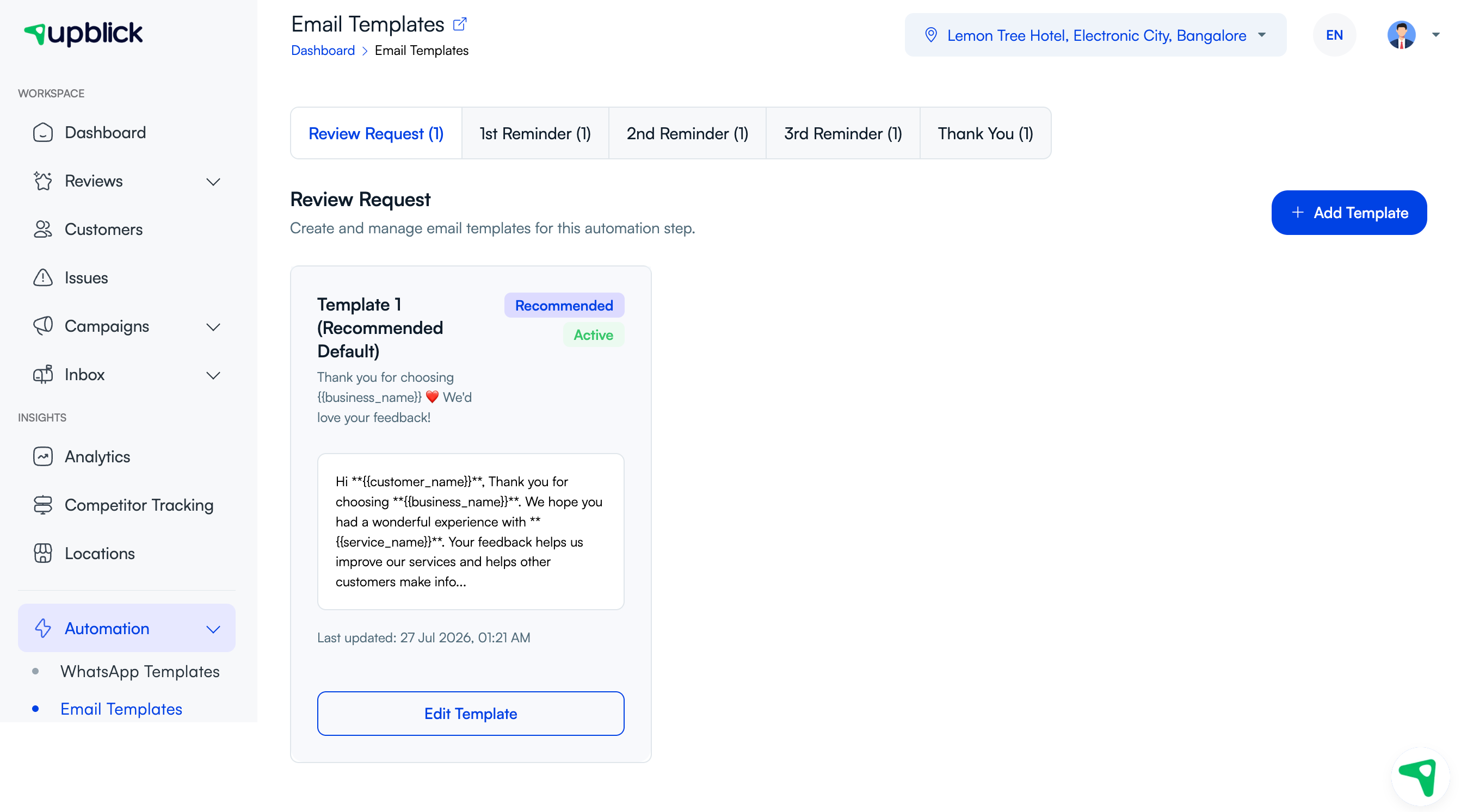
- Open Automation > Email Templates.
- Select the Review Request tab.
- Find the template marked Active.
- Review its subject and message preview.
UpBlick includes Template 1 (Recommended Default). You can use this template, edit it, or add another template for the Review Request step.
Customize the email template
To change the current template, select Edit Template. To create another one, select Add Template.
On the template form:
- Set Template Step to Review Request.
- Enter a recognizable template name.
- Write the email subject.
- Write the email body and insert supported placeholders where needed.
- Turn on Make active for this step if this should be the template UpBlick sends.
- Select Create Template or Update Template.
Only one email template is active for each automation step. Activating another Review Request template makes it the template used for future review request emails.
Available placeholders
You can personalize the subject and body with placeholders such as:
{{customer_name}},{{first_name}}, and{{last_name}}{{business_name}},{{business_phone}}, and{{business_website}}{{service_name}},{{review_url}}, and{{google_review_link}}
Use the placeholder exactly as shown in the template guide. UpBlick replaces it with the available customer, business, service, or review-link value when the email is created.
Step 3: Check the customer’s email address
- Open Customers.
- Confirm the correct location in the location selector.
- Search for the customer.
- Confirm that the customer record contains the correct email address.

Step 4: Send the email review request
- From the customer’s available actions, choose the option to send a review request.
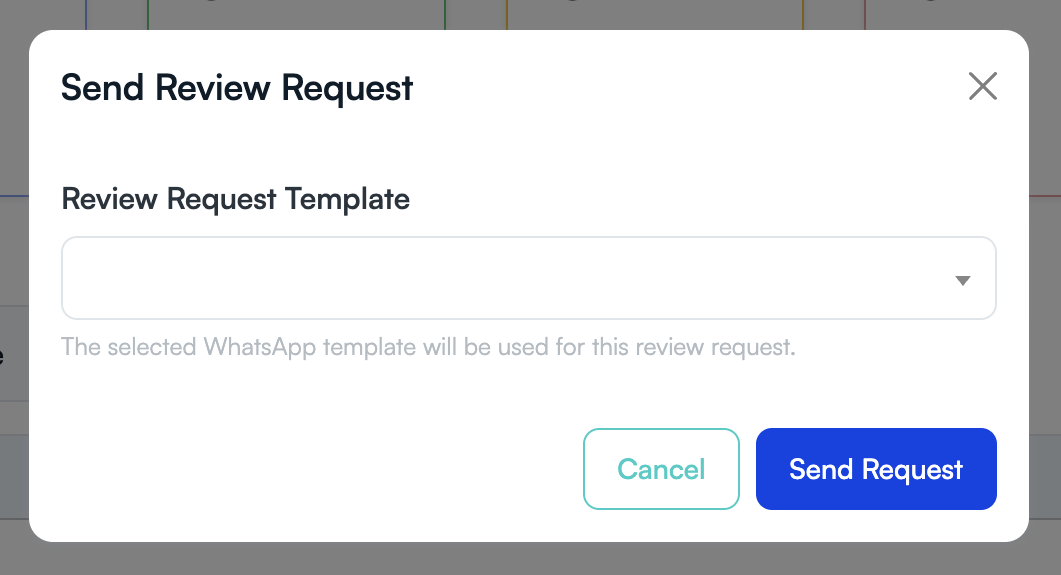
- The Send Review Request window opens.
- Select Send Request.
The Review Request Template menu in this window is for WhatsApp. It does not change the email template. When the customer has an email address, UpBlick automatically uses the active Review Request email template.
Add a new customer and send the email immediately
If the customer is not saved yet:
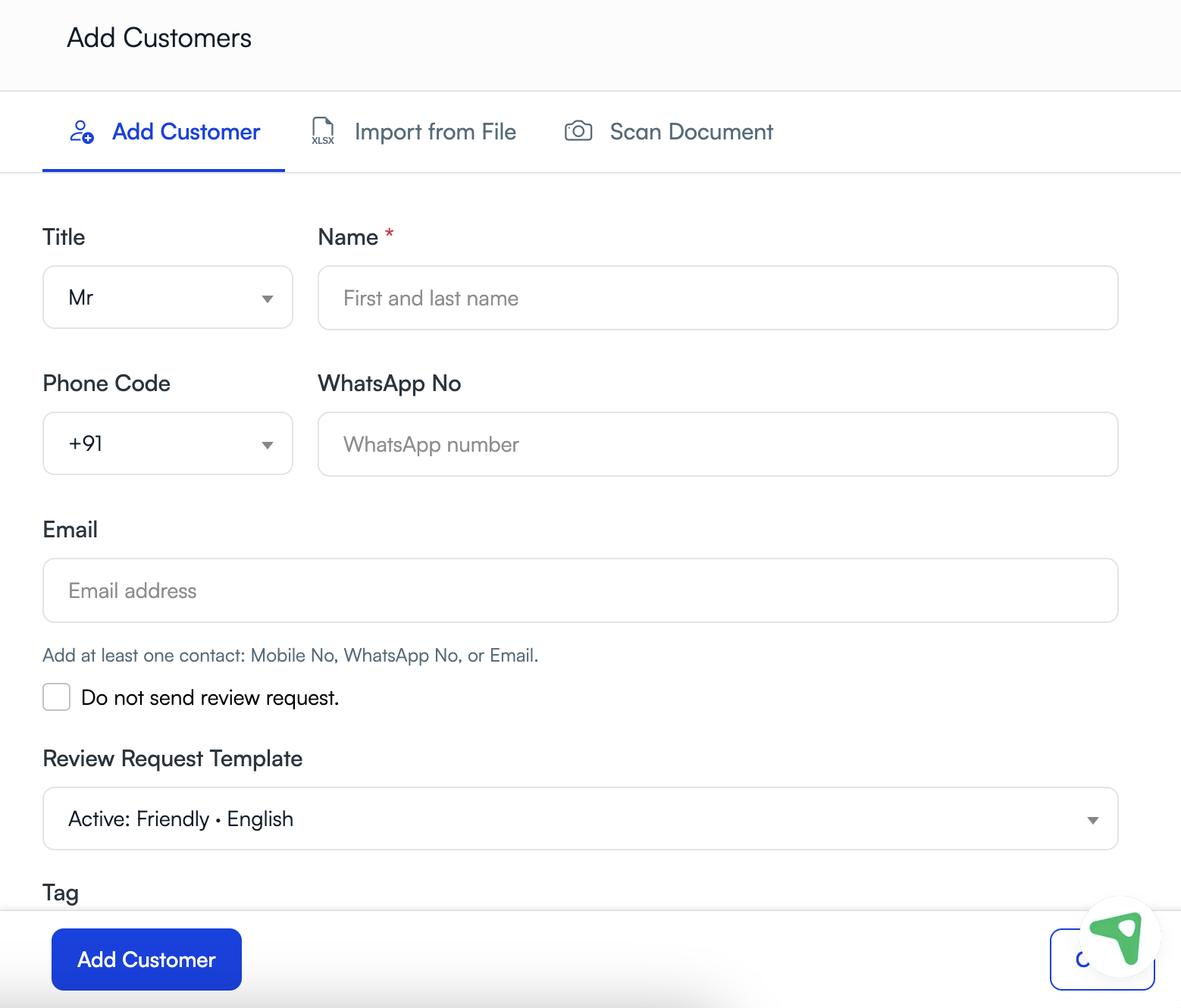
- Open Customers and select Add Customer.
- Enter the customer’s name and email address.
- Leave Do not send review request. unchecked.
- Complete the consent statements only when the customer has provided the required permission.
- Select Add Customer.
The Review Request Template field on the Add Customer form controls WhatsApp. Email still uses the active Review Request email template.
What the customer receives
The customer receives the active template’s rendered subject and message. Supported placeholders are replaced with available details, and the template’s review call to action opens the customer’s unique review link.
The customer does not need to download the UpBlick app. They can open the link directly from the email.
Track email review requests
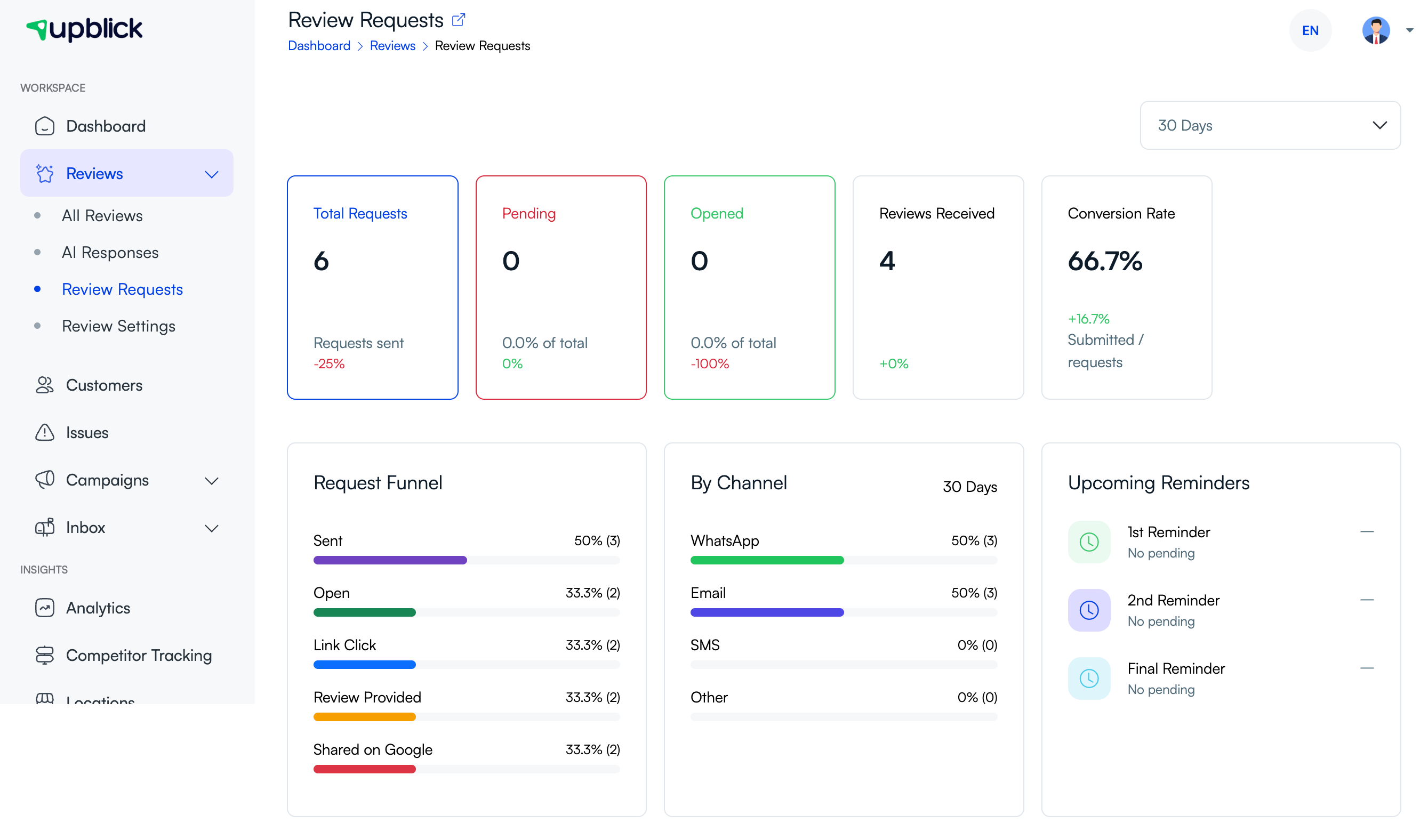
- Open Reviews.
- Select Review Requests.
- Choose the required reporting period.
- Check By Channel for email request activity.
- Review the request funnel, reviews received, conversion rate, and upcoming reminders.
A request can be marked as sent when the email provider accepts it. Link-click and review activity appears when UpBlick receives the relevant tracking event. Provider acceptance does not guarantee that the message reached the customer’s inbox.
Email review request best practices
- Send the email soon after the customer’s experience is complete.
- Use a clear subject that identifies your business.
- Keep the message short and make the review button easy to find.
- Test placeholders before making a custom template active.
- Ask for an honest review without requesting a particular star rating.
- Do not offer an incentive in exchange for a review.
- Respect consent, privacy requirements, unsubscribes, and communication preferences.
Troubleshooting
Frequently asked questions
Which email template does UpBlick use?
UpBlick uses the template marked Active under Automation > Email Templates > Review Request for the selected location.
Can I select an email template while sending the request?
No. The template selector in the Send Review Request window is for WhatsApp. Make the required Review Request email template active before sending.
Will UpBlick send only an email?
Not necessarily. If the customer also has a WhatsApp or mobile number and WhatsApp is connected, UpBlick can attempt both channels. The current window does not provide a channel selector.
Can I create my own email review request template?
Yes. Select Add Template on the Review Request tab, enter the subject and body, and enable Make active for this step when you want UpBlick to use it.
Does the customer need the UpBlick app?
No. The customer opens the review link directly from the email.
Related Articles
Turn every customer touchpoint into review growth
Use UpBlick to collect feedback, request Google reviews, recover bad experiences, and understand customer sentiment.
Need help with UpBlick?
Use these guides to set up review collection, customers, WhatsApp automation, issue recovery, and reporting.
Start growing reviews with UpBlick