Why Is My QR Code Not Working?
Reviews & Review Collection
If your UpBlick QR code is not working, the issue is usually caused by print quality, poor lighting, a damaged code, the wrong location being selected, an incorrect Google Review Link, or the review collection settings for that location.
Quick troubleshooting table
| Problem | Likely cause | What to do |
|---|---|---|
| Phone does not detect the QR code | Poor lighting, glare, low print quality, damaged code, or the phone is too close. | Clean the code, improve lighting, reduce glare, and print a sharp copy from UpBlick. |
| QR code opens the wrong location | The code was downloaded while another location was selected. | Select the correct location, download a new QR code, and replace the old one. |
| Review journey looks wrong | Review Settings or collection mode are different from what you expected. | Check Reviews > Review Settings for the selected location. |
| Google opens the wrong listing | The saved Google Review Link belongs to another business or branch. | Update the location’s Review Link and test the QR flow again. |
| Customer scans but cannot continue | Browser, network, form, or required field issue. | Test the Public Review URL on another phone and check required form settings. |
Check the QR code in UpBlick
- Sign in to UpBlick.
- Select the correct business location.
- Open Review Tools.
- Select QR Code.
- Confirm that the standee preview belongs to the correct location.
- Scan the preview on your screen with a phone.
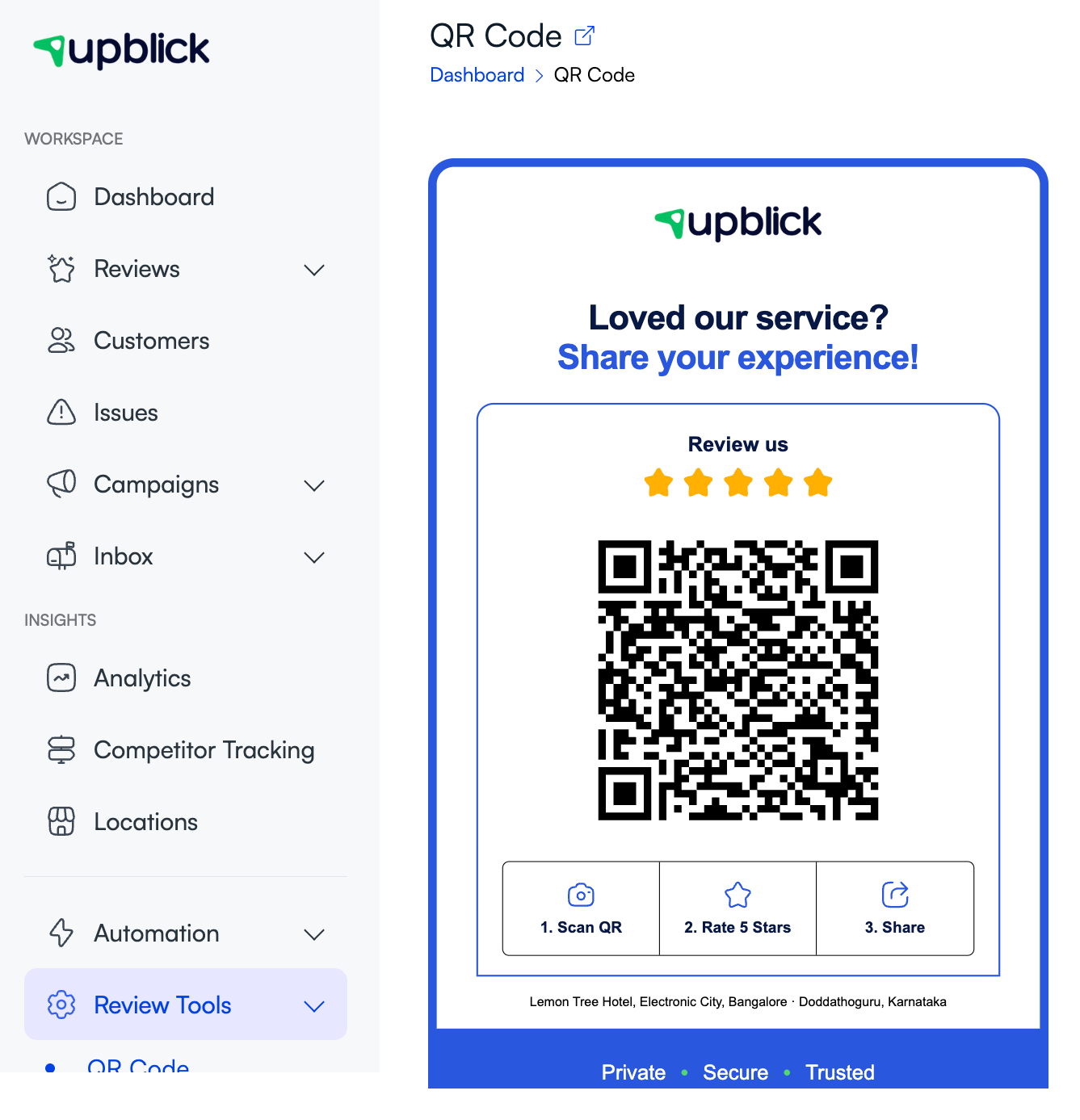
If the phone cannot scan the code
Most scan problems come from the printed or displayed code, not the review link itself. Try these fixes:
- Use the QR image downloaded from UpBlick instead of a screenshot.
- Print the code clearly and at a readable size.
- Do not crop, stretch, recolor, redraw, or cover the QR code.
- Leave clear white space around the code.
- Avoid glossy surfaces, glare, folds, scratches, and curved packaging.
- Place the code where customers can hold their phone steady.
- Test with both iPhone and Android when possible.
If the QR code opens the wrong location
The QR code may have been downloaded while another location was selected. Because each location has its own public review URL, you should not reuse one branch’s QR code for another branch.
- Select the correct location in UpBlick.
- Open Review Tools > QR Code.
- Download a fresh QR code standee.
- Replace every printed or digital copy of the old QR code.
- Scan the new code and confirm the business name and journey are correct.
If the review journey is not what you expected
The QR code opens the review journey configured for the selected location. If customers see different questions, skip feedback, or do not see Google, check the location’s review settings.
- Open Reviews > Review Settings.
- Check the review collection mode.
- Review the form questions and enabled options.
- Confirm that the correct Google Review Link is saved if Google sharing is required.
- Save changes, then test the QR code again.

If Google opens the wrong review page
If the UpBlick journey opens correctly but Google shows the wrong business, the saved Review Link may be incorrect. Open the location’s settings and verify the Review Link and Google Map URL.

If the page does not load
If the QR code scans but the page does not load, test the link in a few ways:
- Open the Public Review URL directly from the QR Code page.
- Try another browser on the same phone.
- Try another phone.
- Check the phone’s internet connection.
- Disable browser extensions or private filters that may block redirects.
- Make sure the customer is not scanning an old printed QR code.
Replace old or damaged QR codes
Replace QR codes that are faded, scratched, bent, cropped, resized poorly, or printed on reflective surfaces. If you changed the business location setup or Google Review Link, download and test a fresh QR code before using it with customers.
Best practices
- Download the QR code from UpBlick instead of taking a screenshot.
- Use one QR code per business location.
- Test the digital preview and the final printed version.
- Place the code in a bright, easy-to-scan area.
- Keep the code flat and unobstructed.
- Keep an NFC card or direct review link available as a backup.
- Retest the QR code whenever review settings or Google links change.
Troubleshooting
Frequently asked questions
Does every UpBlick location have a different QR code?
Yes. Each QR code links to the public review journey for one business location.
Can I reuse one QR code for multiple locations?
No. Use a separate QR code for each location so customers reach the correct business and Google Review Link.
Why does the QR code open UpBlick instead of Google?
The QR code opens the review journey configured in UpBlick. Depending on Review Settings, customers may give feedback first or go directly to Google.
Should I use a screenshot of the QR code?
No. Use the downloaded QR image from UpBlick for better print quality and scan reliability.
What should I do after changing the Google Review Link?
Save the new link, test the QR journey, and replace any printed material if the old material no longer points to the correct flow.
Related Articles
Turn every customer touchpoint into review growth
Use UpBlick to collect feedback, request Google reviews, recover bad experiences, and understand customer sentiment.
Need help with UpBlick?
Use these guides to set up review collection, customers, WhatsApp automation, issue recovery, and reporting.
Start growing reviews with UpBlick