Why Is My NFC Card Not Working?
Reviews & Review Collection
If your UpBlick NFC card is not working, the issue is usually caused by phone compatibility, NFC being turned off, the phone being tapped in the wrong area, a thick or metal phone case, a metal counter, a damaged or locked card, or the wrong location review URL being saved on the card.
Quick troubleshooting table
| Problem | Likely cause | What to do |
|---|---|---|
| Nothing happens when the customer taps | NFC is off, the phone does not support NFC, the phone is locked, or the tap area is missed. | Unlock the phone, enable NFC if needed, and slowly move the top or back of the phone across the card. |
| The card opens the wrong business | The card was programmed with another location’s Public Review URL. | Copy the correct location URL from UpBlick and rewrite or replace the NFC card. |
| The card is detected, but the page does not load | The stored URL is incomplete, the phone has no internet, or the browser blocks the page. | Test the Public Review URL directly in a browser and confirm the card contains the full https:// link. |
| Google opens the wrong listing | The selected UpBlick location has the wrong Google Review Link saved. | Update the location’s Review Link, save changes, and test the NFC journey again. |
| It works on one phone but not another | Different phones have different NFC antennas, settings, and browser behavior. | Test with another iPhone and Android phone, then offer the QR code as the fallback option. |
Step 1: Confirm the phone can read NFC
Before changing anything in UpBlick, test the card with a compatible phone.
- Unlock the phone before tapping.
- Turn on NFC in phone settings if the device requires it.
- Remove thick, magnetic, or metal phone cases.
- Tap slowly across the card instead of touching only one point.
- Try the top edge, upper back, or center back of the phone because NFC antenna placement varies.
- Test with both iPhone and Android when possible.
Step 2: Move the card away from metal
NFC cards can fail when they are placed directly on metal counters, metal stands, card machines, laptops, or other electronic equipment. Move the card to a clear, flat surface and test again.
If the card must be placed on metal, use an NFC card or tag designed for metal surfaces.
Step 3: Check the UpBlick review URL saved on the card
The NFC card should store the Public Review URL for the correct UpBlick location. This is the same type of location-specific review journey customers can open from your QR code.
- Sign in to UpBlick.
- Select the correct business location.
- Open Review Tools.
- Select QR Code.
- Copy the location’s Public Review URL.
- Compare it with the URL stored on the NFC card using your NFC-writing app.
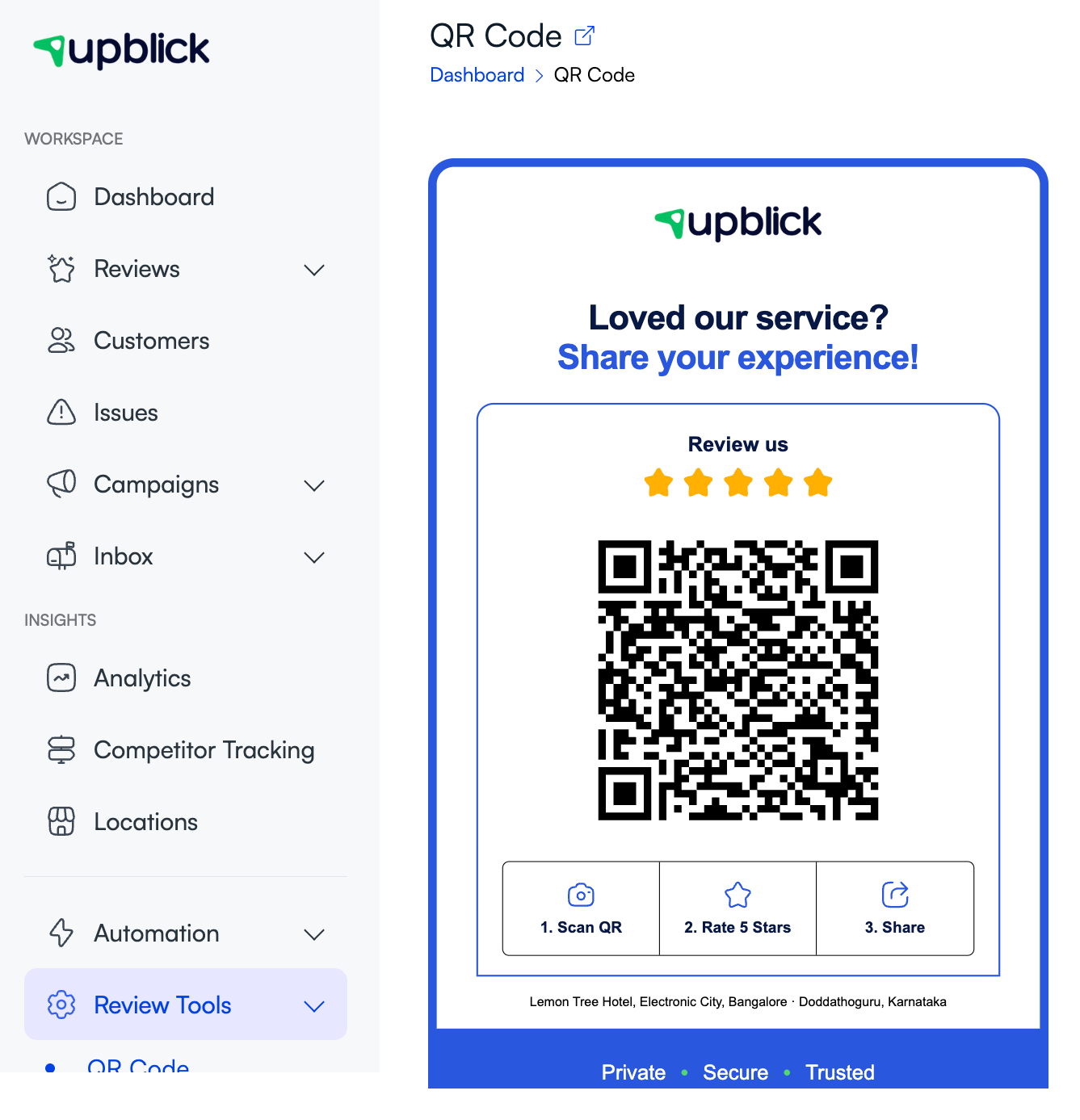
Step 4: Confirm the customer review journey opens correctly
After the NFC card opens the link, the customer should see the UpBlick review journey for your business location. If the business name, questions, language, or Google option looks wrong, check the location and review settings.

Step 5: Fix the Google Review Link if Google opens incorrectly
If the NFC card opens UpBlick correctly but the final Google review page is wrong, the saved Google Review Link may belong to another listing or location.
- Open Locations.
- Select the location and click Manage.
- Open the Settings tab.
- Check the Review Link and Google Map URL.
- Save changes and test the NFC card again.

When to rewrite or replace the NFC card
Rewrite the NFC card if it stores the wrong destination URL, an incomplete URL, or an old direct Google link that no longer works. Replace the card if it is damaged, read-only, permanently locked, or cannot be detected by multiple compatible phones.
If the card stores the correct UpBlick Public Review URL and you only update the Google Review Link inside UpBlick, test the card again first. You may not need to rewrite the card because the UpBlick review journey can continue using the updated location settings.
Best practices
- Use one NFC card per business location.
- Test the card before placing it in front of customers.
- Do not permanently lock the card until the URL is confirmed.
- Label the card clearly, such as Tap to share your experience.
- Avoid metal surfaces unless you are using a metal-compatible NFC tag.
- Keep a QR Code Standee beside the NFC card as a backup.
- Retest after changing review settings, location details, or Google links.
Troubleshooting
Frequently asked questions
Does the customer need to download an app to use an NFC card?
No. A compatible phone can open the stored review link in a browser. Some phones may require NFC to be enabled in settings.
Can one NFC card work for multiple locations?
No. An NFC card stores one destination. Use a separate card for each business location so customers reach the correct UpBlick review journey.
Why does the NFC card work on iPhone but not Android?
The Android phone may have NFC turned off, the antenna may be in a different position, or the phone case may block the signal. Test the card without the case and move the phone slowly across the card.
Do I need to rewrite the NFC card after changing my Google Review Link?
Not always. If the card stores the UpBlick Public Review URL, update the Google Review Link in UpBlick and test the card. Rewrite the card only if the stored destination URL is wrong, incomplete, or no longer valid.
What should I offer if the customer’s phone cannot read NFC?
Ask the customer to scan your UpBlick QR Code Standee or send them the review link through WhatsApp, SMS, or email.
Related Articles
Turn every customer touchpoint into review growth
Use UpBlick to collect feedback, request Google reviews, recover bad experiences, and understand customer sentiment.
Need help with UpBlick?
Use these guides to set up review collection, customers, WhatsApp automation, issue recovery, and reporting.
Start growing reviews with UpBlick