Why Did a Customer Not Receive the Review Request?
Reviews & Review Collection
A customer may not receive a review request because the saved contact details are incorrect, the message was filtered by the delivery channel, the template or sender setup has an issue, or the customer is checking the wrong app, number, or email inbox.
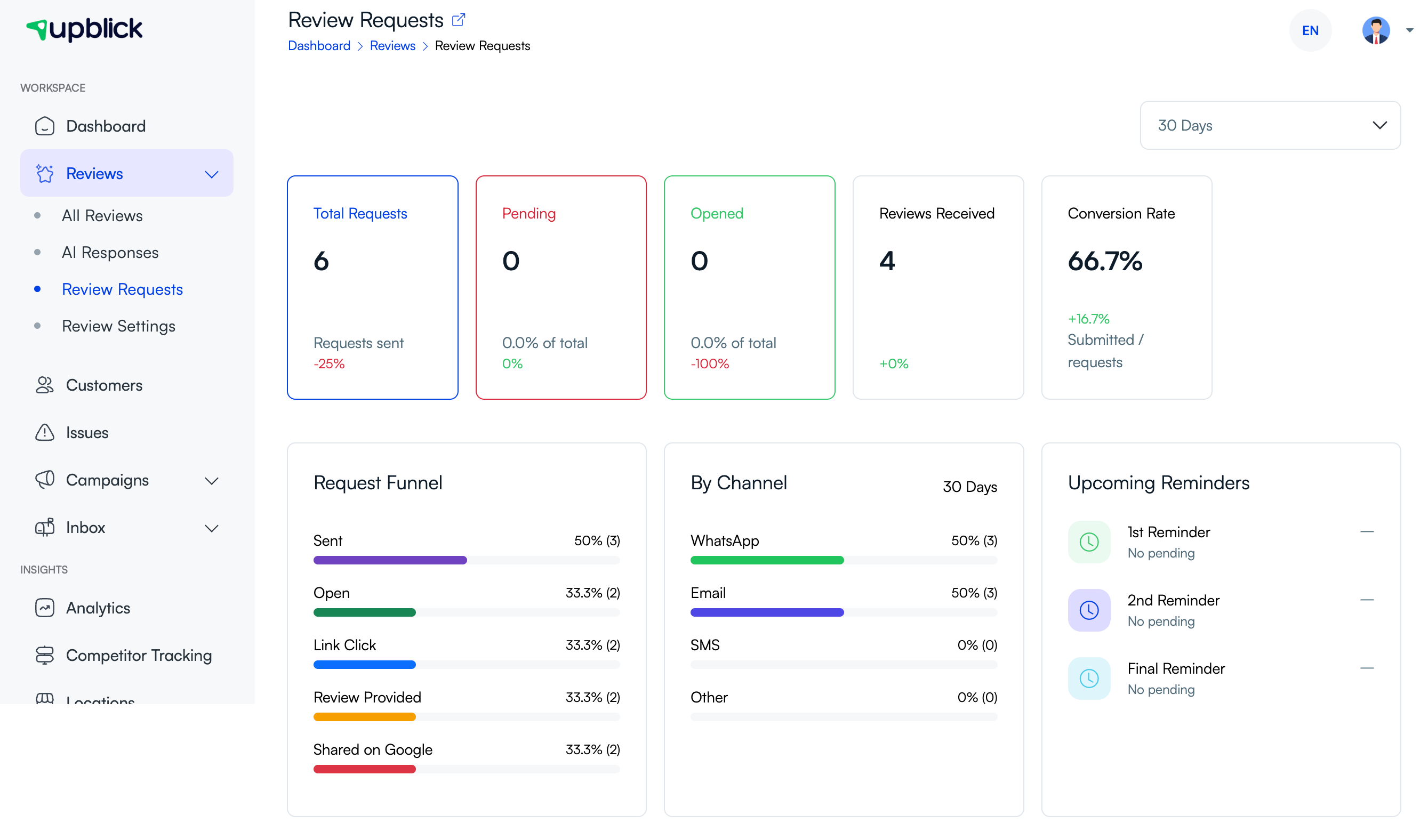
Start with the Review Requests page
Open Reviews > Review Requests and check whether the request appears for the selected reporting period. This helps confirm whether UpBlick recorded activity for the request before you investigate the customer’s device or inbox.
Quick checks
| Check | Why it matters | What to do |
|---|---|---|
| Selected location | The request may be recorded under another business location. | Use the location selector and check the correct location. |
| Phone code and number | WhatsApp and SMS delivery can fail when the country code or number is wrong. | Open the customer record and confirm the full number. |
| Email address | A typo can send the request to the wrong inbox or cause delivery failure. | Check spelling, domain, and extra spaces. |
| Customer inbox or app | The customer may be checking email while the request was sent through WhatsApp, or the other way around. | Confirm which channel was used and ask the customer to check that channel. |
| Spam or filtered folders | Email and SMS messages may be filtered before the customer sees them. | Ask the customer to check spam, junk, promotions, blocked numbers, and message filters. |
Check the customer contact details
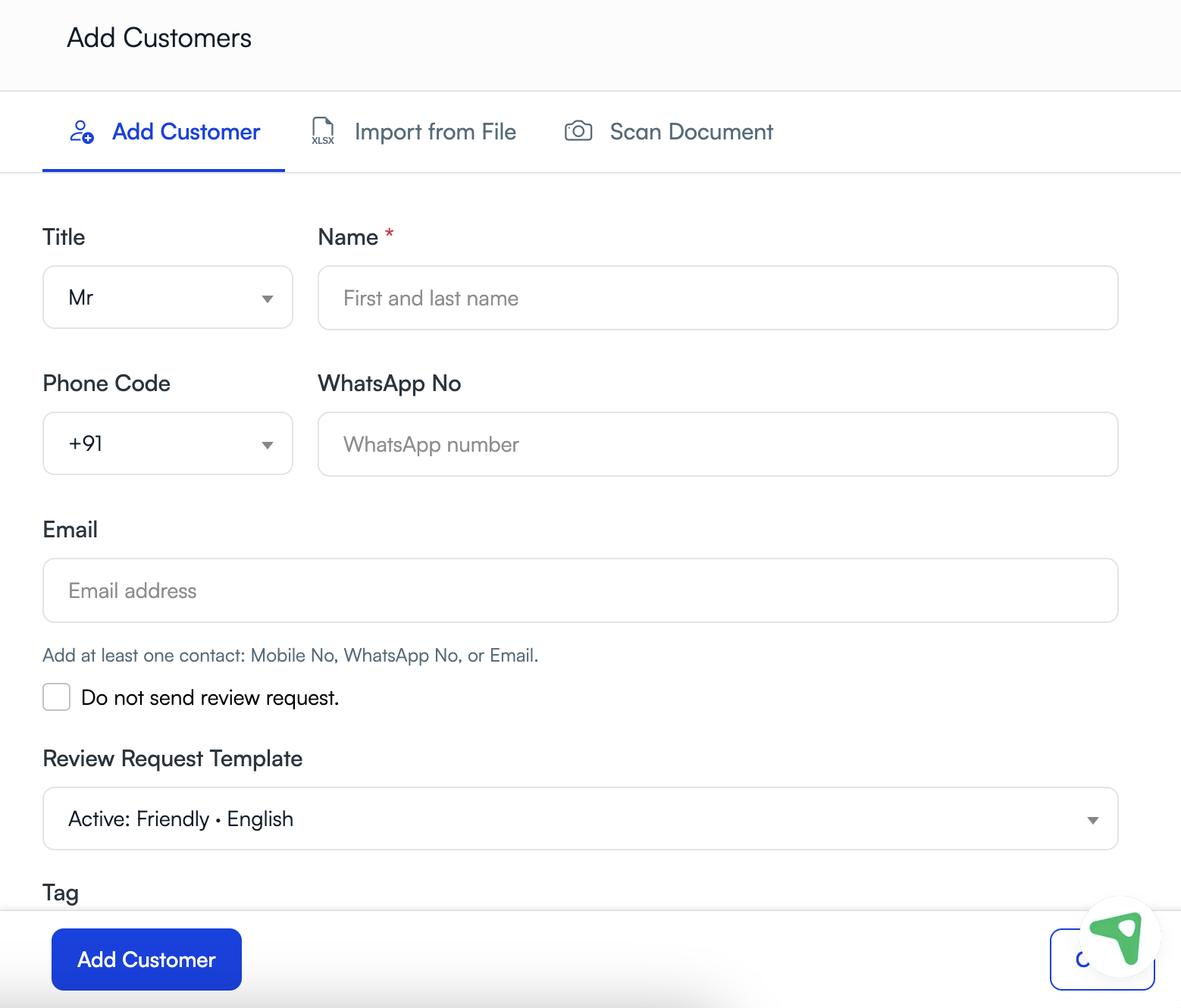
Open the customer record and confirm the saved contact information. The customer should have at least one usable contact method for the channel you expect to use.
- For WhatsApp, confirm the international phone code and WhatsApp-enabled number.
- For SMS, confirm the mobile number and country code.
- For email, confirm the complete email address and spelling.
- If the customer has multiple contact methods, confirm which one was used.
WhatsApp delivery checks
If the review request was sent through WhatsApp, check the following:
- The phone number includes the correct international phone code.
- The number is active on WhatsApp.
- The selected WhatsApp review request template is approved and active.
- The customer has not blocked messages from the sender.
- The customer has internet access and can receive WhatsApp messages.
- Your account has the required WhatsApp setup and usage available.
Email delivery checks
If the review request was sent through email, ask the customer to check:
- Inbox.
- Spam or junk folder.
- Promotions, updates, or filtered folders.
- Blocked sender list.
- Work email quarantine or security filters.
Also confirm that the active email review request template is available and that the sender setup is working.
SMS delivery checks
If SMS is configured for your account, delivery may be affected by invalid numbers, carrier filtering, country restrictions, unavailable routes, or phone-level spam filtering. Ask the customer to check message filters and blocked numbers.
Confirm the customer received the right request
When a customer has multiple phone numbers or email addresses, the request may have gone to an older or secondary contact method. Confirm the exact number or email saved in UpBlick before sending another request.
Do not resend too quickly
UpBlick avoids another recorded review request for the same customer and location on the same day. If a request was already recorded, use the Review Requests page to check activity before attempting another send.
If the original request was sent to the wrong contact details, update the customer record first and resend only when your process allows it.
What to do next
- Confirm the correct business location is selected.
- Open Reviews > Review Requests and look for the request.
- Check the customer’s phone number, phone code, WhatsApp number, and email address.
- Confirm which channel UpBlick attempted to use.
- Ask the customer to check the matching app, inbox, spam folder, or message filters.
- Review template and sender setup for the channel.
- Correct the customer record before sending another request.
Best practices
- Confirm customer contact details before sending review requests.
- Use the correct phone code for WhatsApp and SMS requests.
- Keep WhatsApp and email templates active before campaigns begin.
- Send requests soon after the customer experience while the context is fresh.
- Do not repeatedly resend on the same day.
- Ask customers to check the exact channel used for the request.
- Use Review Requests to monitor delivery and engagement activity.
Troubleshooting
Frequently asked questions
Does sent mean the customer opened the request?
No. Sent or queued activity does not always mean the customer saw or opened the message. Use Review Requests to check available engagement activity.
Should I resend the request immediately?
No. First check the customer’s contact details, channel, and request activity. UpBlick may also prevent another recorded request for the same customer and location on the same day.
Why did WhatsApp not deliver the request?
The number may be incorrect, not active on WhatsApp, blocked, temporarily unreachable, or affected by template or account setup.
Why did the email go missing?
Email requests may be filtered into spam, junk, promotions, updates, or workplace security quarantine. The address may also be incorrect.
Can the customer use another channel?
Yes, if you have another valid contact method and the channel is configured. Update the customer record and send through the available channel when appropriate.
Related Articles
Turn every customer touchpoint into review growth
Use UpBlick to collect feedback, request Google reviews, recover bad experiences, and understand customer sentiment.
Need help with UpBlick?
Use these guides to set up review collection, customers, WhatsApp automation, issue recovery, and reporting.
Start growing reviews with UpBlick