How to Respond to Customer Reviews?
Reviews & Review Collection
You can respond to customer reviews in UpBlick from the AI Responses page. UpBlick helps you review customer comments, generate suggested replies in your brand tone, copy responses, and approve replies when you are ready to send them.
Open AI Responses
- Sign in to UpBlick.
- Select the required business location.
- Open Reviews from the sidebar.
- Select AI Responses.
- Select a review from the list.
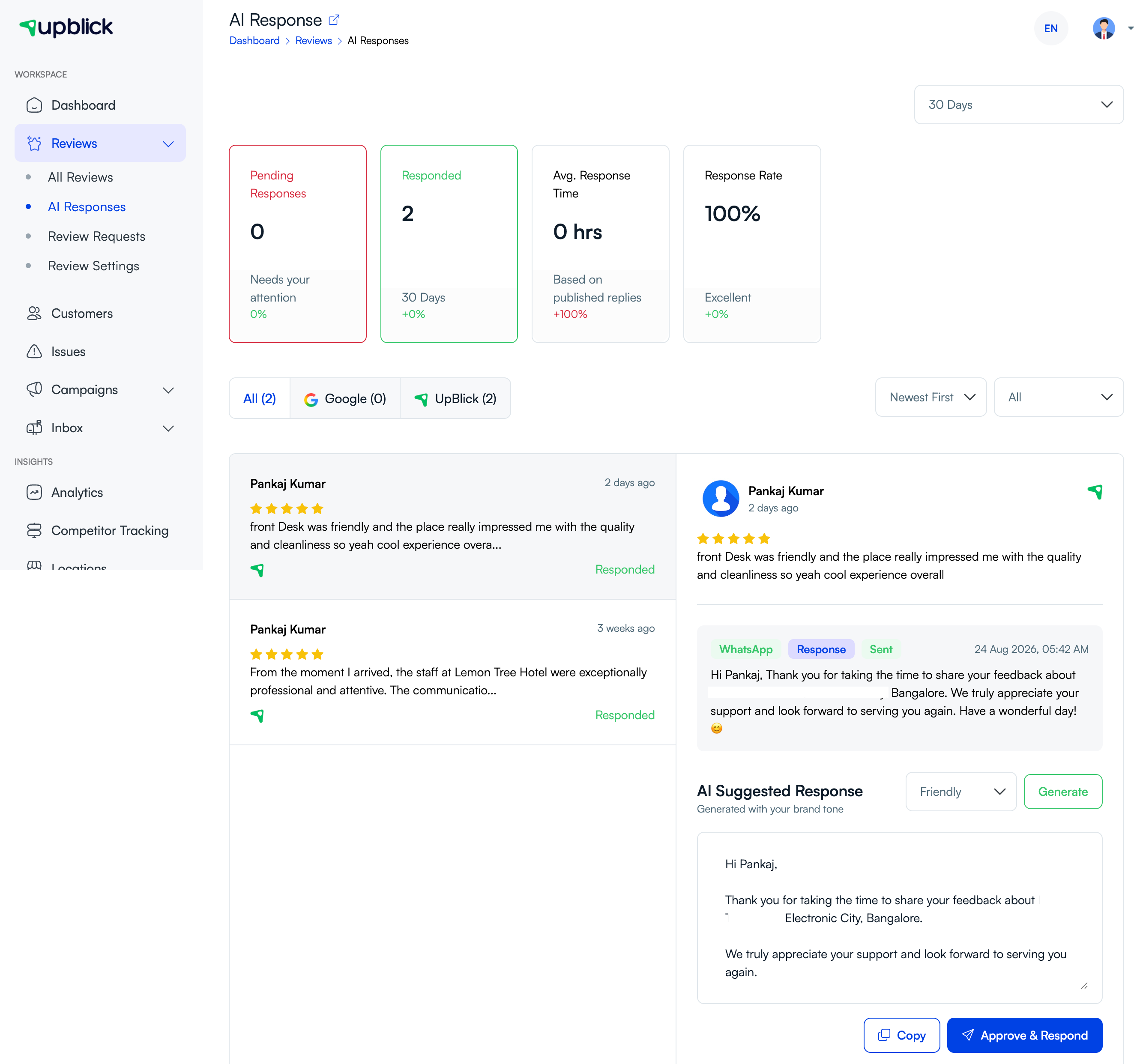
What you can do on the AI Responses page
| Area | What it shows | How to use it |
|---|---|---|
| Response metrics | Pending responses, responded reviews, average response time, and response rate. | Track how quickly your team is replying to customers. |
| Source tabs | Review sources such as All, Google, and UpBlick. | Focus on a specific review source when needed. |
| Review list | Customer names, ratings, review snippets, dates, and response status. | Select the review you want to inspect or reply to. |
| Selected review | The full review details and any sent response history. | Read the full context before approving a reply. |
| AI Suggested Response | A generated reply based on the customer review and selected tone. | Generate, edit, copy, or approve the response. |
Generate a suggested response
- Select a review that needs a response.
- Choose a response tone, such as Friendly.
- Select Generate.
- Review the suggested response carefully.
- Edit the response if needed.
The suggested response should sound natural, acknowledge the customer, and match the rating and content of the review.
Copy or approve the response
After reviewing the suggested response, you can use one of the available actions:
- Select Copy if you want to paste the response somewhere else.
- Select Approve & Respond when the response is ready to send through the configured response flow.
Only approve a response after confirming the wording is accurate, respectful, and appropriate for the customer’s review.
Responding to positive reviews
For positive reviews, thank the customer and mention one detail from their feedback when possible. Keep the response warm and concise.
A good positive-review response should:
- Thank the customer by name when appropriate.
- Acknowledge the specific compliment.
- Invite them back without sounding pushy.
- Sound like a real person from your business wrote it.
Responding to negative reviews
For negative reviews, read the full comment before replying. Acknowledge the concern, avoid arguing, and give the customer a practical next step when possible.
A good negative-review response should:
- Stay calm and respectful.
- Acknowledge the customer’s concern.
- Avoid blaming the customer or debating details publicly.
- Offer to continue the conversation through a support channel when appropriate.
- Use the feedback internally to improve the customer experience.
Use response filters
Use filters and tabs to find the reviews that need attention first:
- Use source tabs to switch between All, Google, and UpBlick reviews.
- Use sorting to review the newest items first.
- Use status filters to find pending or already responded reviews.
- Prioritize recent low-rating reviews and unanswered customer complaints.
Best practices
- Respond quickly, especially to negative reviews.
- Read the full review before using an AI suggestion.
- Edit suggested responses so they sound specific and human.
- Do not include private customer information in public replies.
- Avoid promising refunds, discounts, or outcomes unless your team has approved them.
- Use a consistent brand tone, but adjust the response to the situation.
- Track average response time and response rate regularly.
Troubleshooting
Frequently asked questions
Does UpBlick automatically respond to reviews?
No. UpBlick can suggest a response, but your team should review and approve it before sending.
Can I edit an AI suggested response?
Yes. You should edit the response whenever it needs more detail, a different tone, or a more specific next step.
Can I copy a response without sending it?
Yes. Use Copy when you want to paste the response into another tool or review it elsewhere.
Should negative reviews get a different response style?
Yes. Negative reviews should be answered with empathy, accountability where appropriate, and a clear path for follow-up.
Can I respond to both Google and UpBlick reviews?
The AI Responses page can help manage responses across supported sources shown in your account, such as Google and UpBlick.
Related Articles
Turn every customer touchpoint into review growth
Use UpBlick to collect feedback, request Google reviews, recover bad experiences, and understand customer sentiment.
Need help with UpBlick?
Use these guides to set up review collection, customers, WhatsApp automation, issue recovery, and reporting.
Start growing reviews with UpBlick