How Does UpBlick Send Customers to Google Reviews?
Reviews & Review Collection
UpBlick sends customers to Google Reviews by opening the Google Review Link saved for the selected business location. The customer may reach that Google step from a review request, QR code, NFC card, or an UpBlick feedback flow, depending on your review collection settings.
The basic customer journey
- The customer opens an UpBlick review link from a message, QR code, NFC card, or other review tool.
- UpBlick identifies the business location connected to that link.
- The customer follows the review collection flow configured for that location.
- If the workflow includes a Google step, UpBlick opens the saved Google Review Link.
- The customer completes and submits the review on Google.

Where customers can start
Customers can reach the Google review step from several UpBlick entry points.
| Entry point | How it works | Best suited for |
|---|---|---|
| Review request | The customer receives a message with a unique review link. | Following up after a known customer visit or purchase. |
| QR code | The customer scans a location QR code and opens the review journey. | Counters, tables, reception desks, invoices, and packaging. |
| NFC card | The customer taps a compatible phone on an NFC card to open the journey. | In-person review collection with staff assistance. |
| Feedback flow | The customer gives feedback first, then continues to Google when the workflow allows it. | Collecting customer insights before the public review step. |
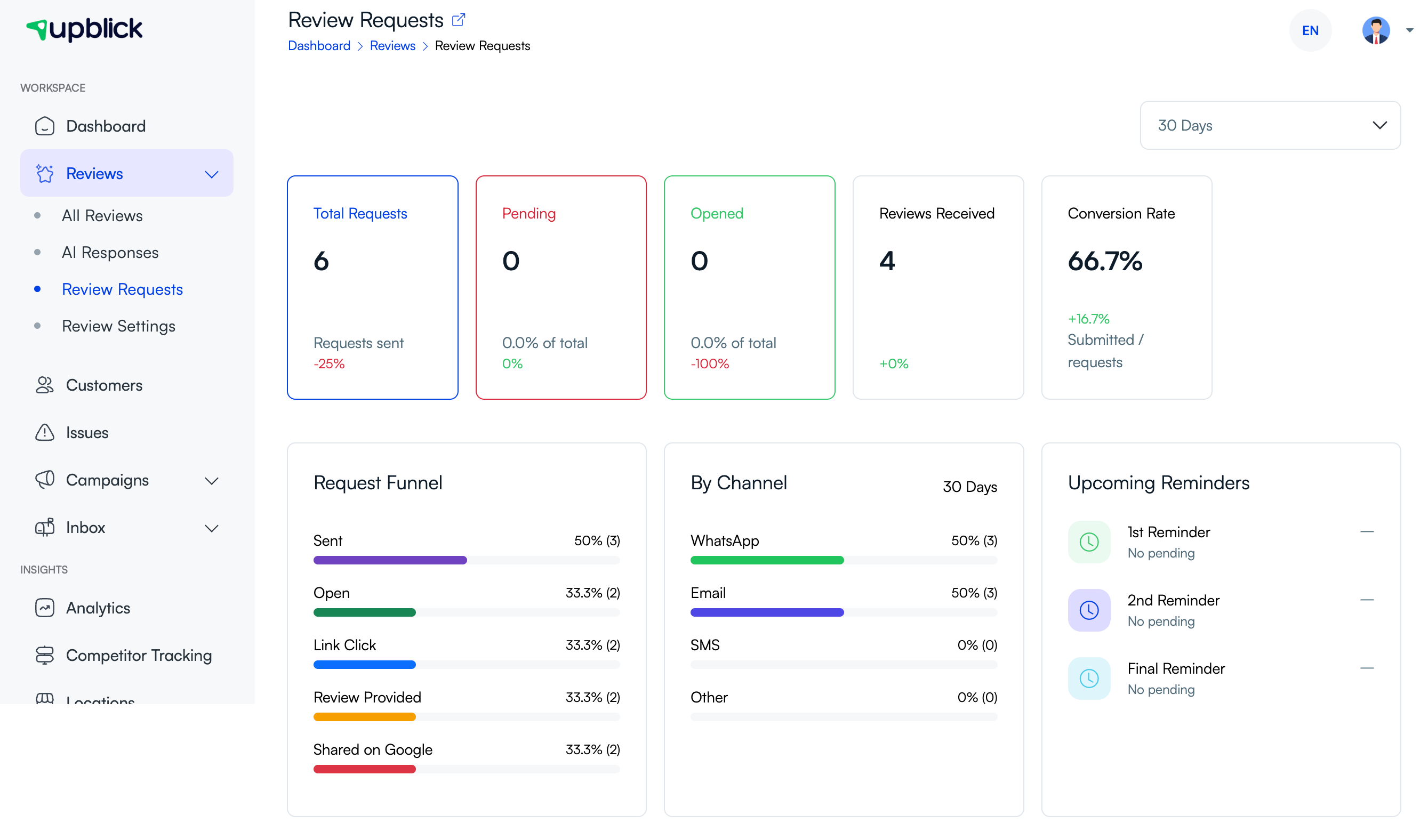
Review collection settings control the path
The saved Google Review Link is used only when the selected location’s review collection mode includes a Google step.
| Review Collection mode | Does it send customers to Google? | What the customer experiences |
|---|---|---|
| Collect Feedback & Suggest an AI-Assisted Review | Yes, when a valid Google Review Link is saved. | The customer gives feedback, reviews or edits a suggested draft, then can continue to Google. |
| Send Customers Directly to Google | Yes. | The customer is sent to Google without completing the UpBlick feedback form. |
| Collect Feedback for Business Analysis | No. | The customer completes feedback in UpBlick for internal business analysis. |
How UpBlick knows which Google page to open
Each location in UpBlick can store its own Review Link. When a customer opens a review journey for that location, UpBlick uses the saved link to send the customer to the matching Google review page.

What happens on Google
After UpBlick opens the saved Google Review Link, the customer is on Google’s review experience. From there, the customer chooses the rating, writes or pastes their review text, and submits the review through Google.
UpBlick cannot force a customer to submit a Google review, choose a rating, or make the review appear publicly. Google controls the final submission and display process.
How AI-assisted drafts fit in
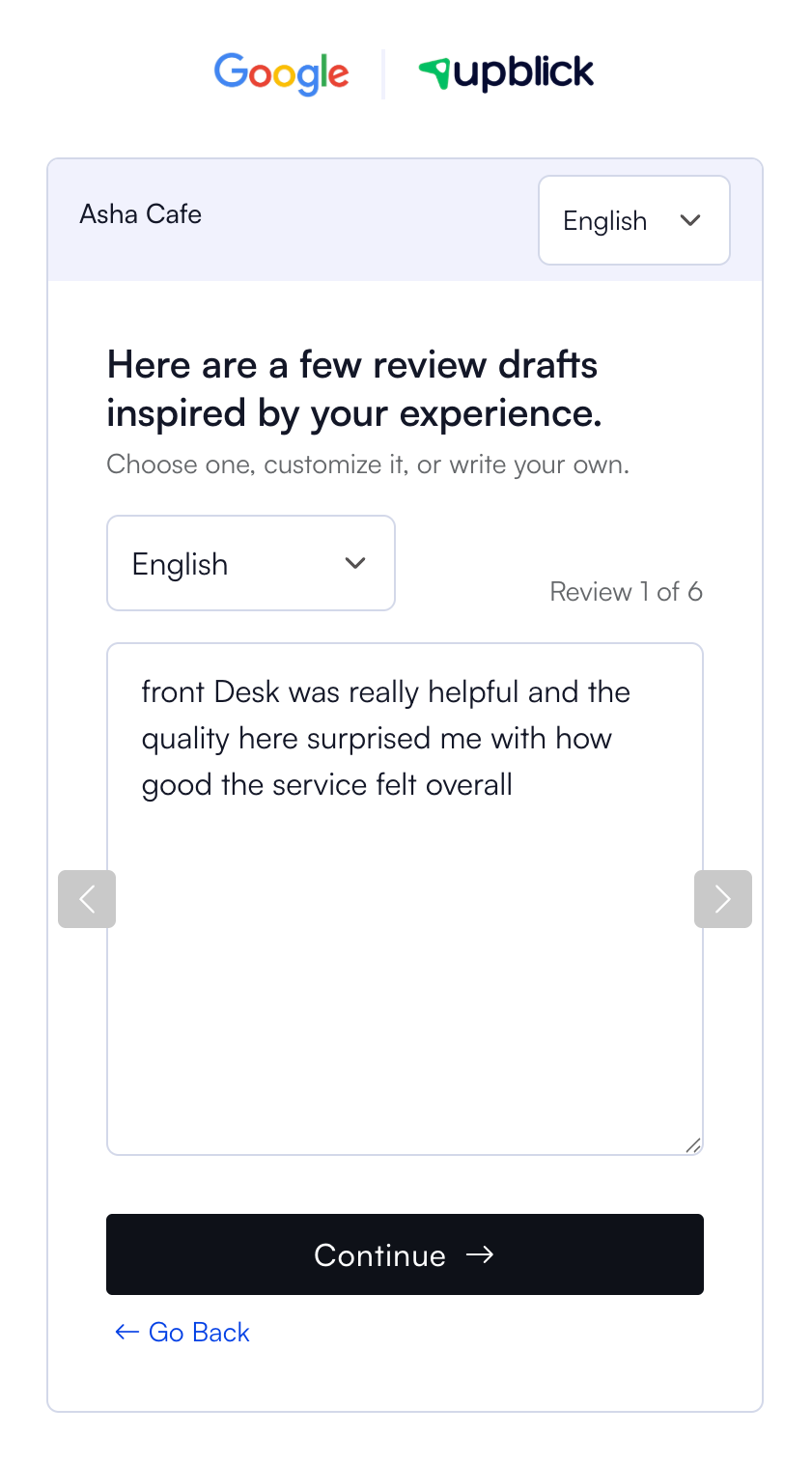
If your workflow collects feedback before sending the customer to Google, UpBlick can suggest editable review drafts based on the customer’s answers. The customer can choose a suggestion, edit it, or write their own review before continuing.
The customer should always review the final wording and make sure it reflects their real experience.

How to check your Google review path
- Open the selected location in UpBlick.
- Confirm that the location has the correct Google Review Link saved.
- Open Reviews > Review Settings > Review Collection.
- Confirm that the selected mode includes a Google step.
- Send yourself a test review request or scan the location QR code.
- Complete the customer journey and confirm that Google opens for the correct business.
Best practices
- Test the review path before sending requests to customers.
- Use the correct Google Review Link for each location.
- Keep request templates short and clear.
- Use reminders respectfully and avoid over-messaging customers.
- Make sure QR codes and NFC cards are connected to the right location.
- Ask for honest reviews instead of asking only for positive reviews.
- Review Google links again when a business listing changes.
Troubleshooting
Frequently asked questions
Does UpBlick post the Google review for the customer?
No. UpBlick can send the customer to Google, but the customer must submit the review on Google.
Can customers go directly to Google without answering feedback questions?
Yes, if the location is set to Send Customers Directly to Google.
Can customers edit the suggested review before going to Google?
Yes. When AI-assisted review suggestions are enabled, customers can choose, edit, or write their own review text before continuing.
Do customers need an UpBlick account?
No. Customers can open the review journey from a link, QR code, or NFC card without creating an UpBlick account.
Why did Google not show the review after the customer submitted it?
Google controls review processing and public display. A submitted review may take time to appear or may not appear if Google filters it.
Related Articles
Turn every customer touchpoint into review growth
Use UpBlick to collect feedback, request Google reviews, recover bad experiences, and understand customer sentiment.
Need help with UpBlick?
Use these guides to set up review collection, customers, WhatsApp automation, issue recovery, and reporting.
Start growing reviews with UpBlick