How to Start Collecting Customer Reviews?
Getting Started
UpBlick gives you several ways to collect reviews from real customers. You can send a review request after adding a customer, import customer records for follow-up, display a QR Code Standee at your location, or add a review widget to your website.
Choose the method that matches how your customers interact with your business. You can use more than one method at the same time.
Before you start
Make sure you:
- Add and select the correct business location.
- Confirm that the location has the correct Google Review Link.
- Obtain the customer’s consent before storing contact details or sending communications.
- Have at least one usable contact method when sending a request: WhatsApp or mobile number, or email.
- Use an approved review request template for WhatsApp requests.
Choose a review collection method
- Direct review request: Best when you have the customer’s contact details and consent.
- QR Code Standee: Best for walk-in customers at a counter, reception desk, table, or checkout area.
- Review Widget: Best for website visitors who want to read reviews or select Write review.
Method 1: Send a review request to a customer
Step 1: Confirm the active WhatsApp template
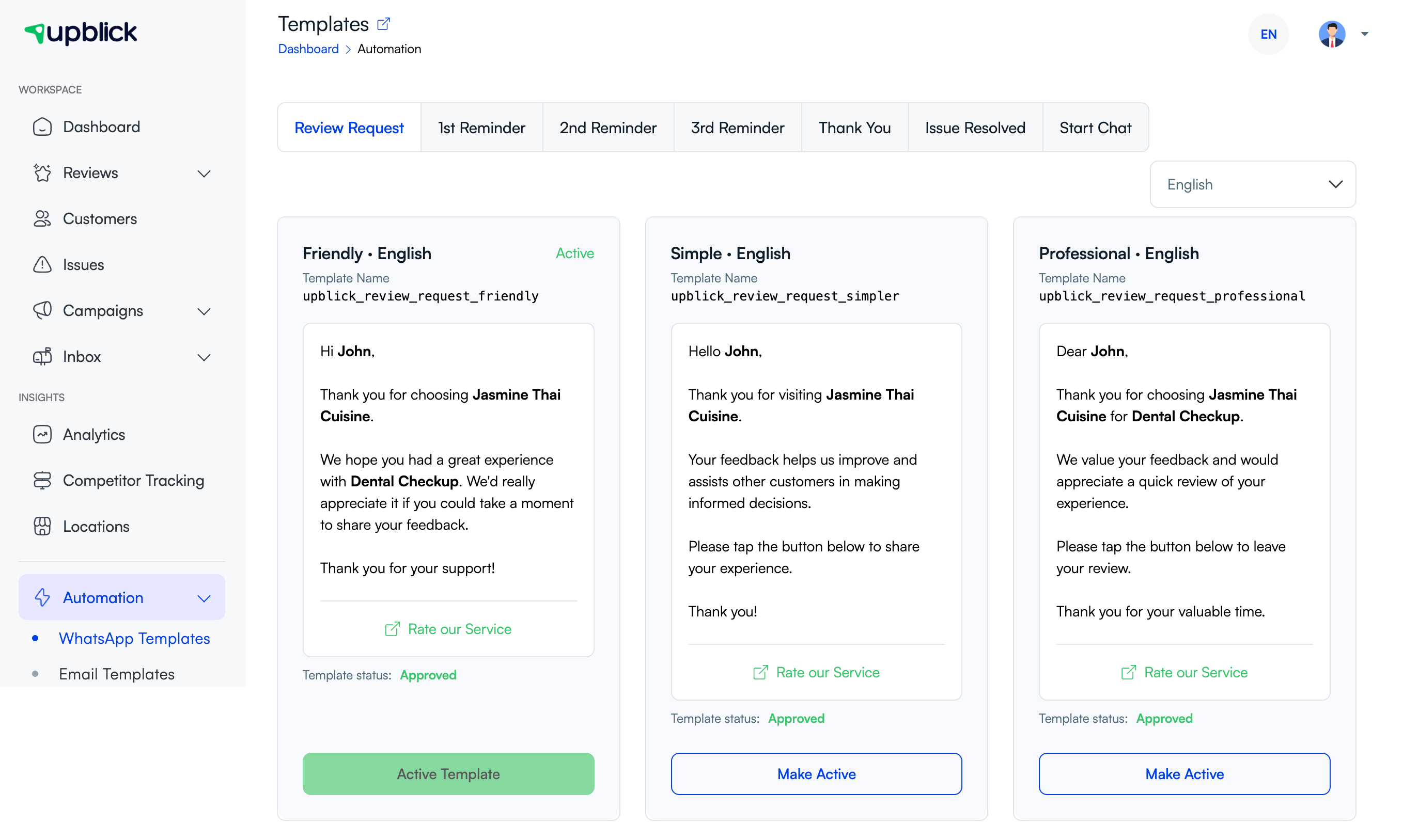
Open Automation, then select WhatsApp Templates. On the Review Request tab, choose a language and review the available templates.
The template marked Active Template is the current default. To use another approved template, select Make Active.
Step 2: Add one customer
- Open Customers and select Add Customer.
- On the Add Customer tab, enter the customer’s name.
- Add at least one contact method: WhatsApp or mobile number, or email.
- Select the Review Request Template.
- Add a tag when you want to organize the customer for later use.
- Confirm the required customer consent statements truthfully.
- Leave Do not send review request. unchecked if you want UpBlick to send the request after the customer is added.
- Select Add Customer.
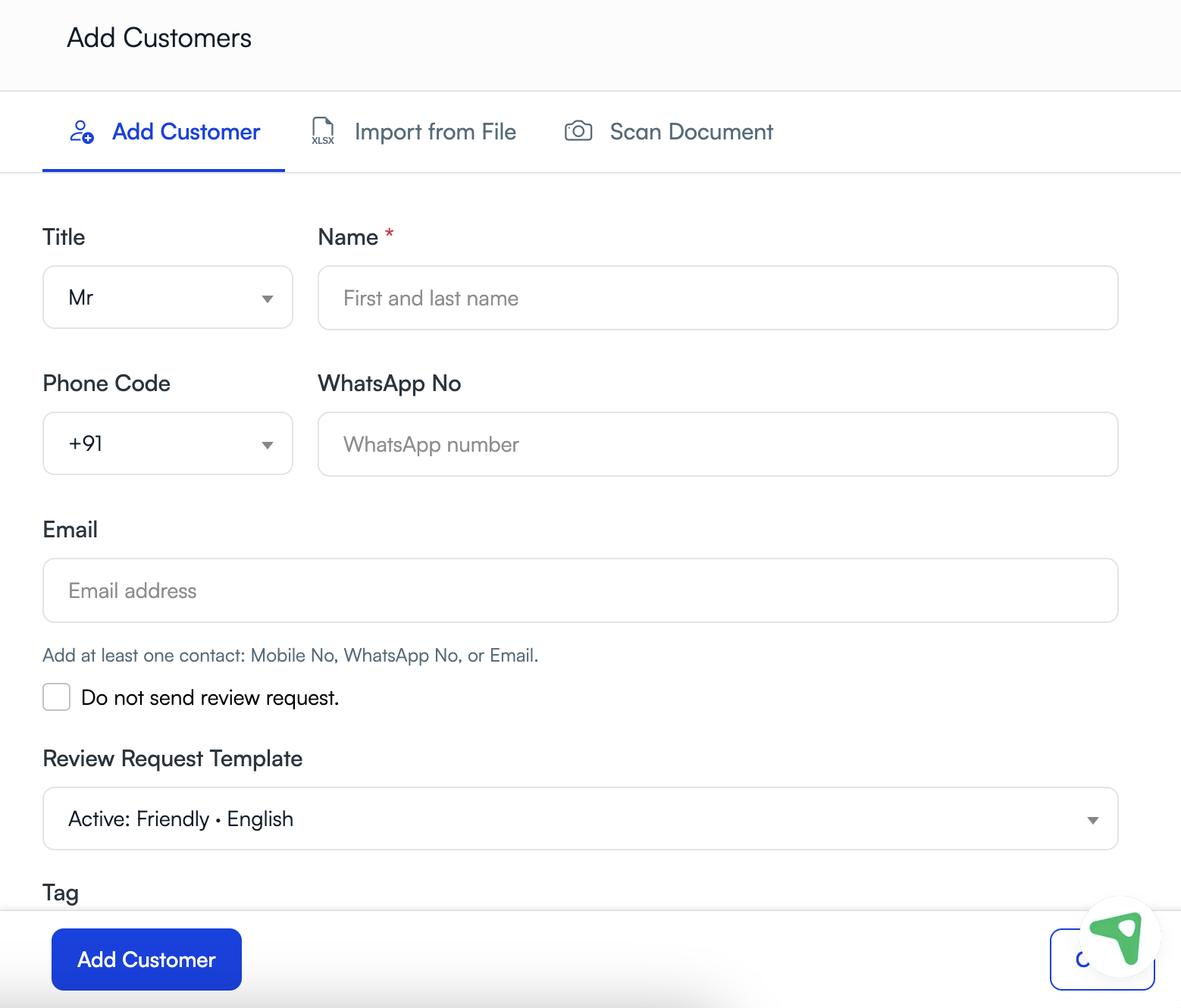
If you select Do not send review request., UpBlick saves the customer without sending the request. You can send it later from the customer record.
Step 3: Import customers from a file
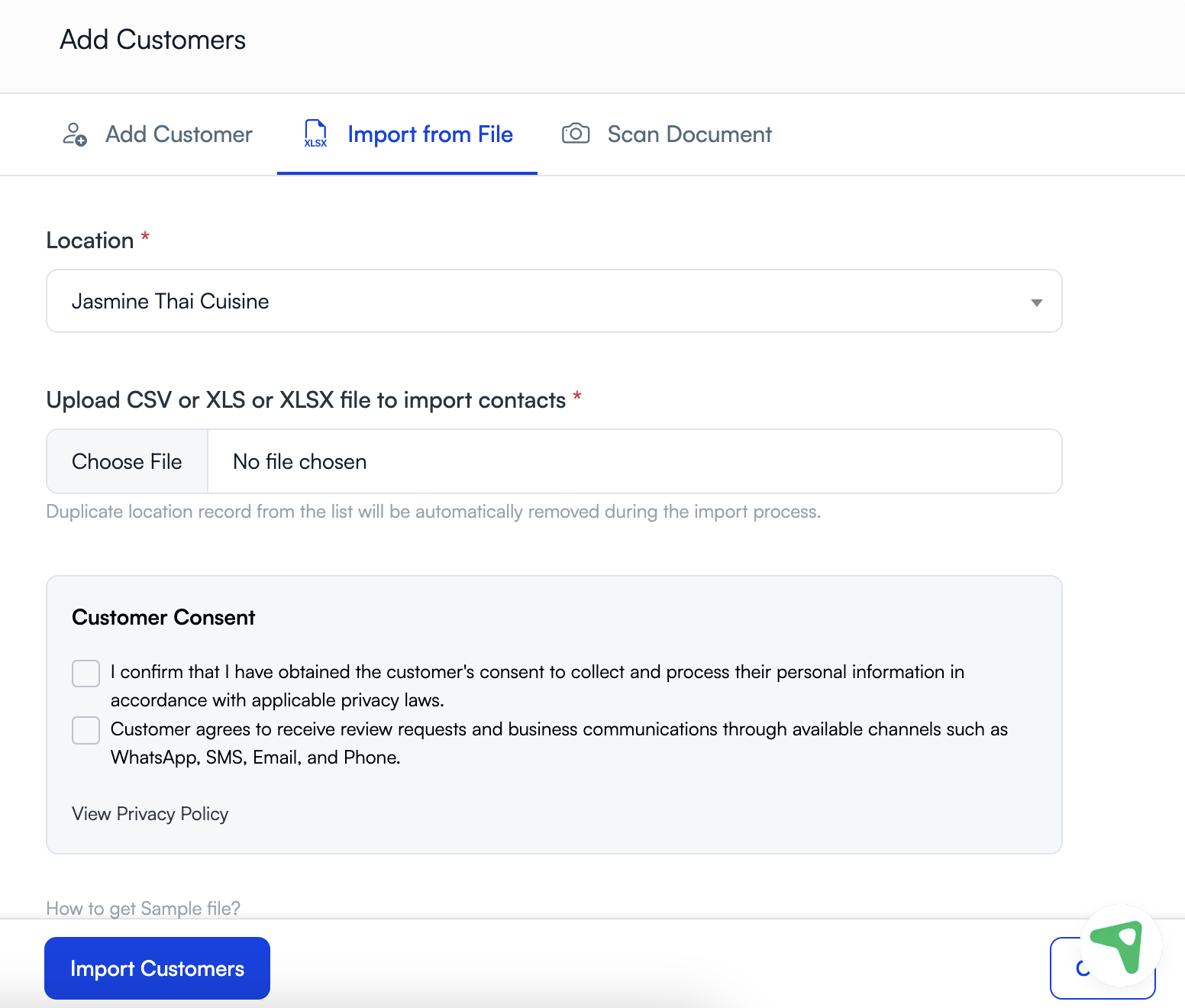
To add several customers, open the Import from File tab:
- Select the business Location.
- Choose a CSV, XLS, or XLSX file containing the customer records.
- Confirm that you obtained consent to process the customer information and send communications.
- Select Import Customers.
Use the sample file provided in UpBlick when you need the expected column format. Duplicate location records in the uploaded list are removed during the import process.
Step 4: Send a request later
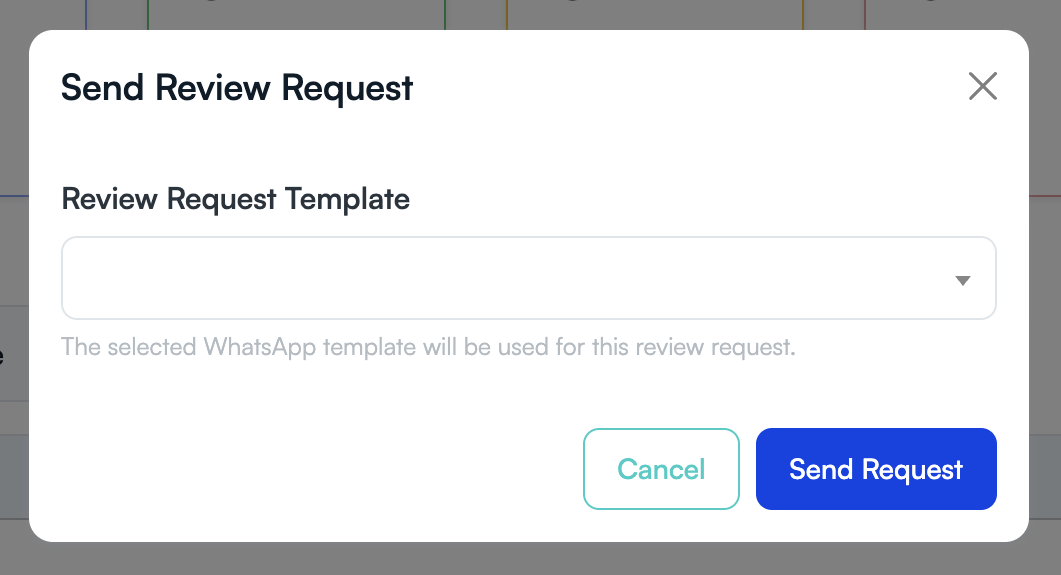
When a saved customer still needs a request, open the customer list and choose the action to send a review request. In the Send Review Request window, select a template and then select Send Request.
UpBlick does not send another review request to the same customer for the same location when one has already been recorded that day.
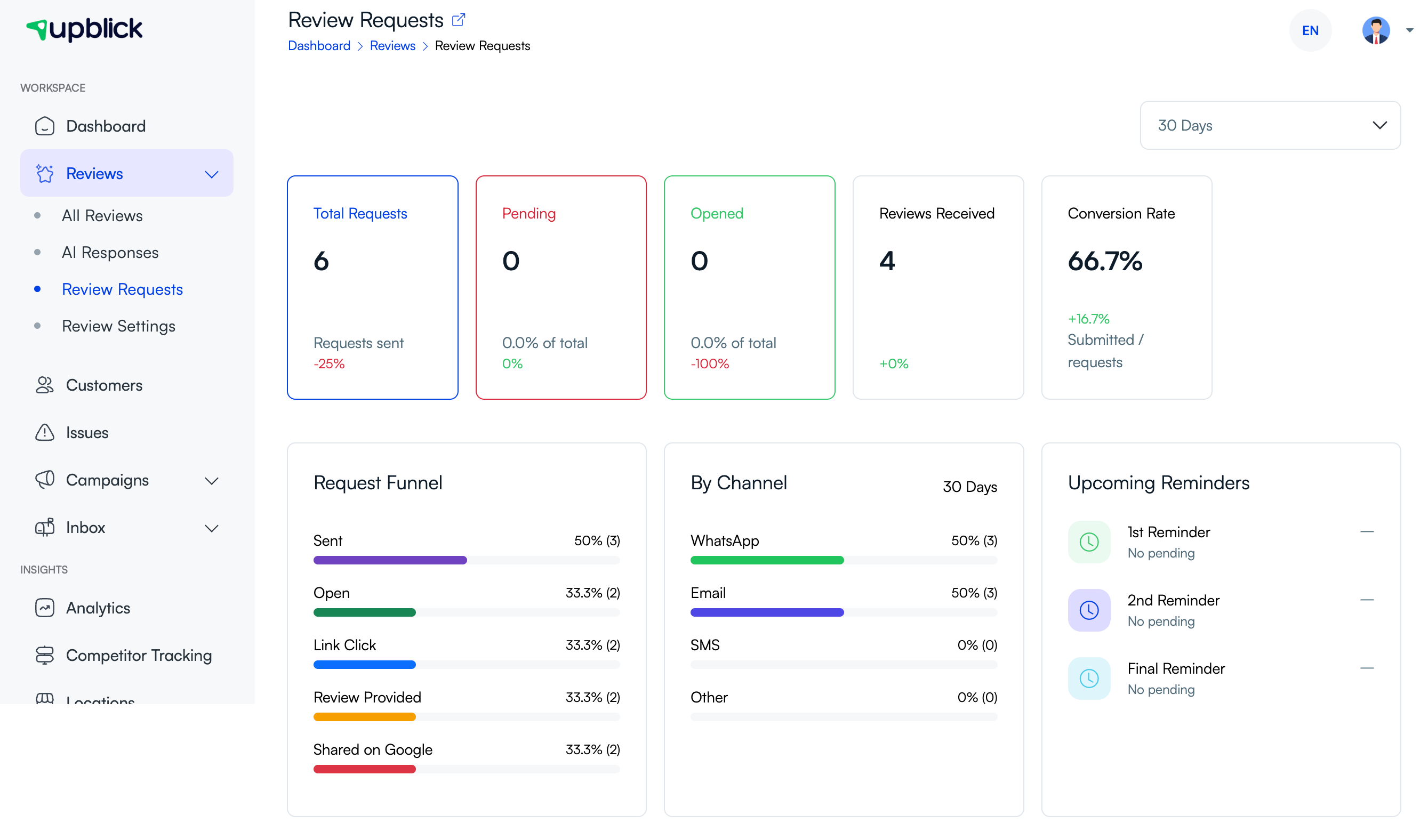
Step 5: Monitor review requests
Open Reviews, then select Review Requests. Choose a reporting period to review:
- Total Requests, Pending, Opened, Reviews Received, and Conversion Rate.
- The request funnel from sent requests to reviews shared on Google.
- Results by channel, including WhatsApp and email.
- Upcoming first, second, and final reminders.
Method 2: Collect reviews with a QR Code Standee
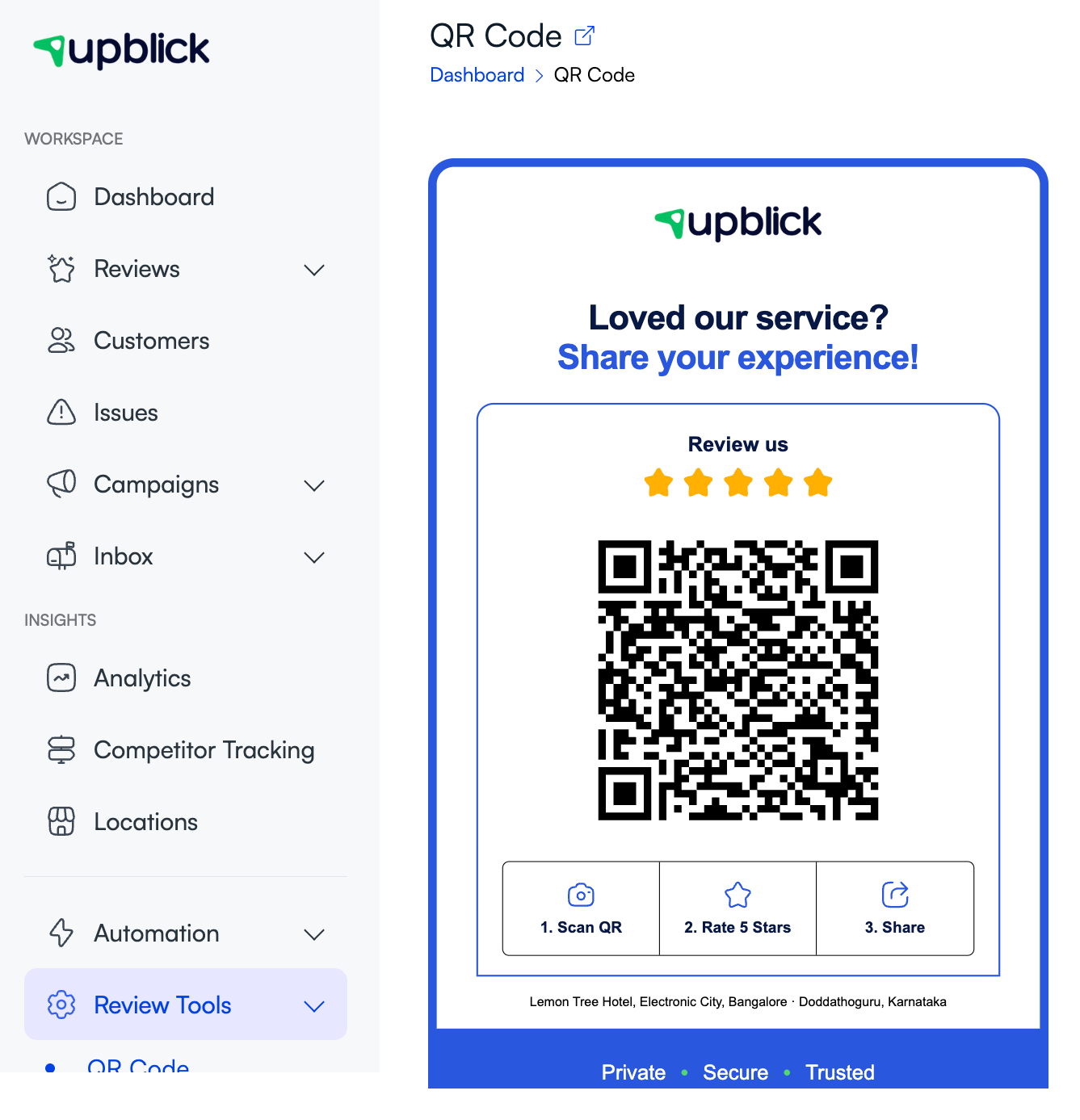
- Open Review Tools, then select QR Code.
- Confirm that the QR Code belongs to the correct business location.
- Download or print the standee.
- Place it where customers naturally finish their visit, payment, or service.
- Ask the customer to scan the code and follow the review steps on their phone.
Method 3: Collect reviews from your website
- Open Review Tools, then select Review Widget.
- Use the Style options to configure the widget when needed.
- Preview the rating, review distribution, and Write review button.
- Select Copy Code.
- Paste the embed code into the page on your website where you want the widget to appear.
- Test the published widget and its Write review button.

Review collection tips
- Ask shortly after the customer’s visit, purchase, or completed service.
- Use the correct location so customers receive the right review destination.
- Make requests clear and neutral; do not ask only satisfied customers.
- Test QR codes, links, templates, and website widgets before sharing them.
- Use Review Requests to understand where customers stop in the funnel.
- Respect customer consent and communication preferences.
Troubleshooting
Frequently asked questions
Which collection method should I use first?
Use direct requests when you have customer consent and contact details. Use the QR Code Standee for in-person visits and the Review Widget for website traffic. Many businesses use all three.
Does a customer need an UpBlick account?
No. Customers open the review journey from the message, QR code, or website widget without creating an UpBlick business account.
Can I add a customer without sending a request?
Yes. Select Do not send review request. when adding the customer. You can send a request later from the customer list.
Can I send the same customer another request immediately?
UpBlick prevents another recorded request to the same customer for the same location on the same day.
Can I track requests sent through different channels?
Yes. The Review Requests page shows request progress and a By Channel breakdown when channel data is available.
Related Articles
Turn every customer touchpoint into review growth
Use UpBlick to collect feedback, request Google reviews, recover bad experiences, and understand customer sentiment.
Need help with UpBlick?
Use these guides to set up review collection, customers, WhatsApp automation, issue recovery, and reporting.
Start growing reviews with UpBlick