अगर कोई ग्राहक समीक्षा लिखना भूल जाता है, तो क्या होगा?
शुरू करना
यदि कोई ग्राहक समीक्षा छोड़ना चाहता है लेकिन भूल गया है, तो आप अपब्लिक से एक विनम्र समीक्षा अनुरोध भेज सकते हैं। ग्राहक को आपके व्यवसाय को मैन्युअल रूप से खोजने के बजाय समीक्षा यात्रा को फिर से खोलने का सीधा तरीका मिलता है।
पहले जांचें कि क्या ग्राहक पहले से मौजूद है और क्या समीक्षा अनुरोध या समीक्षा पहले ही रिकॉर्ड की जा चुकी है। यह अनावश्यक संदेशों को रोकता है.
इससे पहले कि आप फॉलो करें
सुनिश्चित करें कि आप:
- सही व्यवसाय स्थान का चयन किया है।
- समीक्षा-संबंधित संचार भेजने के लिए ग्राहक की सहमति लें।
- एक वैध व्हाट्सएप या मोबाइल नंबर, या ईमेल पता रखें।
- एक अनुमोदित समीक्षा अनुरोध टेम्पलेट उपलब्ध है।
- हमने जांच कर ली है कि ग्राहक ने पहले से कोई समीक्षा सबमिट नहीं की है।
बाद में समीक्षा अनुरोध कैसे भेजें
चरण 1: ग्राहक खोलें
चुनें ग्राहक साइडबार में। खोज करने से पहले पुष्टि करें कि सही स्थान सक्रिय है।

चरण 2: ग्राहक खोजें
उपयोग करें ग्राहकों को खोजें ग्राहक को नाम, फोन नंबर, व्हाट्सएप नंबर या ईमेल पते से ढूंढें।
उपलब्ध होने पर ग्राहक की रेटिंग, समीक्षा जानकारी और संपर्क विवरण की समीक्षा करें। यदि ग्राहक ने पहले ही व्यवसाय की समीक्षा कर ली है, तो उसी विज़िट के लिए दूसरा अनुरोध न भेजें।
चरण 3: यदि ग्राहक सूचीबद्ध नहीं हैं तो उन्हें जोड़ें
यदि आपको ग्राहक नहीं मिल रहा है:
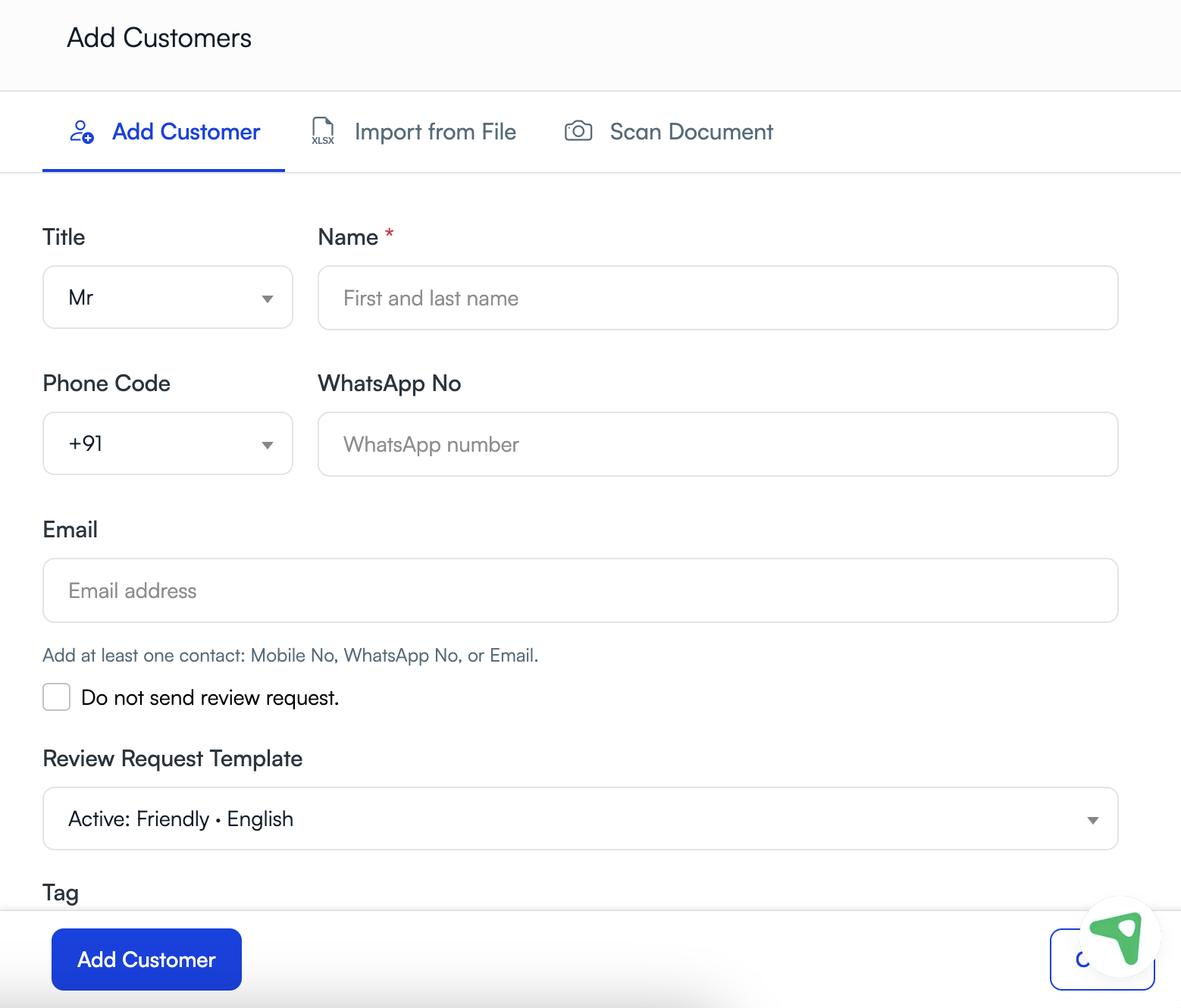
- चुनें ग्राहक जोड़ें.
- ग्राहक का नाम दर्ज करें।
- सही फ़ोन कोड चुनें और उनका व्हाट्सएप या मोबाइल नंबर जोड़ें, या उनका ईमेल पता दर्ज करें।
- चुनें समीक्षा अनुरोध टेम्पलेट.
- अनुमति प्राप्त होने पर ही ग्राहक सहमति विवरण की पुष्टि करें।
- छोड़ो समीक्षा अनुरोध न भेजें। चुना नहीं गया.
- चुनें ग्राहक जोड़ें.
चरण 4: मौजूदा ग्राहक को अनुरोध भेजें
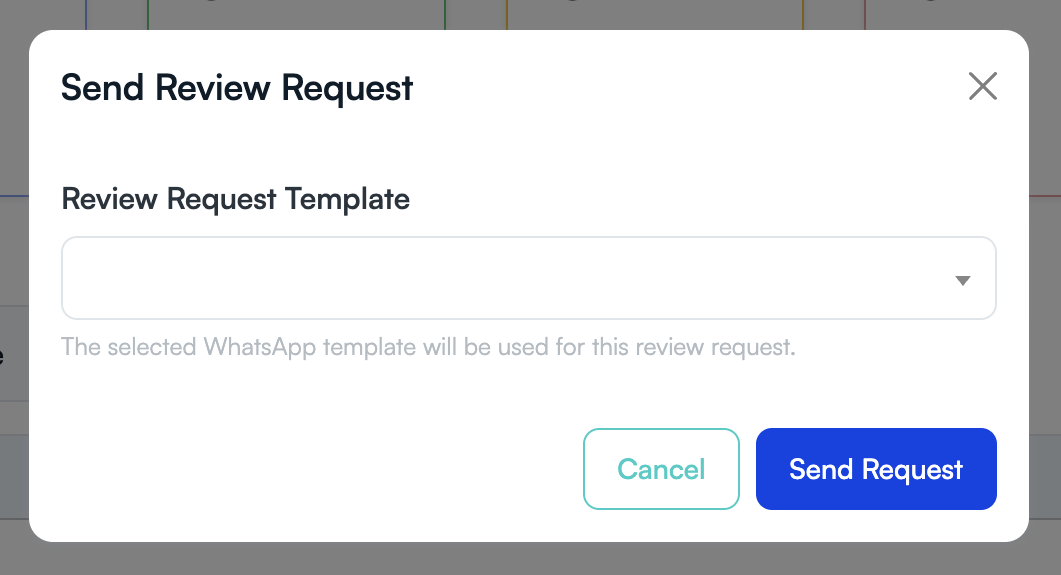
यदि ग्राहक पहले से ही सूचीबद्ध है, तो समीक्षा अनुरोध भेजने के लिए ग्राहक कार्रवाई चुनें। में समीक्षा अनुरोध भेजें विंडो:
- चुनें समीक्षा अनुरोध टेम्पलेट.
- चुनें अनुरोध भेजें.
अपब्लिक उसी ग्राहक और स्थान के लिए एक और समीक्षा अनुरोध रिकॉर्ड करने से बचता है जब उस दिन पहले ही एक समीक्षा अनुरोध रिकॉर्ड किया जा चुका हो।
चरण 5: अनुरोध की निगरानी करें
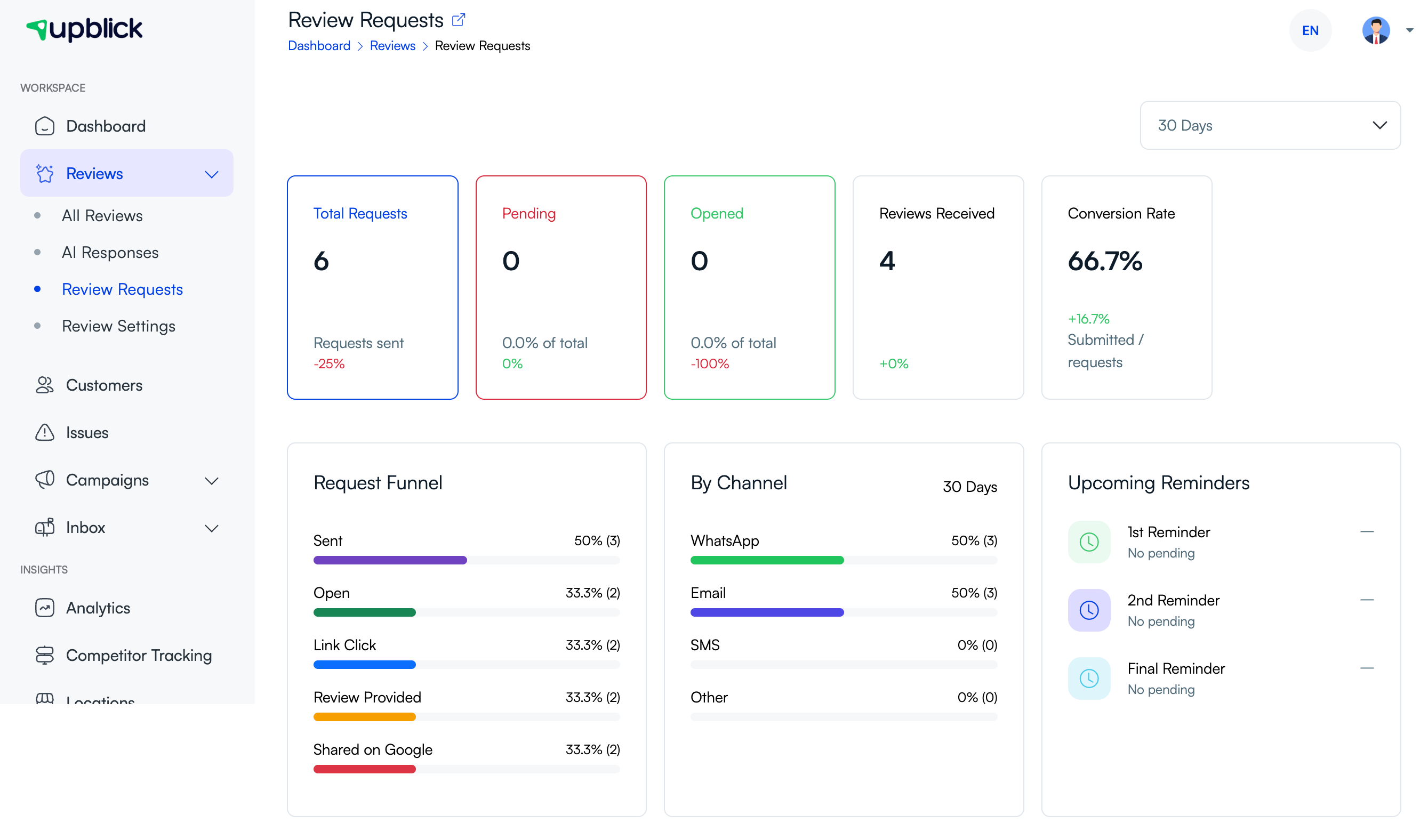
खोलें समीक्षाएँ, फिर चुनें समीक्षा अनुरोध। आवश्यक रिपोर्टिंग अवधि चुनें और जांचें:
- क्या अनुरोध लंबित है या खोला गया है।
- क्या ग्राहक ने लिंक पर क्लिक किया या समीक्षा प्रदान की।
- क्या समीक्षा गूगल पर साझा की गई थी।
- अनुरोध के लिए उपयोग किया जाने वाला डिलीवरी चैनल।
- कॉन्फ़िगर अनुस्मारक वर्कफ़्लो में कोई भी आगामी अनुस्मारक।
आपके अनुरोध भेजने के बाद क्या होता है?
- अपब्लिक चयनित टेम्पलेट और उपलब्ध संपर्क चैनल का उपयोग करके अनुरोध को कतारबद्ध करता है।
- ग्राहक अनुरोध खोलता है और अपब्लिक समीक्षा यात्रा का अनुसरण करता है।
- समीक्षा अनुरोध पृष्ठ उपलब्ध अनुरोध गतिविधि को रिकॉर्ड करता है।
- यदि अनुस्मारक कॉन्फ़िगर किए गए हैं और ग्राहक ने यात्रा पूरी नहीं की है, तो आगामी अनुस्मारक गतिविधि समीक्षा अनुरोध पृष्ठ पर दिखाई देती है।
यदि ग्राहक कहता है कि उन्होंने पहले ही व्यवसाय की समीक्षा कर ली है, तो उन्हें धन्यवाद दें और आगे की मैन्युअल अनुवर्ती कार्रवाई रोक दें।
विनम्र अनुवर्ती कार्रवाई कैसे लिखें
संदेश को छोटा, तटस्थ रखें और जब ग्राहक पहले ही प्रतिक्रिया दे चुका हो तो उसे अनदेखा करना आसान रखें। उदाहरण के लिए:
"हमसे मिलने के लिए धन्यवाद। यदि आपके पास एक पल हो, तो हम आपकी ईमानदार प्रतिक्रिया की सराहना करेंगे। यदि आपने इसे पहले ही साझा कर दिया है, तो कृपया इस संदेश को अनदेखा करें।"
पांच सितारा रेटिंग न मांगें, सकारात्मक समीक्षा के लिए इनाम की पेशकश न करें, या किसी ऐसे व्यक्ति से बार-बार संपर्क न करें जो जवाब नहीं देता है।
टिप्स
- ग्राहक से बातचीत के तुरंत बाद पहला अनुरोध भेजें।
- डुप्लिकेट ग्राहकों से बचने के लिए नया रिकॉर्ड जोड़ने से पहले खोजें।
- सही स्थान और फ़ोन कोड की पुष्टि करें।
- बार-बार नए मैन्युअल अनुरोध भेजने के बजाय अनुस्मारक सेटिंग्स का उपयोग करें।
- समीक्षा प्राप्त होने या ग्राहक द्वारा ऑप्ट आउट करने के बाद फॉलो-अप बंद करें।
- सहमति, संचार प्राथमिकताओं और लागू गोपनीयता आवश्यकताओं का सम्मान करें।
समस्या निवारण
अक्सर पूछे जाने वाले प्रश्न
क्या मैं तुरंत समीक्षा अनुरोध पुनः भेज सकता हूँ?
अपब्लिक उसी ग्राहक के लिए उसी स्थान के लिए किसी अन्य रिकॉर्ड किए गए अनुरोध को रोकता है जब वह उस दिन पहले से मौजूद हो। मौजूदा अनुरोध की जाँच करें और अपने कॉन्फ़िगर किए गए अनुस्मारक वर्कफ़्लो का उपयोग करें।
यदि ग्राहक अपब्लिक में नहीं है तो क्या होगा?
चुनें ग्राहक जोड़ें, सहमति से उनके संपर्क विवरण दर्ज करें, एक समीक्षा अनुरोध टेम्पलेट चुनें, और छोड़ दें समीक्षा अनुरोध न भेजें। चुना नहीं गया.
क्या ग्राहक की समीक्षा के बाद मुझे फॉलो-अप करना चाहिए?
नहीं. ग्राहक को धन्यवाद दें और उस बातचीत के लिए आगे की समीक्षा अनुस्मारक बंद करें।
क्या अपब्लिक अनुस्मारक भेज सकता है?
अपब्लिक समीक्षा यात्रा में अनुस्मारक चरणों का समर्थन करता है। जब अनुस्मारक कॉन्फ़िगर और लागू होते हैं तो समीक्षा अनुरोध पृष्ठ आगामी अनुस्मारक गतिविधि दिखाता है।
मुझे ग्राहक को कितनी बार याद दिलाना चाहिए?
एक सीमित, सम्मानजनक अनुस्मारक अनुक्रम का उपयोग करें और जब ग्राहक समीक्षा करता है, ऑप्ट आउट करता है, या आगे संदेश नहीं चाहता है तो रुक जाता है। बार-बार मैन्युअल अनुरोध करने से बचें.
संबंधित लेख
हर ग्राहक संपर्क को समीक्षा वृद्धि में बदलें
अपब्लिक की मदद से प्रतिक्रिया एकत्र करें, गूगल समीक्षाओं का अनुरोध करें, खराब अनुभवों को संभालें और ग्राहक भावना समझें।
क्या आपको अपब्लिक में सहायता चाहिए?
समीक्षा संग्रह, ग्राहक प्रबंधन, व्हॉट्सऐप संदेश, अनुस्मारक और रिपोर्ट समझने के लिए इन मार्गदर्शिकाओं का उपयोग करें।
अपब्लिक के साथ अपनी समीक्षाओं की वृद्धि शुरू करें