How to Set Up WhatsApp Messaging
WhatsApp & Messaging
Set up WhatsApp messaging in UpBlick before sending review requests, reminders, feedback requests, campaign messages, or automated follow-ups through WhatsApp. UpBlick lets you start with a shared WhatsApp option or connect your own WhatsApp Business number.
What you can choose during setup
UpBlick gives you two ways to start WhatsApp messaging:
- UpBlick WhatsApp No: A shared setup option designed to get started quickly.
- Your own WhatsApp No: Your business’s own WhatsApp Business number and brand setup.
The right option depends on how quickly you want to start and whether you want to message from your own business number.

Before you start
- Select the correct business location.
- Decide whether you want to use the shared UpBlick WhatsApp option or your own business number.
- Make sure your team knows which number customers will receive messages from.
- Prepare approved messaging templates for the message types you plan to send.
- Collect customer consent before sending WhatsApp communication.
Step 1: Open WhatsApp Channels
- Open Automation from the sidebar.
- Select Channels.
- Open the WhatsApp tab.
This page shows whether your WhatsApp setup is already connected and which option is active for the selected location.
Step 2: Choose your WhatsApp setup option
Option A: Use the UpBlick WhatsApp number
This option is useful when you want the fastest setup and do not want to complete a separate Meta Business setup immediately.
- It is designed to be ready quickly.
- It does not require the same level of independent setup as your own number.
- It can be a practical starting point for smaller businesses.
Option B: Connect your own WhatsApp Business number
This option is useful when you want customers to receive messages from your own business number and brand. It is the better fit when your business wants more direct ownership of the messaging identity.
- Messages are sent from your own business number.
- Your branding is tied more directly to the customer-facing experience.
- It usually involves a more complete business connection flow.
Step 3: Complete the connection
Select the available connect option for the WhatsApp setup you want to use. Follow the connection flow shown inside UpBlick.
When the setup is complete, the chosen option should display a connected state on the Channels page.
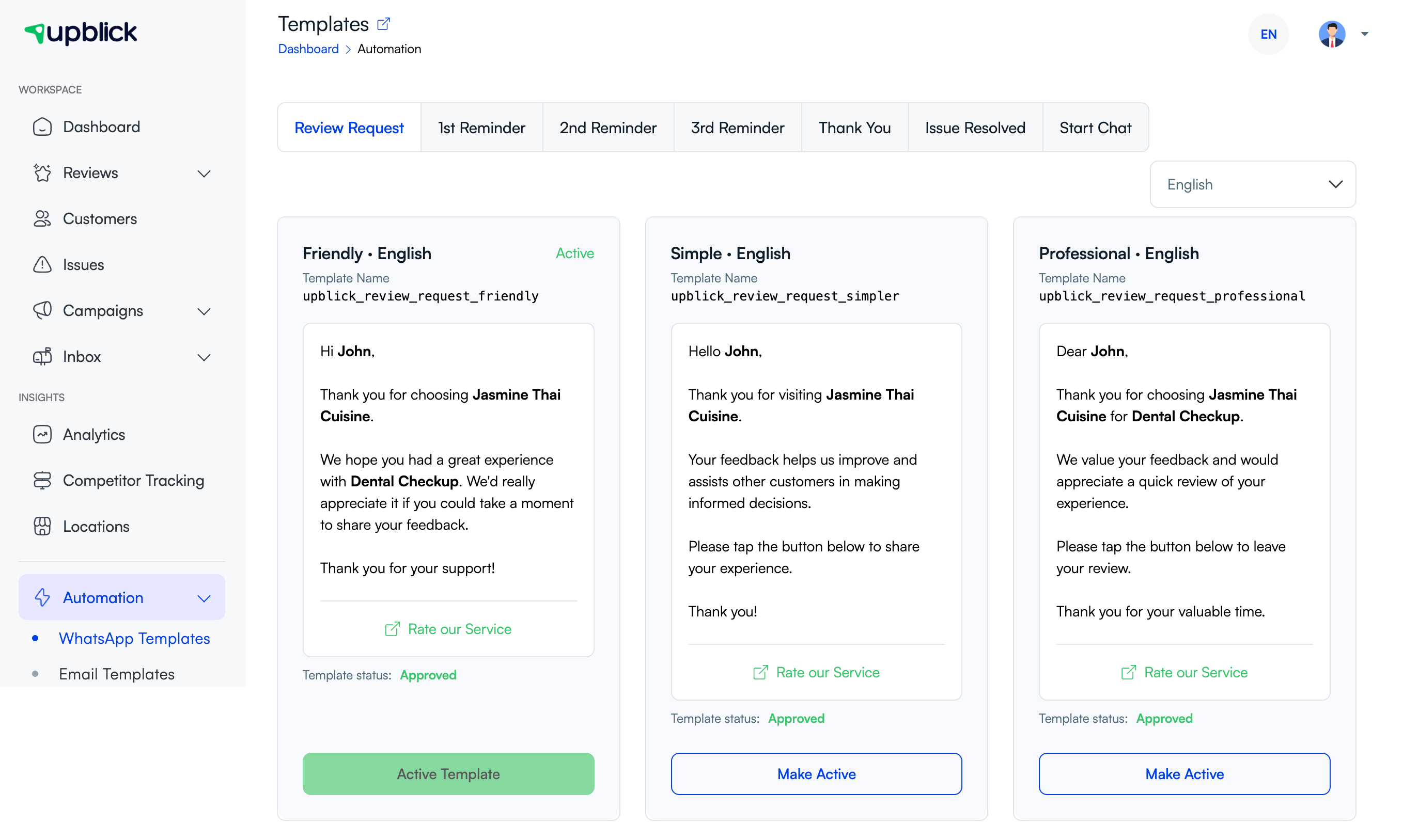
Step 4: Prepare your message templates
After the channel is connected, set up the templates you plan to use for review requests, reminders, thank-you messages, or other WhatsApp communication.
- Open Automation > WhatsApp Templates.
- Select the message type you need, such as Review Request.
- Review the available templates and their status.
- Choose the language you want to use.
- Make the approved template active.
Step 5: Check that customer records are ready
Before sending messages, make sure the customer record includes a valid mobile number or WhatsApp number and that your team has the required permission to contact that customer through WhatsApp.
Step 6: Send a test message from a real workflow
Use a safe internal test record or a permitted test contact to confirm that:
- The channel shows as connected.
- The correct template is active.
- The selected location is correct.
- The customer opens the intended review or message flow.
What a complete WhatsApp setup usually includes
- A connected WhatsApp channel.
- An approved and active template for the message type you need.
- Customers with valid phone details.
- Customer consent for WhatsApp communication.
- The correct business location selected before sending.
Best practices
- Start with one location and test the flow before rolling it out more widely.
- Use clear internal rules for when to use the shared UpBlick number versus your own number.
- Keep message templates aligned with the purpose of the message.
- Check consent before sending WhatsApp messages.
- Make sure your team knows which connected channel is active.
- Retest after changing templates, numbers, or location settings.
Troubleshooting
Frequently asked questions
Should I use the UpBlick WhatsApp number or my own business number?
Use the shared UpBlick option when you want to get started quickly. Use your own business number when you want customer messaging to come from your business identity.
Can I send WhatsApp messages immediately after connecting the channel?
You should also confirm that the right template is approved and active, the correct location is selected, and the customer has consented to receive WhatsApp communication.
Do I need message templates for WhatsApp?
Yes. Templates are an important part of WhatsApp messaging workflows in UpBlick, especially for review requests, reminders, and other repeatable communication.
Related Articles
Turn every customer touchpoint into review growth
Use UpBlick to collect feedback, request Google reviews, recover bad experiences, and understand customer sentiment.
Need help with UpBlick?
Use these guides to set up review collection, customers, WhatsApp automation, issue recovery, and reporting.
Start growing reviews with UpBlick