How to Send Messages to Multiple Customers
WhatsApp & Messaging
Use bulk WhatsApp messaging in UpBlick when you want to contact a group of customers instead of sending one message at a time. This works best when your customer list is clean, the right customers have consented, and your WhatsApp template is already approved.
When to use bulk WhatsApp messaging
You might send messages to multiple customers when you want to:
- Follow up with a customer group after a service period.
- Send reminders to customers who have not completed an action.
- Run a campaign for a selected customer segment.
- Reach customers across one location with the same approved message.
Before you start
- Confirm the correct business location.
- Make sure the WhatsApp channel is connected.
- Prepare the customer list or segment you want to message.
- Check that each customer has valid contact details.
- Send only to customers who have consented to receive WhatsApp communication.
- Use an approved message template that fits the campaign purpose.
Step 1: Confirm WhatsApp is connected
- Open Automation.
- Select Channels.
- Open the WhatsApp tab.
- Check that the chosen WhatsApp option shows Connected.

Step 2: Prepare the customer list
Bulk sends work best when your contacts are already organized. You can prepare the list by:
- Using existing customers in the selected location.
- Searching and filtering the customer list.
- Importing a CSV, XLS, or XLSX file when you need to add a larger set of contacts.
Remove duplicate records and make sure phone numbers are stored with the right country code.
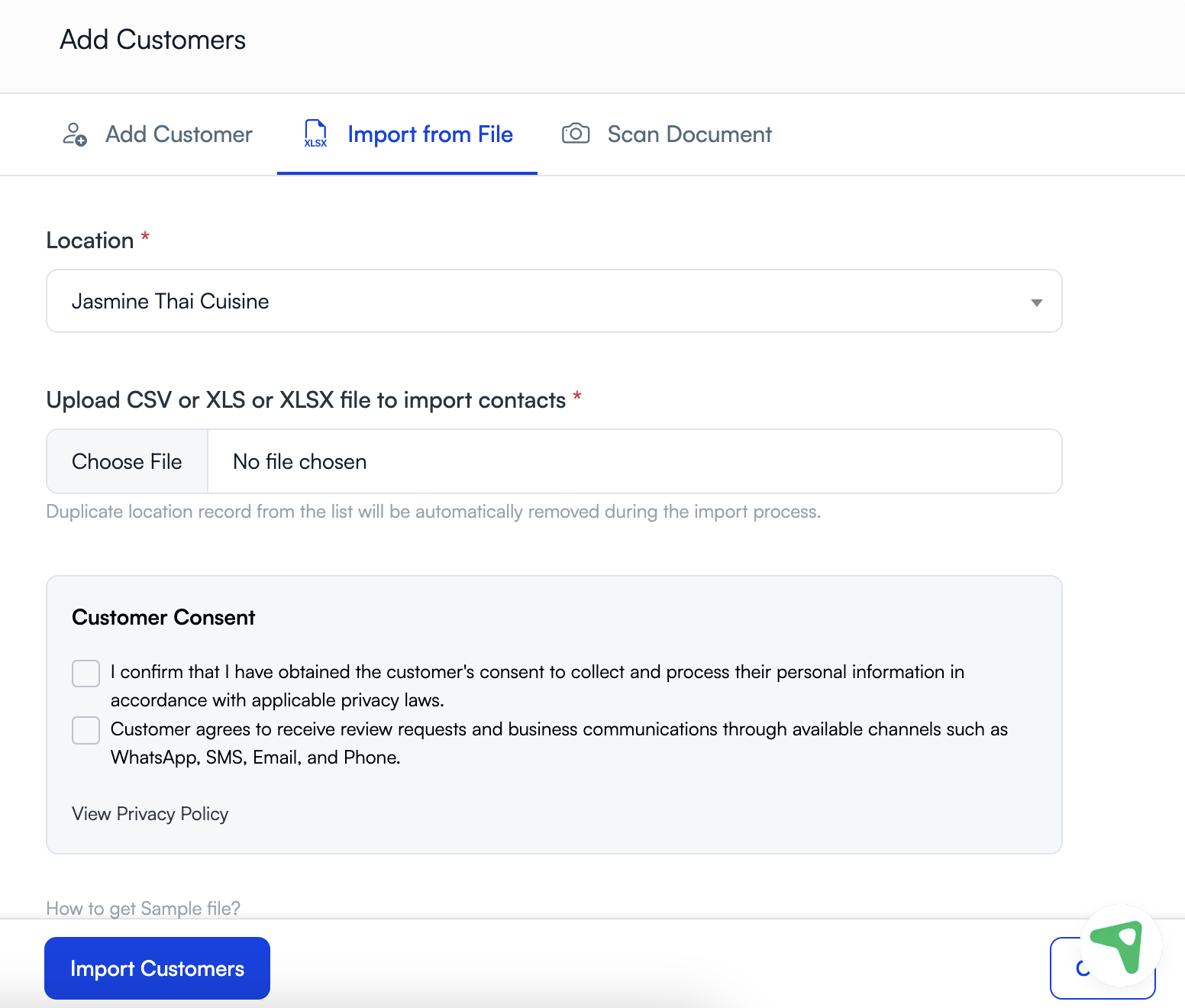
Step 3: Confirm customer consent
Before sending to multiple customers, confirm that the people in your list have agreed to receive WhatsApp communication. This matters even more in bulk because one mistake can affect many customers at once.
Exclude customers whose consent is missing, unclear, or limited to another type of communication.
Step 4: Choose the template for the campaign or bulk send
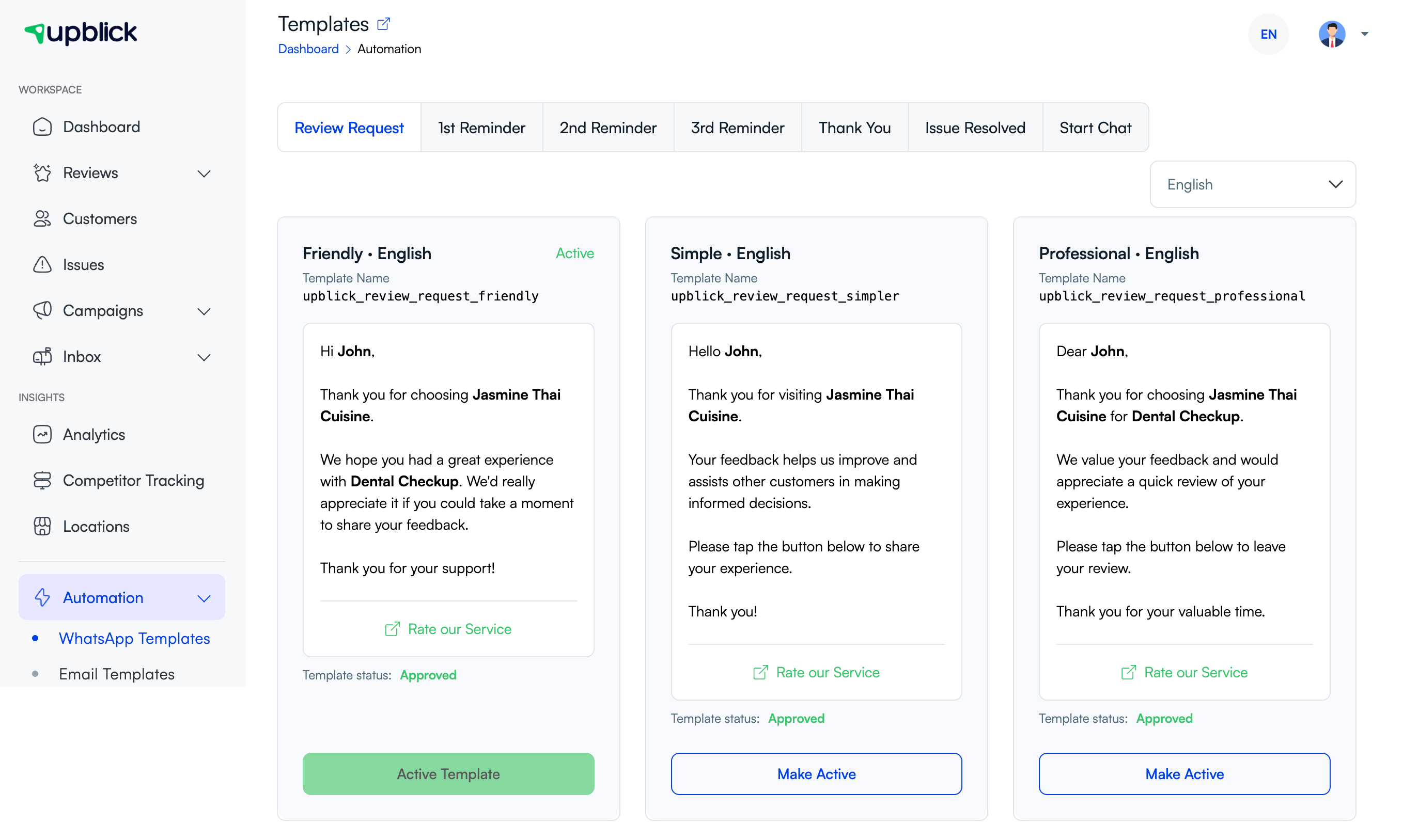
- Open Automation > WhatsApp Templates.
- Select the message type you want to send.
- Review the template language and wording.
- Make sure the template is approved and active.
Using one approved template for the whole send keeps the communication consistent and easier to track.
Step 5: Send the message to the selected customer group
From your campaign, bulk messaging, or selected-customer workflow in UpBlick:
- Select the customers you want to include.
- Review the count and location.
- Confirm the template being used.
- Launch the send.
If your team uses customer segments, review the segment carefully before sending so you do not message the wrong audience.
Step 6: Monitor results
After the send begins, check the relevant message activity, campaign progress, or customer response reporting available in UpBlick. This helps you confirm whether customers were reached and whether any follow-up is needed.
Best practices for bulk messaging
- Start with a smaller test batch before a wider send.
- Use a template that matches the reason for the outreach.
- Keep customer records clean and deduplicated.
- Send only to customers who should receive that message.
- Keep location selection consistent from start to finish.
Troubleshooting
Frequently asked questions
Can I send the same WhatsApp message to many customers at once?
Yes, as long as the customer group is prepared correctly, the channel is connected, and the message uses the right approved template.
Should I import customers before sending to a large group?
Yes, importing can be a practical way to prepare a larger list, especially when you need to clean and review the customer data before sending.
Why is consent especially important for bulk sends?
Because one bulk action can contact many people at once. It is important to send only to customers who have agreed to receive WhatsApp communication.
Related Articles
Turn every customer touchpoint into review growth
Use UpBlick to collect feedback, request Google reviews, recover bad experiences, and understand customer sentiment.
Need help with UpBlick?
Use these guides to set up review collection, customers, WhatsApp automation, issue recovery, and reporting.
Start growing reviews with UpBlick