How to View Customer Reviews in UpBlick?
Reviews & Review Collection
You can view customer reviews in UpBlick from the Reviews section. The Reviews page shows rating summaries, sentiment counts, response performance, review sources, and a searchable list of individual customer reviews for the selected location.
Open customer reviews
- Sign in to UpBlick.
- Select the required business location from the location selector.
- Open Reviews from the sidebar.
- Select All Reviews.
- Use the summary cards, filters, and review table to inspect customer feedback.

What you can see on the Reviews page
| Area | What it shows | How to use it |
|---|---|---|
| Rating cards | Google rating, UpBlick rating, total reviews, positive reviews, negative reviews, and average response time. | Check the overall health of the selected location. |
| Rating breakdown | How reviews are distributed across 1-star to 5-star ratings. | Find whether the location is receiving mostly high, low, or mixed ratings. |
| Rating insights | Highlights such as active review days, positive feedback, negative feedback, and rating strength. | Identify trends and items that may need attention. |
| Top review sources | Where reviews are coming from, such as Google or UpBlick. | Understand which review channels are contributing to your totals. |
| Review list | Reviewer name, rating, review text, source, status, and response information when available. | Read individual reviews and decide which ones need a reply or follow-up. |
Use filters to find specific reviews
The Reviews page includes filters that help you narrow the review list. Depending on the available data, you can search review text, filter by rating, and filter by review status.
- Use Search reviews to find a reviewer name, phrase, service, or keyword.
- Use All Ratings to focus on a specific star rating group.
- Use All Status to find reviews by response or review status.
- Use the location selector to switch between business locations.
Review Google and UpBlick sources
UpBlick can show reviews and feedback from different sources. Google reviews are public reviews connected to your Google Business Profile. UpBlick feedback is collected through your UpBlick review journey.
Use the source information to understand where each customer response came from before replying or reporting on review performance.
Find reviews that need attention
Start with reviews that may affect customer trust or require a response:
- Recent 1-star, 2-star, or 3-star reviews.
- Reviews with negative sentiment or specific complaints.
- Reviews that mention service delays, billing, quality, staff behavior, or safety concerns.
- Reviews that have not been responded to yet.
- Repeated complaints that appear across multiple customers.
View review trends on the dashboard
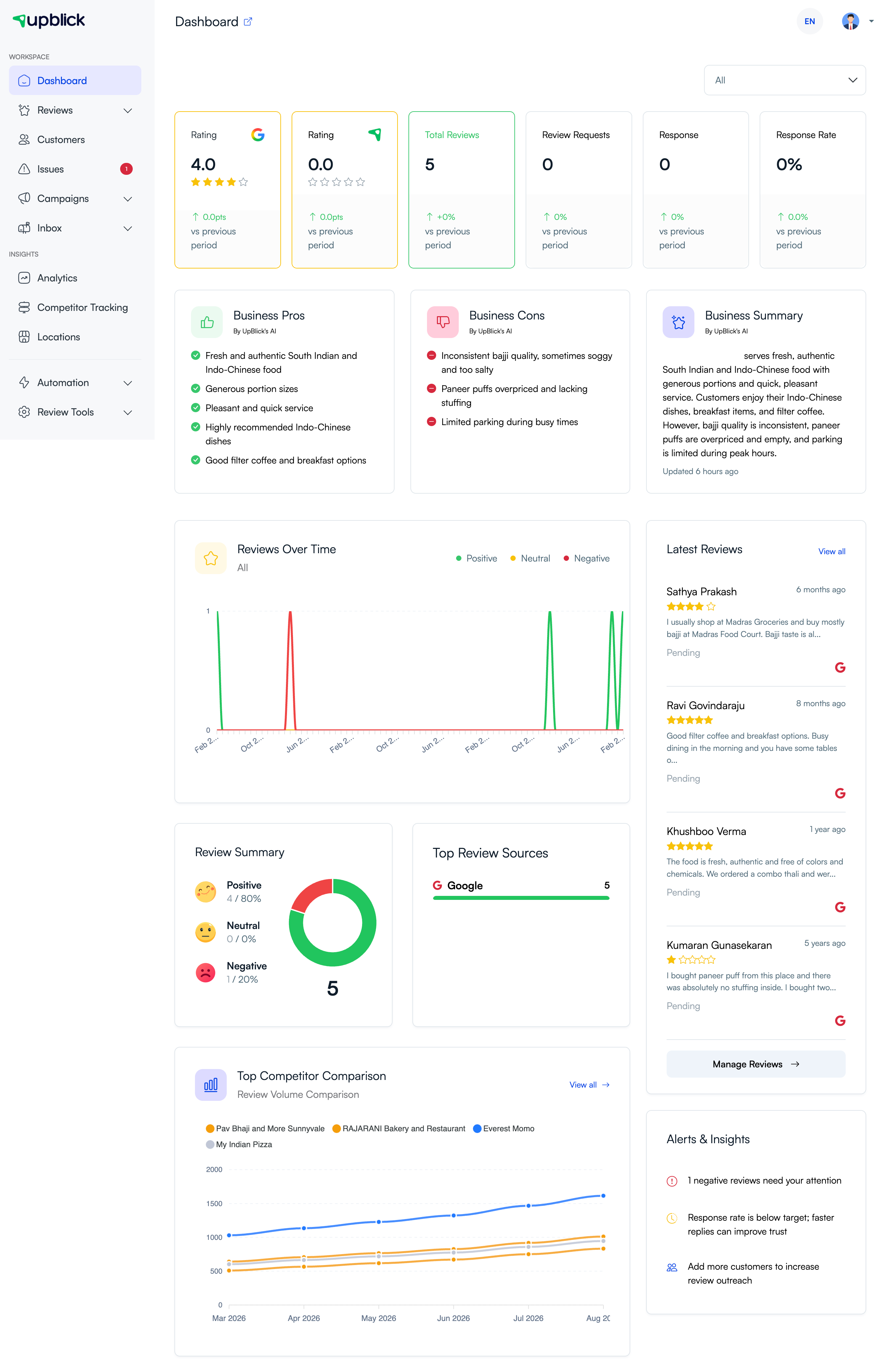
For a broader view, open the Dashboard. The dashboard can show review trends, latest reviews, business pros and cons, summaries, and alerts for the selected location.
Best practices
- Check new reviews regularly.
- Read the full review before responding.
- Prioritize recent negative reviews and unresolved customer concerns.
- Use filters to find patterns by rating, keyword, or status.
- Compare Google and UpBlick sources to understand the full customer feedback picture.
- Track average response time so customers are not left waiting.
- Use recurring themes to improve service, not only to write replies.
Troubleshooting
Frequently asked questions
Where do I find all customer reviews?
Open Reviews > All Reviews for the selected location.
Can I filter reviews by rating?
Yes. Use the rating filter to focus on all ratings or a specific rating group.
Can I search review text?
Yes. Use the search box to find reviewer names, words, phrases, or service-related keywords.
Why are Google and UpBlick ratings different?
Google rating is based on Google reviews. UpBlick rating can include feedback collected through the UpBlick review journey, so the numbers may differ.
Should I respond to every review?
Responding consistently is a good habit, especially for recent reviews, negative reviews, and reviews that mention a specific customer concern.
Related Articles
Turn every customer touchpoint into review growth
Use UpBlick to collect feedback, request Google reviews, recover bad experiences, and understand customer sentiment.
Need help with UpBlick?
Use these guides to set up review collection, customers, WhatsApp automation, issue recovery, and reporting.
Start growing reviews with UpBlick