How Does UpBlick Collect Customer Feedback?
Reviews & Review Collection
UpBlick collects feedback through a mobile-friendly review journey linked to a business location. Customers can open the journey from a review request, QR code, or NFC card, answer configurable questions, and review an AI-assisted draft before choosing an available sharing option.
The feedback collection journey
- The business configures a review collection mode and feedback form for a location.
- A customer opens the location’s unique review journey.
- The customer gives a star rating and answers the enabled feedback questions.
- When applicable, UpBlick uses those answers to suggest editable review drafts.
- The customer chooses a draft, edits it, or writes their own final text.
- The customer completes an available sharing or save option.
- UpBlick stores the submission and uses it for review tracking, insights, and issue detection.
The customer remains in control of the final wording and whether they continue to an external review platform.
Choose how UpBlick collects feedback
Open Reviews > Review Settings > Review Collection and choose one of the following modes.
| Review Collection mode | Customer journey | Best suited for |
|---|---|---|
| Collect Feedback & Suggest an AI-Assisted Review | Collects feedback, suggests editable review drafts, and offers the configured Google sharing step. | Businesses that want customer insights and more Google reviews. |
| Send Customers Directly to Google | Redirects the customer to the location’s Google review page without collecting feedback through UpBlick. | Businesses that want the shortest Google review path. |
| Collect Feedback for Business Analysis | Collects feedback and can suggest a draft, but does not direct the customer to Google. | Businesses focused on internal insights and service improvement. |
Select the required mode, then select Save Changes. The choice applies to the selected location.
How customers open the feedback journey
Review requests
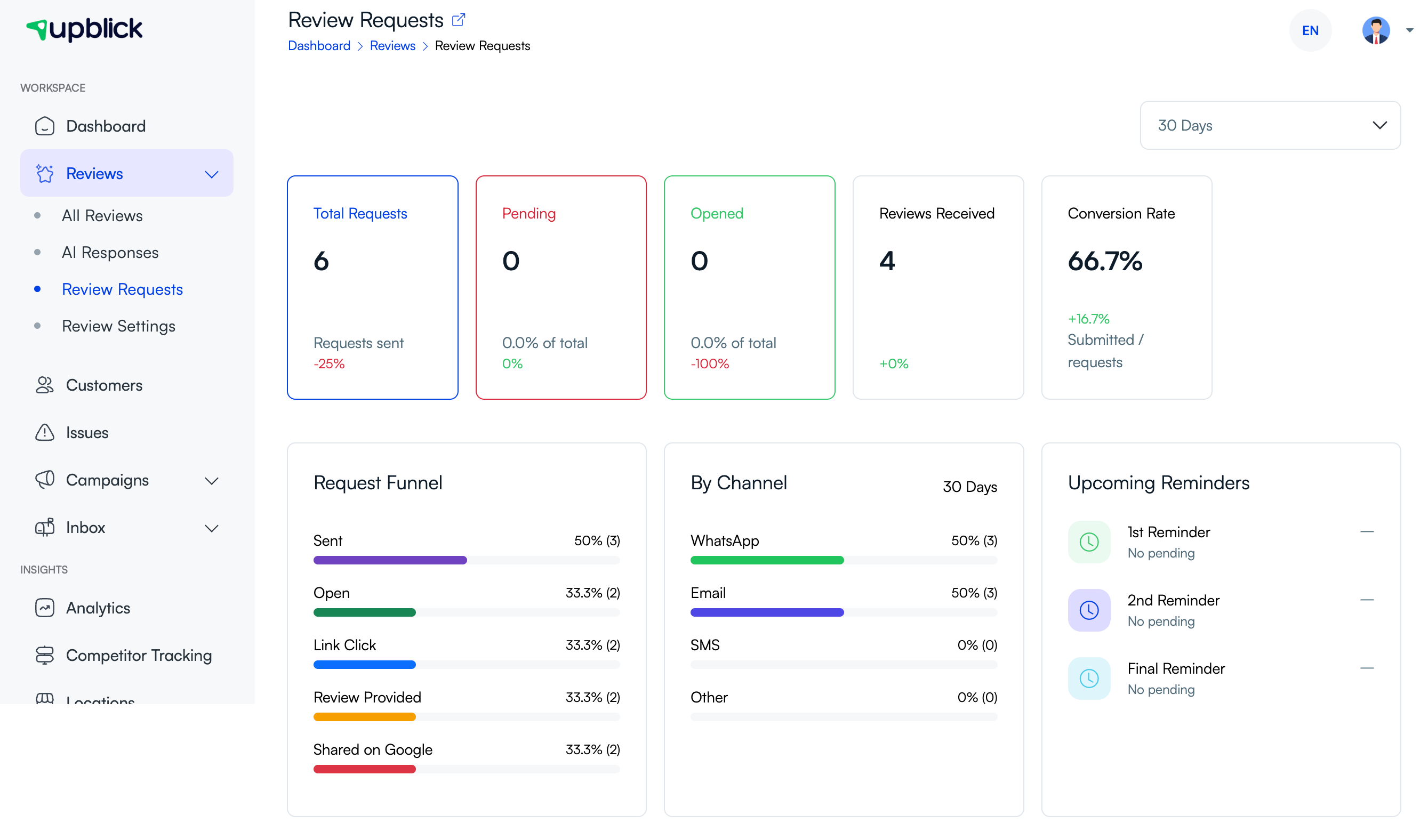
When you add or import a consented customer, UpBlick can send a unique review link through available configured channels. The link connects the response to the customer, location, and review visit.
QR codes
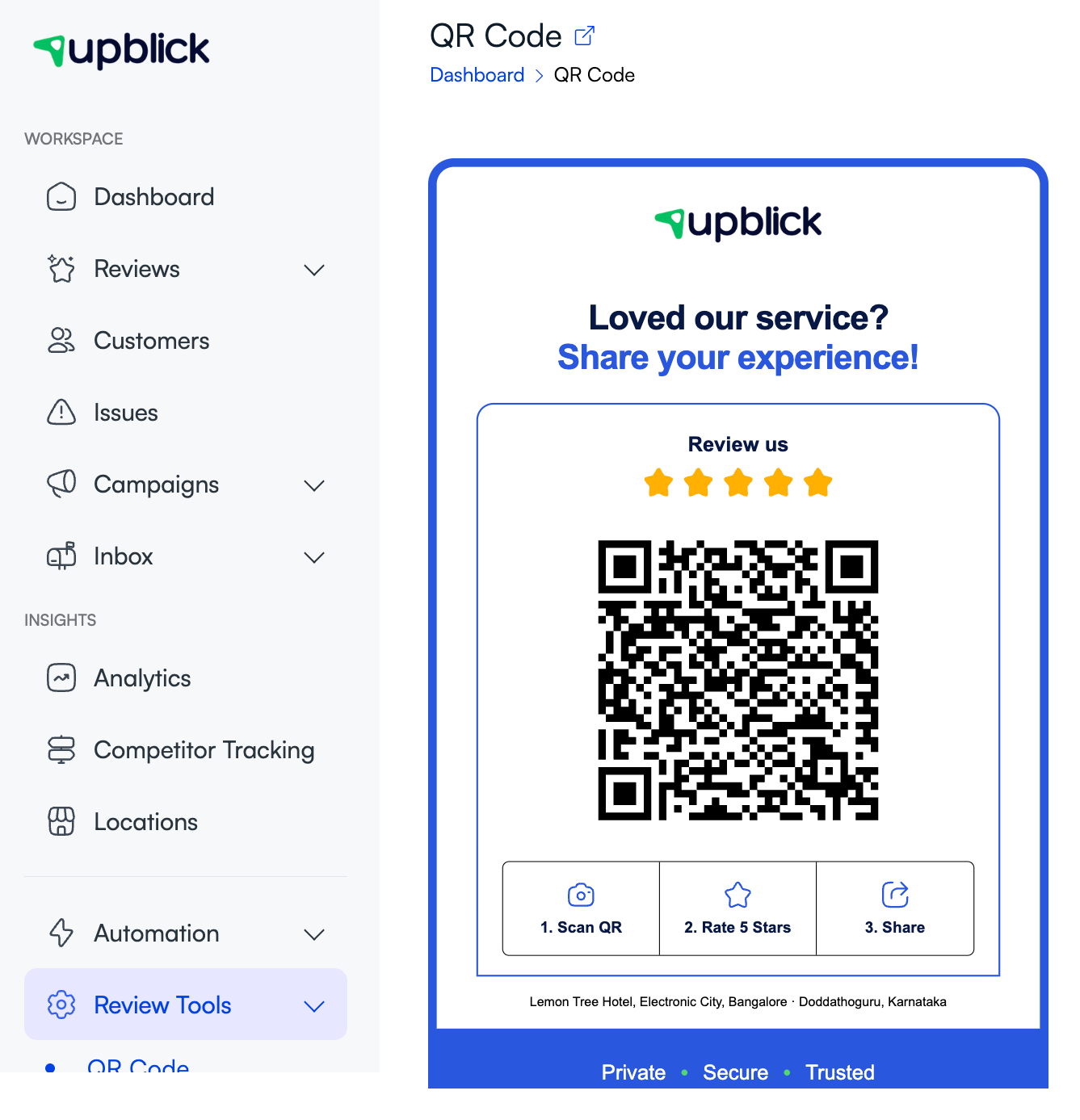
Customers can scan the location’s UpBlick QR code at a counter, table, reception desk, or checkout area. The QR journey can collect guest details before showing the same configured feedback experience.
NFC cards
A customer can tap a compatible phone on an UpBlick NFC card to open the location’s review journey. NFC changes how the link is opened; the selected Review Collection mode still controls what happens next.
What information can UpBlick collect?
The exact questions depend on the location’s Form settings. The standard journey can include:
- An overall rating from 1 to 5 stars.
- The service, product, treatment, or interaction used.
- Highlights describing what stood out.
- An additional highlight entered by the customer.
- The team member or department that helped the customer.
- The customer’s chosen, edited, or self-written review text.
- The selected language and sharing option.
- Contact details when the customer enters as a guest through a supported journey.
Only enable questions that help your business take action. Avoid requesting sensitive personal information in question labels or answer options.
Customize the feedback questions
- Select the required location.
- Open Reviews > Review Settings.
- Select the Form tab.
- Edit the experience label and description.
- Enable or disable the service question, then edit its label and options.
- Enable or disable the highlights question, then edit its label and options.
- Enable or disable the staff question, then edit its label and options.
- Review the AI draft and sharing-step labels.
- Select Save Settings.
Enter one option per line for configurable question choices. Keep options short, distinct, and relevant to the selected location.
How AI-assisted drafts use the feedback
In a feedback mode, UpBlick can use the customer’s rating, selected services, highlights, staff selection, business information, and language to suggest review drafts. The customer can:
- Choose one of the suggested drafts.
- Edit the selected draft before continuing.
- Ignore the suggestions and write their own review.
An AI-assisted draft is a writing aid. It is not posted automatically, and the customer should confirm that the final text accurately reflects their experience.
How UpBlick handles lower ratings
When a completed UpBlick submission has a rating below 4 stars, UpBlick can create an Issue linked to that feedback. AI analysis can help summarize the concern, categorize it, estimate sentiment and priority, and give the team a structured record to follow up.
This does not hide the customer’s feedback or guarantee that it will not be shared elsewhere. The purpose is to help the business identify and resolve a genuine customer problem.
How businesses use the collected feedback
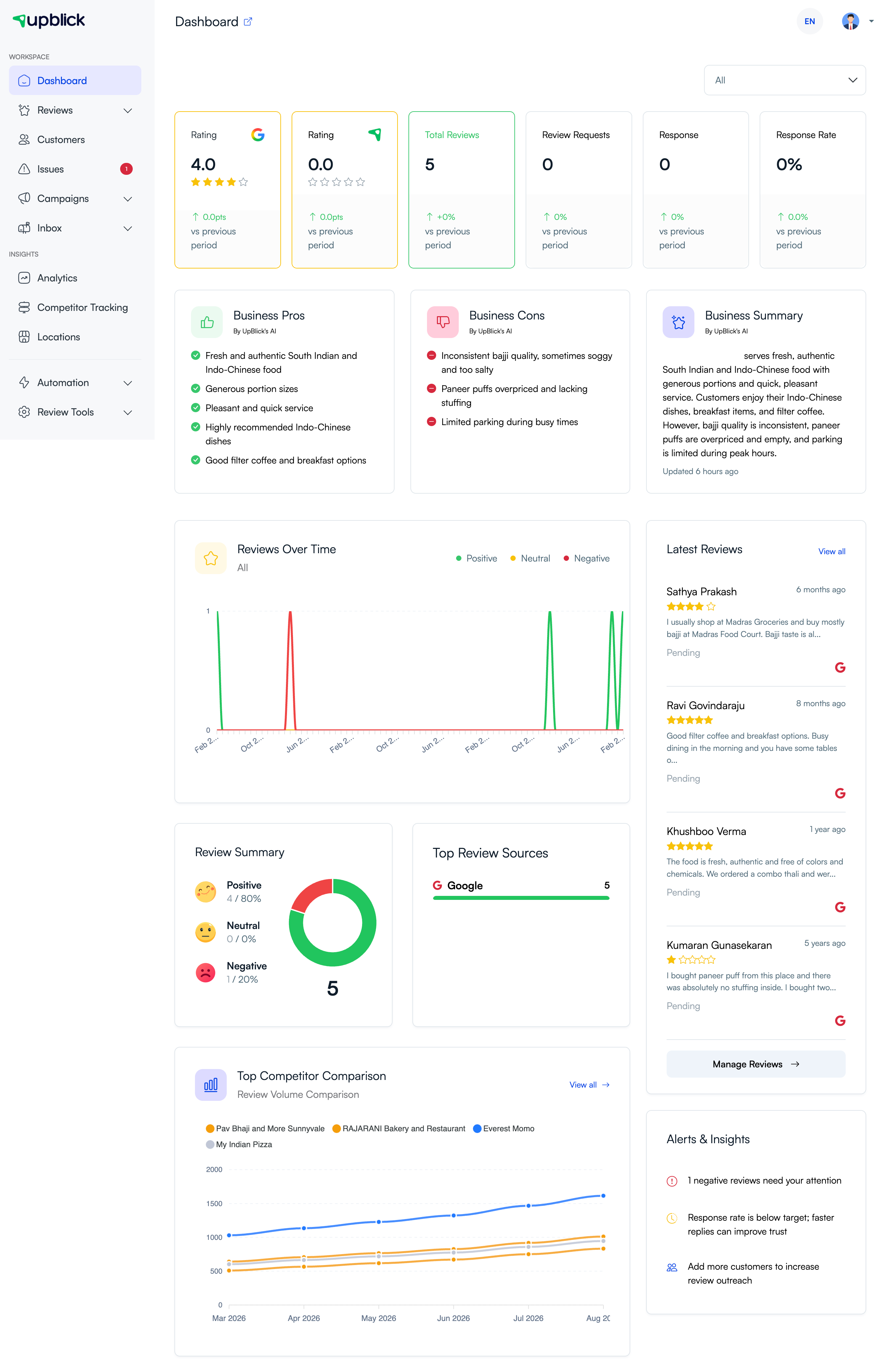
UpBlick combines review and feedback activity into location-level reporting. Depending on the available data, the dashboard can show:
- Ratings and total review counts.
- Business pros, cons, and an AI-generated summary.
- Positive, neutral, and negative review trends.
- Latest reviews and items that need attention.
- Common themes that can guide service improvements.
Feedback collection best practices
- Ask every eligible customer for honest feedback instead of selecting only satisfied customers.
- Keep the form short enough to complete on a phone.
- Use answer options that match the actual services at the location.
- Review low-rating Issues promptly and respond with empathy.
- Do not offer incentives in exchange for a review or particular rating.
- Obtain consent before collecting personal information or sending follow-up messages.
- Use recurring themes to improve operations, not to pressure customers to change their feedback.
Troubleshooting
Frequently asked questions
Does UpBlick collect feedback in every mode?
No. Send Customers Directly to Google bypasses the UpBlick feedback form.
Does UpBlick post an AI-generated review automatically?
No. Suggested drafts are editable writing aids. The customer chooses and confirms the final text and sharing action.
Can a business customize the feedback form?
Yes. The Form tab lets you edit labels and answer options and enable or disable supported questions for each location.
Does a low rating automatically create an Issue?
A completed UpBlick submission below 4 stars can create an Issue for the location. The team can then review and manage the concern.
Do customers need to download an app?
No. They open the review journey in a web browser from the request link, QR code, or NFC card.
Related Articles
Turn every customer touchpoint into review growth
Use UpBlick to collect feedback, request Google reviews, recover bad experiences, and understand customer sentiment.
Need help with UpBlick?
Use these guides to set up review collection, customers, WhatsApp automation, issue recovery, and reporting.
Start growing reviews with UpBlick