Can Customers Leave a Google Review Without Downloading an App?
Reviews & Review Collection
Yes. Customers can leave a Google review from an UpBlick review link without downloading an UpBlick app. They can open the review journey in a browser from WhatsApp, email, SMS, a QR code, or an NFC card.
How the no-download flow works
- The customer opens an UpBlick review link, scans a QR code, or taps an NFC card.
- The review journey opens in the customer’s phone browser.
- The customer follows the configured UpBlick review collection flow.
- If your workflow includes Google, the customer selects the Google option.
- Google opens in the browser or in the Google app if the phone chooses to open it there.
- The customer submits the review on Google.

Ways customers can open the review journey
Customers can start from any supported review link or review tool:
- WhatsApp: the customer taps the review request link in the message.
- Email: the customer selects the review link or button in the email.
- SMS: the customer taps the short review link if SMS is configured.
- QR code: the customer scans the QR code with their phone camera.
- NFC card: the customer taps a compatible phone on the NFC card.
What the customer sees before Google
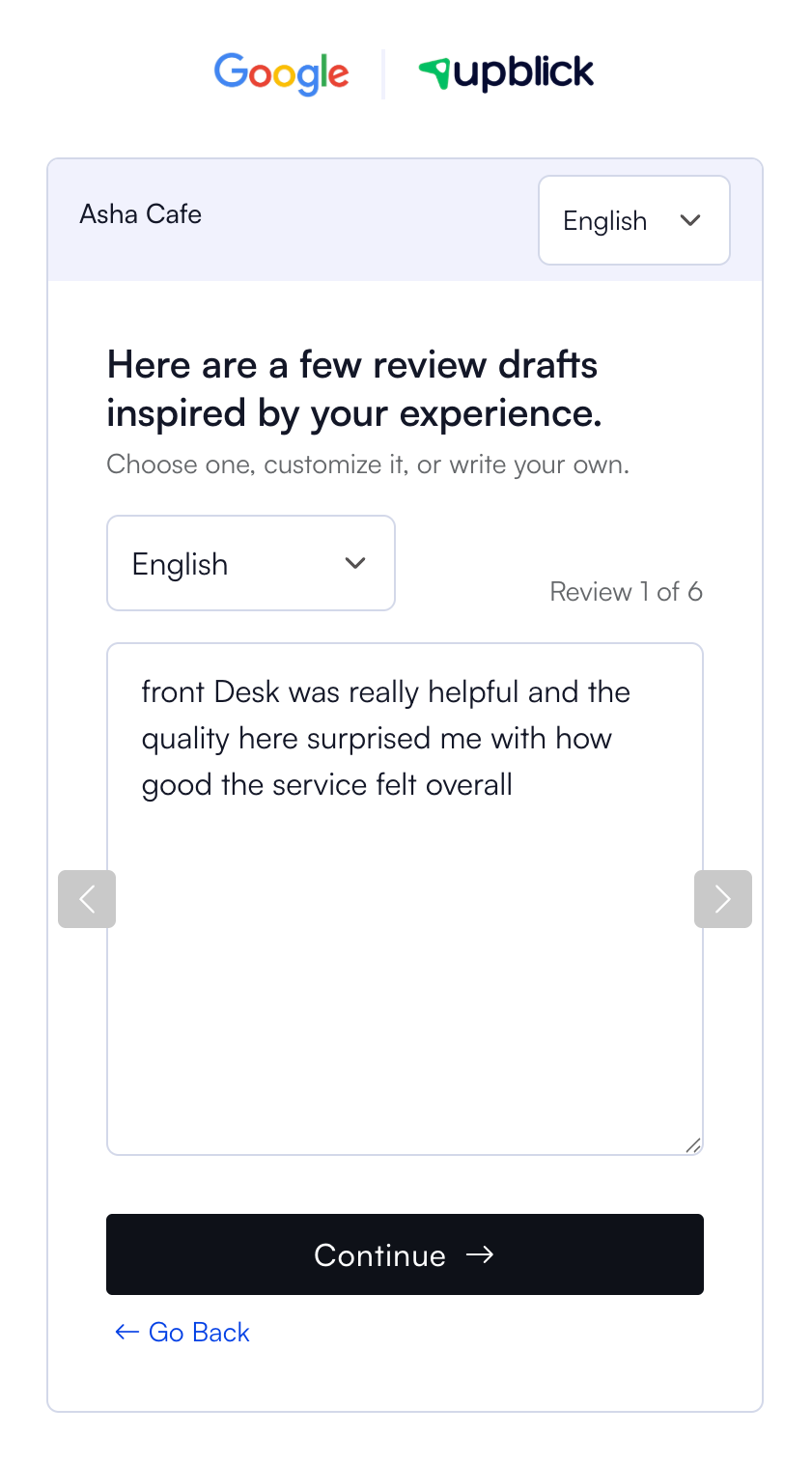
The exact flow depends on the location’s review collection settings. Customers may be sent directly to Google, or they may answer feedback questions first and review an AI-assisted draft before choosing to continue.

Will the Google app open?
Sometimes. When the customer selects the Google review option, the phone may open the link in the browser, Google Maps, or the Google app depending on the device, browser, and app settings.
This is normal. UpBlick’s role is to open the saved Google Review Link for the location. The customer completes the final review on Google.
Does the customer need a Google account?
Google may require the customer to sign in before submitting a review. UpBlick does not control Google sign-in, review submission, or public display of the review.
What businesses should check
- Make sure the location has the correct Google Review Link saved in UpBlick.
- Confirm the review collection mode includes a Google step if you want customers to continue to Google.
- Send yourself a test review request.
- Open the link on a phone browser.
- Complete the journey and confirm that the correct Google review page opens.
Best practices
- Tell customers they can use the link from their phone browser.
- Keep request messages short and easy to understand.
- Use QR codes or NFC cards for customers who are physically at your location.
- Test the flow on both iPhone and Android when possible.
- Do not ask customers to download UpBlick to leave a review.
- Do not pressure customers to leave a specific rating.
Troubleshooting
Frequently asked questions
Do customers need to install UpBlick?
No. Customers can open the UpBlick review journey in a browser from a link, QR code, or NFC card.
Do customers need an UpBlick account?
No. Customers do not need an UpBlick account to leave feedback or continue to Google.
Do customers need a Google account?
Google may require the customer to sign in before submitting a Google review.
Can the customer leave a review from a QR code?
Yes. Scanning the QR code opens the review journey on the customer’s phone.
Can the customer edit the review before posting?
Yes. If an AI-assisted draft is shown, the customer can edit it or write their own review before continuing to Google.
Related Articles
Turn every customer touchpoint into review growth
Use UpBlick to collect feedback, request Google reviews, recover bad experiences, and understand customer sentiment.
Need help with UpBlick?
Use these guides to set up review collection, customers, WhatsApp automation, issue recovery, and reporting.
Start growing reviews with UpBlick