How can I track whether a customer issue has been resolved?
Issues & Negative Feedback
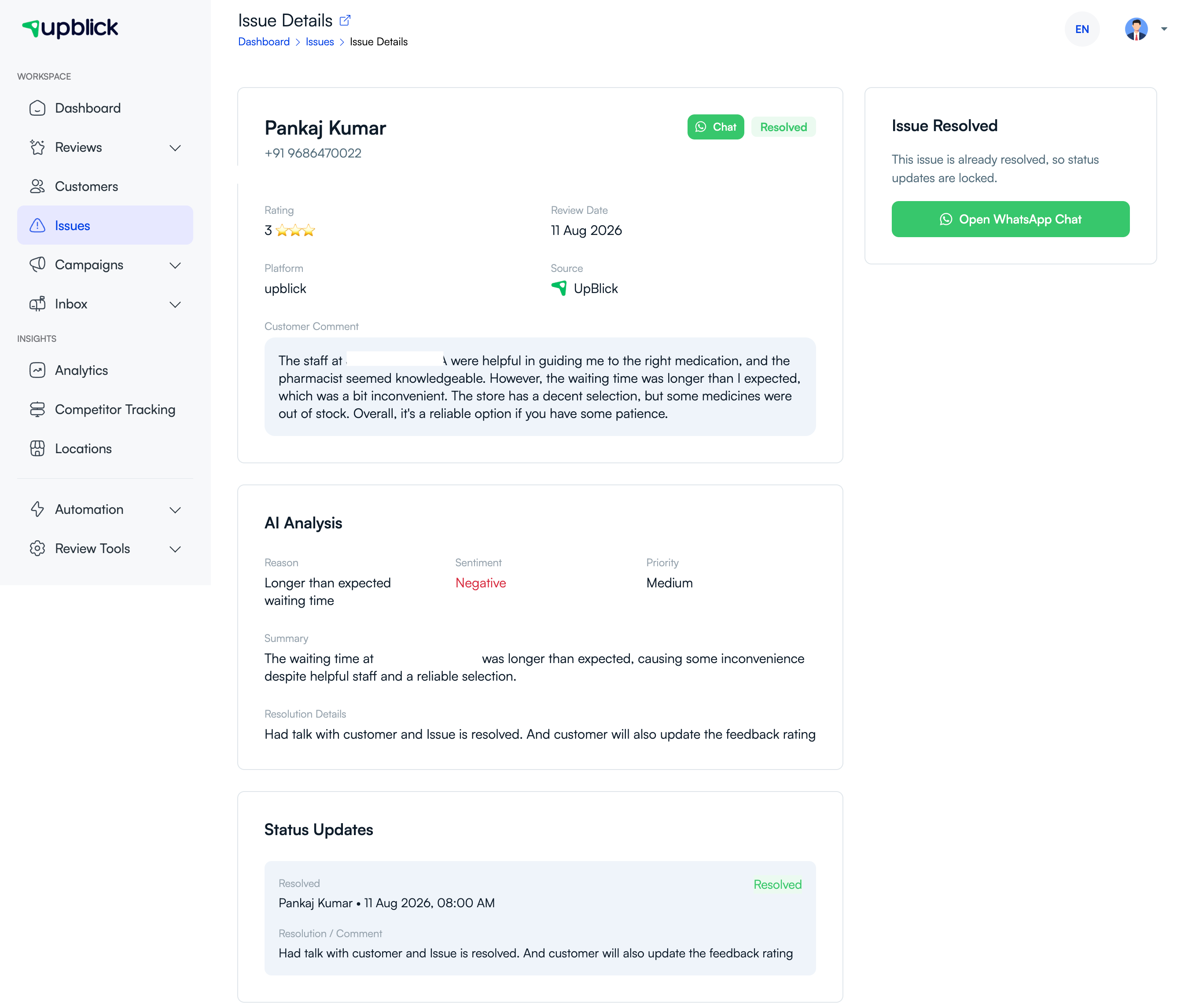
UpBlick keeps the status and update history for each customer issue. Use this history to see whether the team has acted, what was agreed with the customer, and whether the issue has reached a final outcome.
Check the issue status
- Open Issues for the relevant location.
- Select Resolved to see completed issues, or use Open and In Progress to find work that still needs action.
- Open an issue to review the resolution details and status updates.
What to check before marking an issue resolved
- The customer concern was investigated.
- The promised action was completed or a clear final outcome was provided.
- The final communication and any relevant internal notes are recorded.
- The resolution is accurate and does not require another team member’s action.
Choose the correct final status
| Status | Meaning |
|---|---|
| Resolved | The concern has been addressed and the outcome is recorded. |
| Unreachable | Reasonable contact attempts were unsuccessful. |
| Unresolvable | The issue could not be resolved; record the reason clearly. |
Use the history to improve
Review closed issues regularly to identify recurring reasons, service gaps, or training needs. A resolved issue should not simply disappear; it should help your business prevent the same customer experience from happening again.
Related Articles
Turn every customer touchpoint into review growth
Use UpBlick to collect feedback, request Google reviews, recover bad experiences, and understand customer sentiment.
Need help with UpBlick?
Use these guides to set up review collection, customers, WhatsApp automation, issue recovery, and reporting.
Start growing reviews with UpBlick