Understanding the UpBlick Dashboard
Getting Started
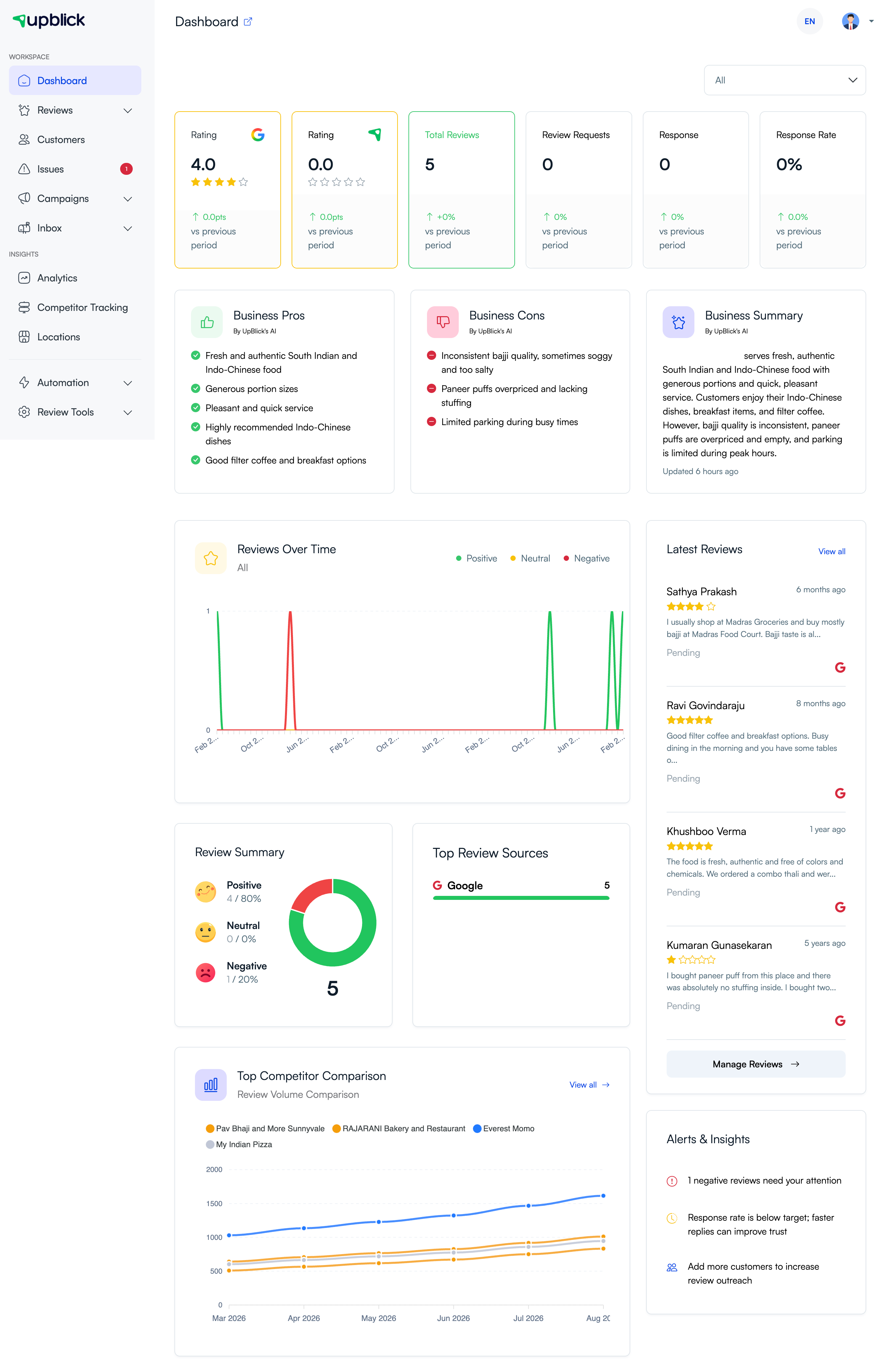
The UpBlick dashboard gives you a quick view of reviews, ratings, review requests, customer responses, feedback patterns, competitors, and actions that may need attention.
Use it to understand how a business location is performing and where your team should focus next.
Before you start
The dashboard becomes more useful after you:
- Add a business location.
- Connect the correct Google Places listing and Google Review Link.
- Sync or collect reviews.
- Add customers and send review requests.
- Set up competitor tracking when you want comparison data.
New accounts may show zero values or empty sections until activity is available.
How to use the UpBlick dashboard
Step 1: Open the Dashboard
Select Dashboard in the sidebar. UpBlick displays the overview for your current business location.
Step 2: Confirm the location
If you manage more than one branch, confirm that the correct location is selected before reading the results. Use the location switcher when you need to move to another branch.
Step 3: Choose a reporting period
Use the period menu near the top of the dashboard to view All activity or a specific period, such as this week, 15 days, 30 days, 3 months, 6 months, or 1 year.
Dashboard totals and changes are calculated for the selected period. When a previous period is available, the change indicator compares the current result with that previous period.
Understand the top metrics
Google Rating
Shows the average Google rating for the selected location and period. The Google icon identifies this rating source.
UpBlick Rating
Shows the average rating from feedback collected through UpBlick. This can differ from the Google rating because the sources are separate.
Total Reviews
Shows the number of reviews in the selected period.
Review Requests
Shows the number of unique review requests sent during the selected period.
Response
Shows the number of customer responses received during the selected period.
Response Rate
Shows customer responses as a percentage of review requests. Use it to understand how often review outreach leads to a response.
Understand AI business insights
When enough review data is available, UpBlick’s AI summarizes common themes:
- Business Pros: Positive qualities customers mention.
- Business Cons: Problems or weaknesses found in customer feedback.
- Business Summary: A combined overview of important customer themes.
Use these summaries as a quick starting point, then read the underlying reviews before making an important business decision.
Understand review charts
Reviews Over Time
Shows how positive, neutral, and negative reviews change across the reporting period. Use it to notice improvements, sudden problems, or changes in review volume.
Review Summary
Shows the total number and share of positive, neutral, and negative reviews.
Top Review Sources
Shows where reviews came from, such as Google or UpBlick. This helps you understand which review channels are contributing activity.
Top Competitor Comparison
Compares review volume with tracked competitors. Select View all when you want to open the full competitor view.
Review recent activity and alerts
Latest Reviews
Displays recent reviews, their ratings, source, age, and reply status. Select View all or Manage Reviews to open the full review list.
Alerts & Insights
Highlights items that may need attention, such as negative reviews, a low response rate, or the need to add more customers for review outreach.
Additional performance panels
Depending on the available data, the dashboard may also show negative reviews and review-response performance. Use these panels to find reviews that need attention and understand how consistently your team responds.
What should you do with dashboard insights?
- Open Reviews when a recent or negative review needs attention.
- Check Customers when you need to send more review requests.
- Review Business Cons for repeated customer complaints.
- Use Analytics when you need a deeper performance view.
- Open Competitor Tracking to investigate comparison trends.
- Switch locations to compare branch performance.
Tips
- Check the selected location and period before interpreting a number.
- Compare trends over time instead of judging performance from one review.
- Read individual reviews behind an AI summary.
- Act on repeated feedback themes, not only the overall rating.
- Review alerts regularly so important issues are not missed.
Troubleshooting
Frequently asked questions
Does the dashboard show all locations together?
The main dashboard is based on the selected location. Use the location switcher to view another branch.
Why are the Google and UpBlick ratings different?
They come from different review sources. The Google rating uses Google reviews, while the UpBlick rating uses feedback collected through UpBlick.
What does “vs previous period” mean?
It compares the selected period with the immediately preceding period of the same length.
How is response rate calculated?
Response rate compares customer responses received with unique review requests sent during the selected period.
Can I open the full review list from the dashboard?
Yes. Use View all or Manage Reviews in the Latest Reviews section.
Related Articles
Turn every customer touchpoint into review growth
Use UpBlick to collect feedback, request Google reviews, recover bad experiences, and understand customer sentiment.
Need help with UpBlick?
Use these guides to set up review collection, customers, WhatsApp automation, issue recovery, and reporting.
Start growing reviews with UpBlick