How to Add a Customer and Send a Review Request?
Getting Started
Add a customer to UpBlick when you want to keep their contact information connected to the correct business location and send a review request after their visit, purchase, appointment, or completed service.
You can send the request while adding the customer or save the customer first and send it later.
Before you start
Make sure you:
- Have selected the correct business location.
- Have the customer’s consent to store their details and send communications.
- Have the customer’s WhatsApp or mobile number, or email address.
- Have checked the location’s Google Review Link.
- Have an approved review request template available for WhatsApp requests.
How to add a customer and send the request immediately
Step 1: Open Customers
Select Customers in the UpBlick sidebar. The Customers page shows customer totals, review status, search and status filters, and the customer list for the selected location.

Step 2: Select Add Customer
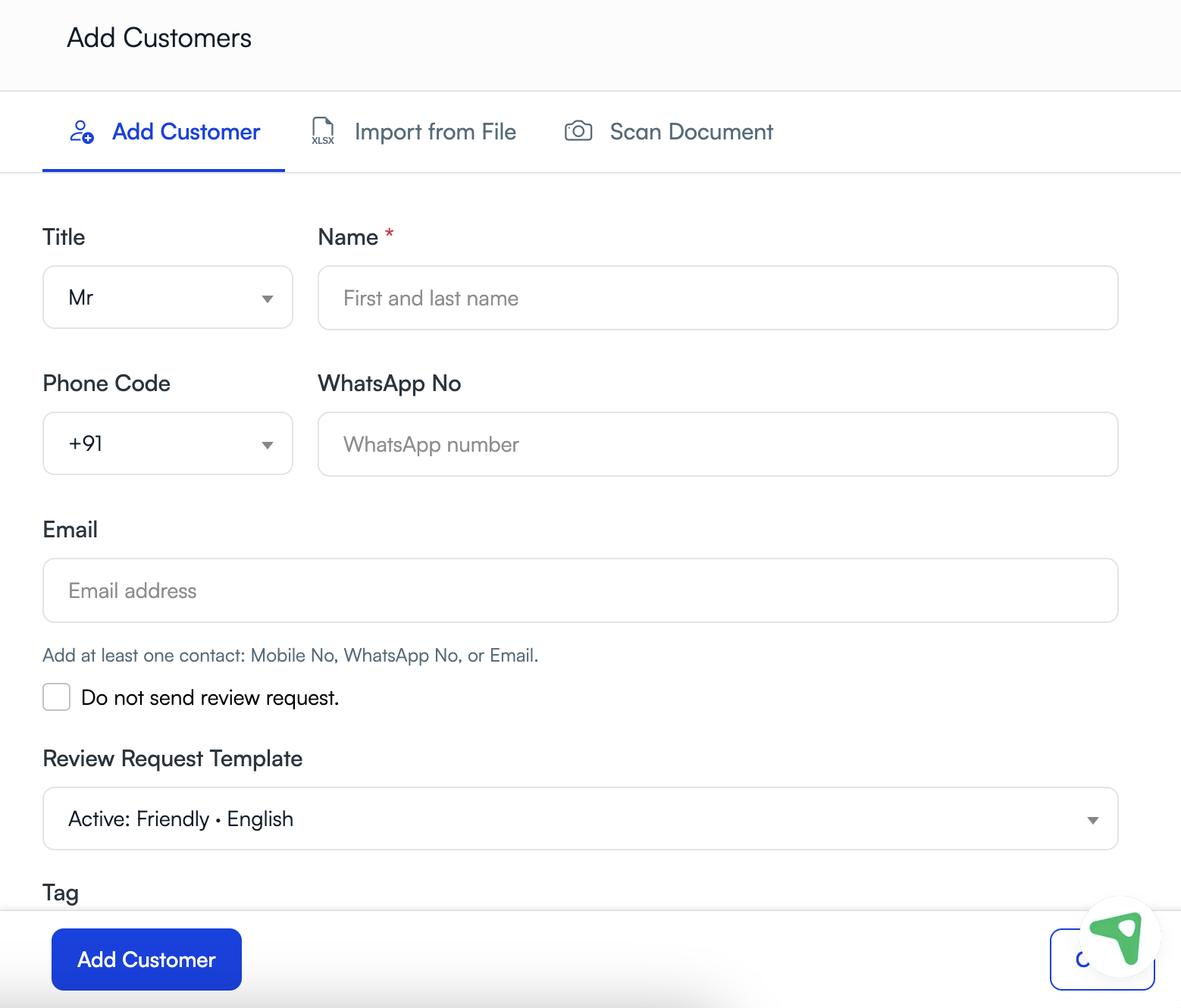
Select Add Customer above the customer list. The Add Customers panel opens on the Add Customer tab.
Step 3: Enter the customer details
- Select the customer’s Title when needed.
- Enter the customer’s first and last name in Name.
- Select the correct Phone Code.
- Enter the customer’s WhatsApp or mobile number, or their email address.
- Add a Tag or notes when you want to organize the record.
At least one usable contact method is required: a WhatsApp or mobile number, or an email address.
Step 4: Choose whether to send a review request
Leave Do not send review request. unchecked to send a request after the customer is added.
If you only want to save the customer, select Do not send review request.. The template field is hidden and no request is sent during this step.
Step 5: Select the template
In Review Request Template, choose the approved template you want to use. The active template is selected by default when it is available.
Step 6: Confirm customer consent
Review and confirm the customer consent statements only when you have obtained the required permission to process the customer’s information and send communications.
Step 7: Add the customer
Select Add Customer. UpBlick saves the customer and, when Do not send review request. is unchecked, queues the review request for the selected location.
How to check or change the active WhatsApp template
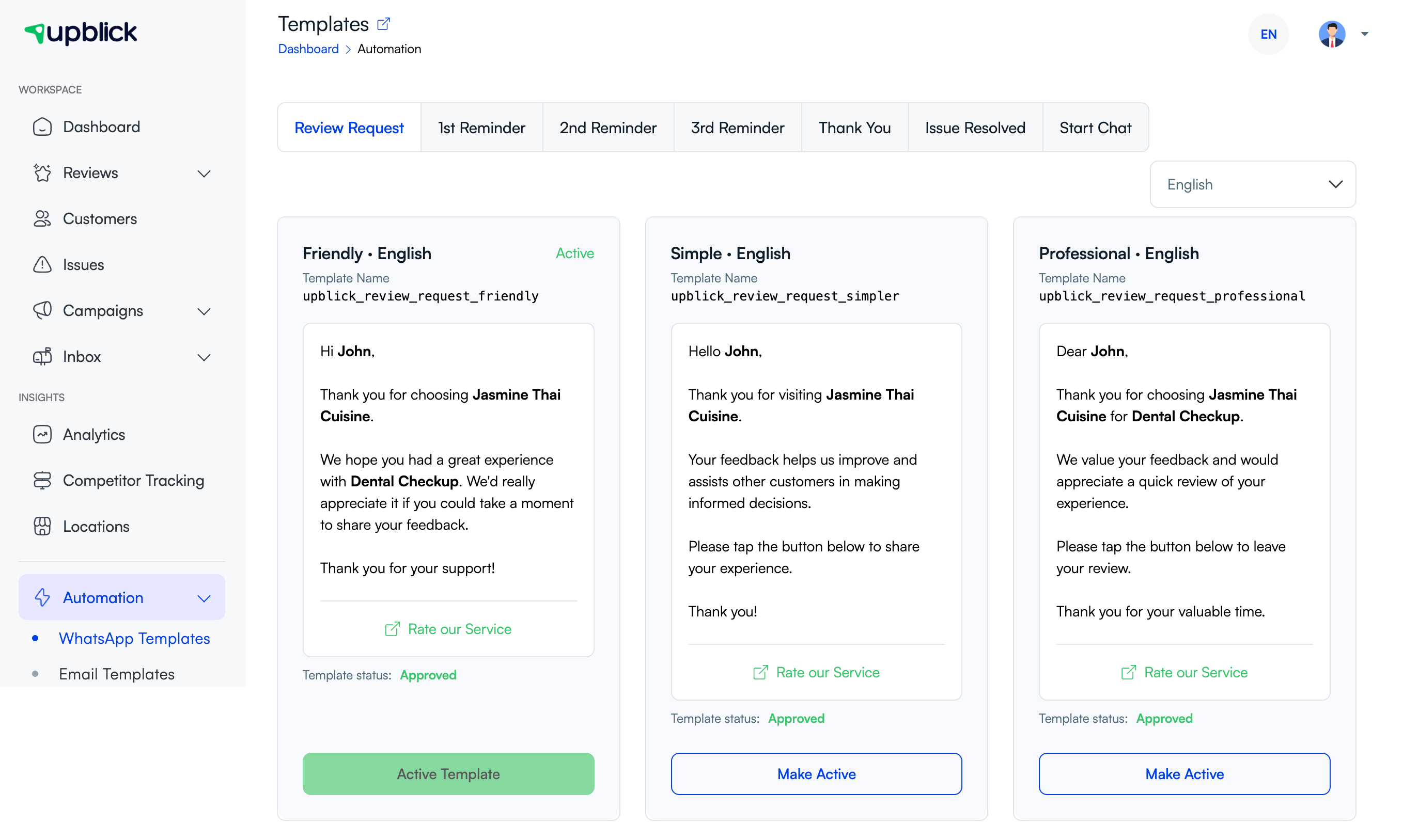
- Open Automation.
- Select WhatsApp Templates.
- Open the Review Request tab.
- Select the required language.
- Review the approved Friendly, Simple, or Professional templates.
- Select Make Active on the template you want to use as the default.
How to send a request later
Use this option when you selected Do not send review request., added the customer earlier, or want to choose the template at the time of sending.
- Open Customers.
- Find the customer using the list or search box.
- Choose the customer action to send a review request.
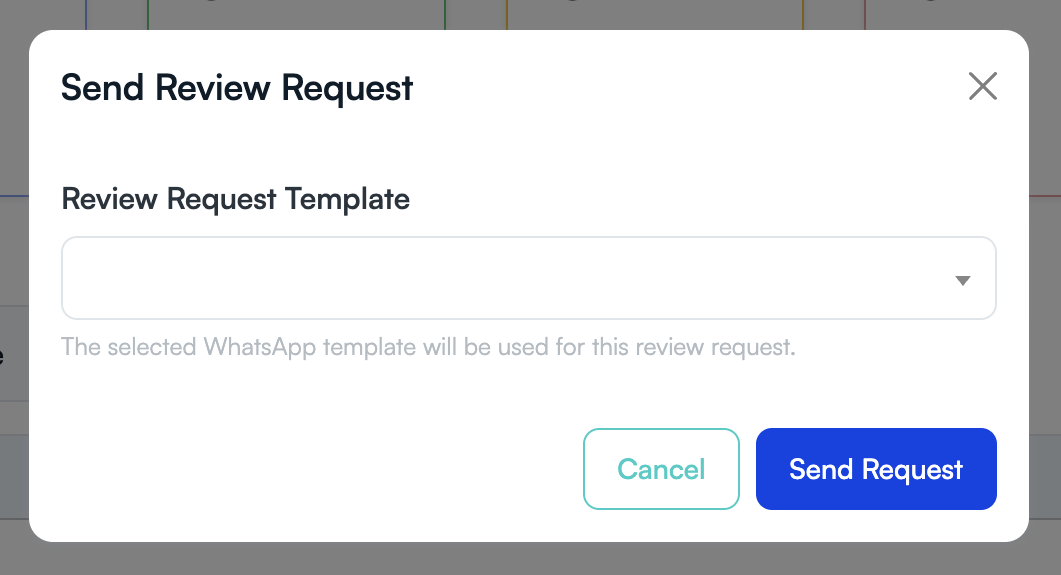
- In the Send Review Request window, select a Review Request Template.
- Select Send Request.
If a request has already been recorded for the same customer and location that day, UpBlick does not create another one immediately.
Monitor the request
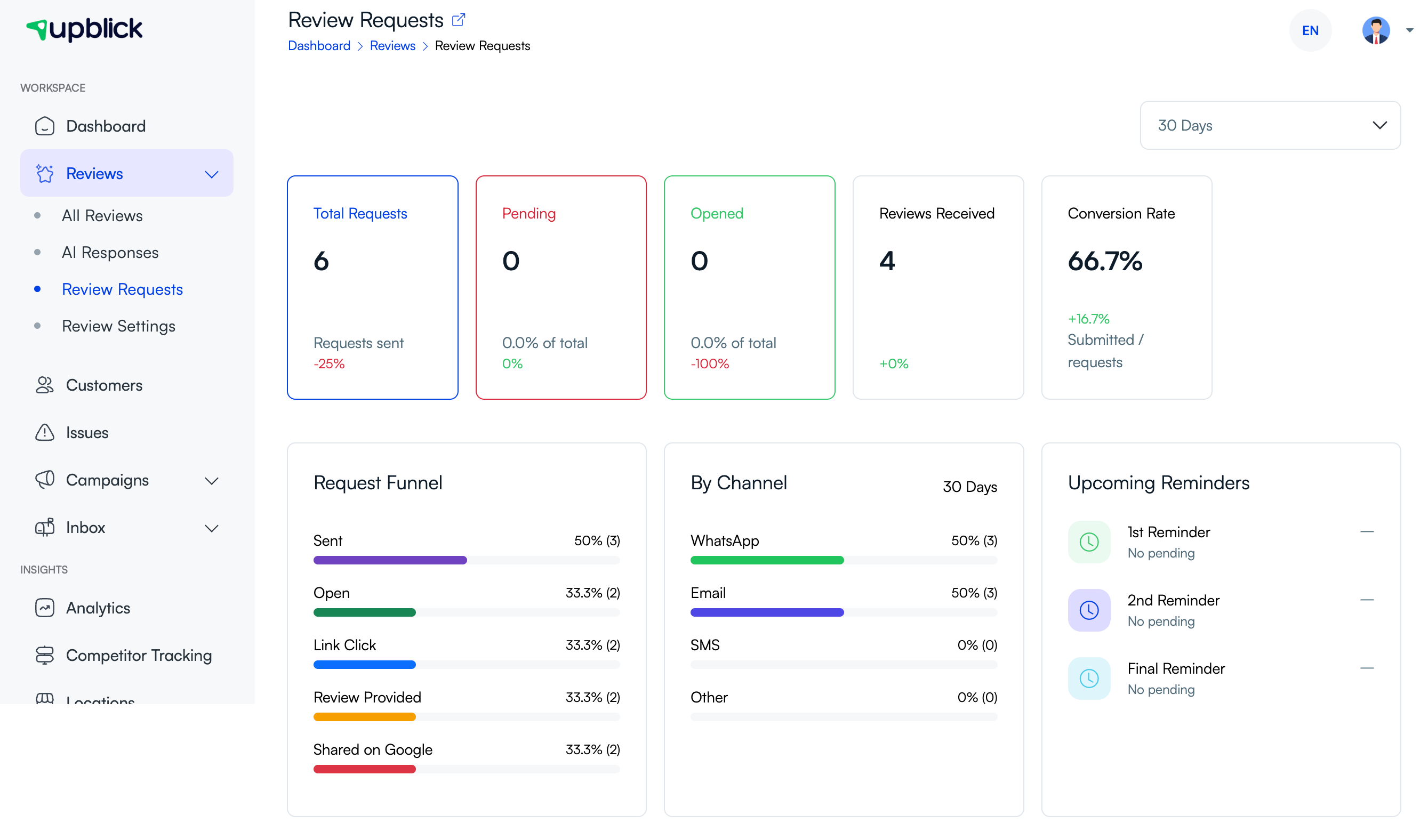
Open Reviews, then select Review Requests. Use the reporting-period menu to check:
- Total Requests, Pending, Opened, Reviews Received, and Conversion Rate.
- Progress through Sent, Open, Link Click, Review Provided, and Shared on Google.
- Request performance by WhatsApp, email, SMS, or other channels.
- Upcoming reminder activity.
Tips
- Send the request shortly after the customer’s interaction is complete.
- Check the selected location before adding the customer.
- Use the correct international phone code.
- Keep customer names accurate so template messages feel personal.
- Use tags to organize customers for future follow-up.
- Respect consent and communication preferences.
- Ask for an honest review without requesting a specific star rating.
Troubleshooting
Frequently asked questions
Can I add a customer without sending a request?
Yes. Select Do not send review request. before selecting Add Customer.
Can I send the review request later?
Yes. Find the saved customer in Customers, open the send-review-request action, select a template, and select Send Request.
Do I need both a phone number and an email address?
No. Add at least one usable contact method. The available delivery channel depends on the contact information and communication setup.
Will UpBlick send two requests on the same day?
UpBlick prevents another recorded request to the same customer for the same location when one already exists that day.
Where can I see whether the customer opened the request?
Open Reviews > Review Requests. The page shows request and funnel activity when tracking data is available.
Related Articles
Turn every customer touchpoint into review growth
Use UpBlick to collect feedback, request Google reviews, recover bad experiences, and understand customer sentiment.
Need help with UpBlick?
Use these guides to set up review collection, customers, WhatsApp automation, issue recovery, and reporting.
Start growing reviews with UpBlick