How can I view my business performance?
Analytics & Business Insights
Use the Dashboard for a quick daily view and Analytics → Review Analytics for a detailed performance review. Together, they show whether your business is collecting feedback, receiving reviews, and responding to customer concerns.
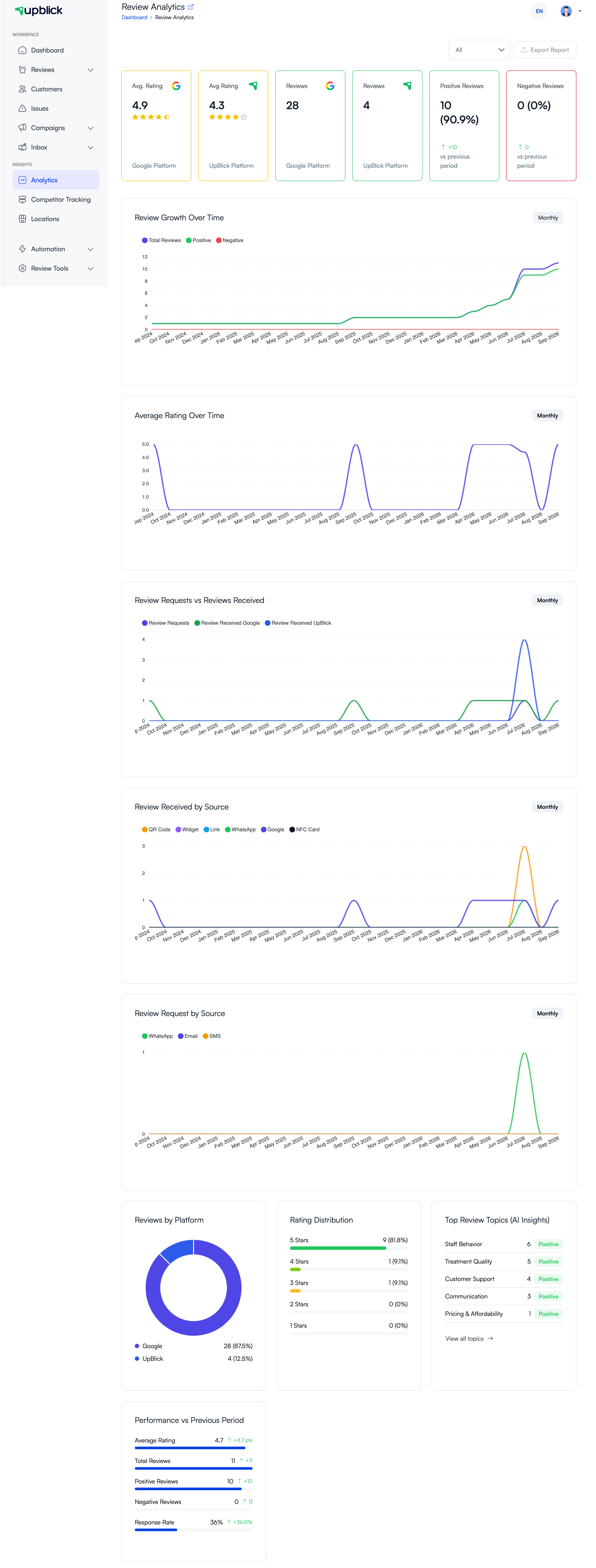
View performance step by step
- Select the business location you want to review.
- Open Dashboard for headline cards, latest reviews, alerts, and recommended actions.
- Open Analytics, then Review Analytics for detailed charts.
- Choose the date range that matches the decision you need to make.
- Compare current results with the previous-period indicators.
Key signals to review
- Average Google and UpBlick ratings.
- Review volume by platform and source.
- Positive and negative feedback changes.
- Review-request activity compared with reviews received.
- Topics, sentiment, and issues that need attention.
Related Articles
Turn every customer touchpoint into review growth
Use UpBlick to collect feedback, request Google reviews, recover bad experiences, and understand customer sentiment.
Need help with UpBlick?
Use these guides to set up review collection, customers, WhatsApp automation, issue recovery, and reporting.
Start growing reviews with UpBlick