How to Track Campaign Performance
WhatsApp & Messaging
Use Campaign Reports in UpBlick to understand how your WhatsApp campaign performed after it was sent. The reports help you check whether messages were delivered, opened, clicked, and engaged with, so you can learn what worked and improve future campaigns.
What you can learn from campaign reports
Campaign reporting helps you answer questions like:
- Was the campaign completed successfully?
- How many messages were sent?
- How many were delivered?
- How many customers opened the message?
- Did anyone click the link?
- When did customers engage with the campaign?
Step 1: Open Campaign Reports
- Open Campaigns from the sidebar.
- Select Reports.
- Confirm that the correct business location is selected.
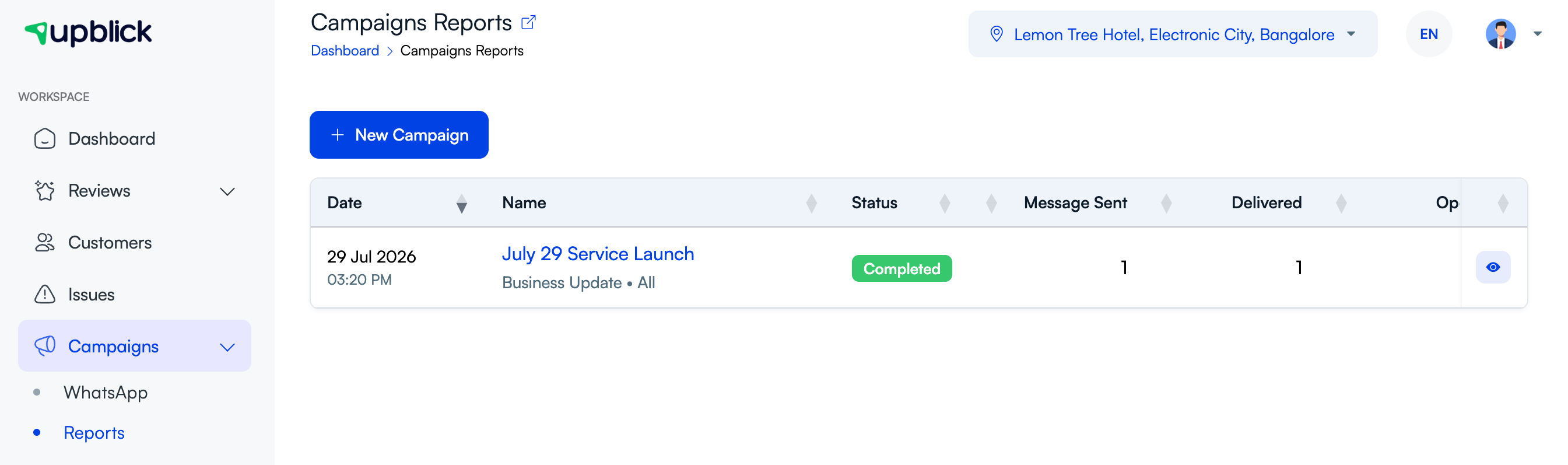
The Campaigns Reports page shows your campaign history in a table view.
Step 2: Review the campaign list summary
In the main report list, you can quickly compare campaigns using details such as:
- Date and send time
- Campaign name
- Status, such as Completed
- Message Sent
- Delivered
This view is useful when you want a quick snapshot across multiple campaigns before opening one in detail.
Step 3: Open the campaign detail view
Select the campaign name or use the available view action in the report row to open the detailed performance screen for that campaign.
The detail page shows a deeper breakdown of sends, delivery, opens, clicks, and engagement timing.

Step 4: Read the core performance metrics
On the campaign detail page, focus on the main numbers first:
- Total Sent: how many messages were sent
- Total Delivered: how many reached customers
- Total Open: how many unique contacts opened the message
- Total Failed: how many messages failed, were blocked, or were treated as spam
- Total Click: how many unique contacts clicked the URL
- Delivery Rate: delivered compared with sent
These numbers tell you whether the campaign reached customers and whether customers interacted with it.
Step 5: Review engagement timing
The report also shows when customers engaged with the message, including time blocks such as:
- Morning
- Working Hour
- Late Evening
- Night
This helps you understand whether your audience responds better at certain times of day.
Step 6: Use the activity charts
The activity charts help you see trends visually:
- Activity shows sent, open, and URL click activity over time.
- Activity by Day shows when opens happened by weekday.
These charts are especially useful when comparing different campaign timing strategies.
How to interpret the results
- A high Delivery Rate means your contact data and channel setup are working well.
- A high Open count suggests the message timing and audience are reasonable.
- A low Click count can mean the call to action needs improvement.
- A non-zero Failed count can point to contact, consent, or delivery issues.
- Timing patterns can help you choose a better schedule for future campaigns.
Best practices
- Review every campaign after it completes, not just the large ones.
- Compare delivery and open behavior across different audiences.
- Look at click results when the campaign includes a link.
- Use timing insights to improve future scheduling.
- Check failed sends so you can clean customer data or adjust audience targeting.
Troubleshooting
Frequently asked questions
Where do I see campaign results in UpBlick?
Open Campaigns > Reports, then open the campaign you want to review.
What is the most important metric to check first?
Start with Total Sent, Total Delivered, and Delivery Rate. Those tell you whether the campaign actually reached customers.
Why should I care about opens and clicks separately?
Because an open shows that the customer saw the message, while a click shows that they took the next step. Both matter, but they tell you different things.
Related Articles
Turn every customer touchpoint into review growth
Use UpBlick to collect feedback, request Google reviews, recover bad experiences, and understand customer sentiment.
Need help with UpBlick?
Use these guides to set up review collection, customers, WhatsApp automation, issue recovery, and reporting.
Start growing reviews with UpBlick