How to Collect Reviews Using a QR Code?
Reviews & Review Collection
UpBlick gives each business location a unique QR code linked to its public review journey. Customers scan the code with their phone, share their experience, and follow the review options configured for that location.
QR collection works well for in-person interactions because the customer can respond immediately without being added to UpBlick first or downloading an app.
Before you start
Make sure that:
- The correct business location has been added to UpBlick.
- The location’s name and address are accurate.
- The location has the correct Google Review Link if Google sharing is part of its review journey.
- The location’s review form and collection settings match the experience you want customers to follow.
- You have permission to display the QR code on the intended printed or digital material.
Create and test the QR code
Step 1: Select the business location
Use the location selector to choose the branch where you want to collect reviews. Each location has a different public review URL and QR code.
Step 2: Open QR Code
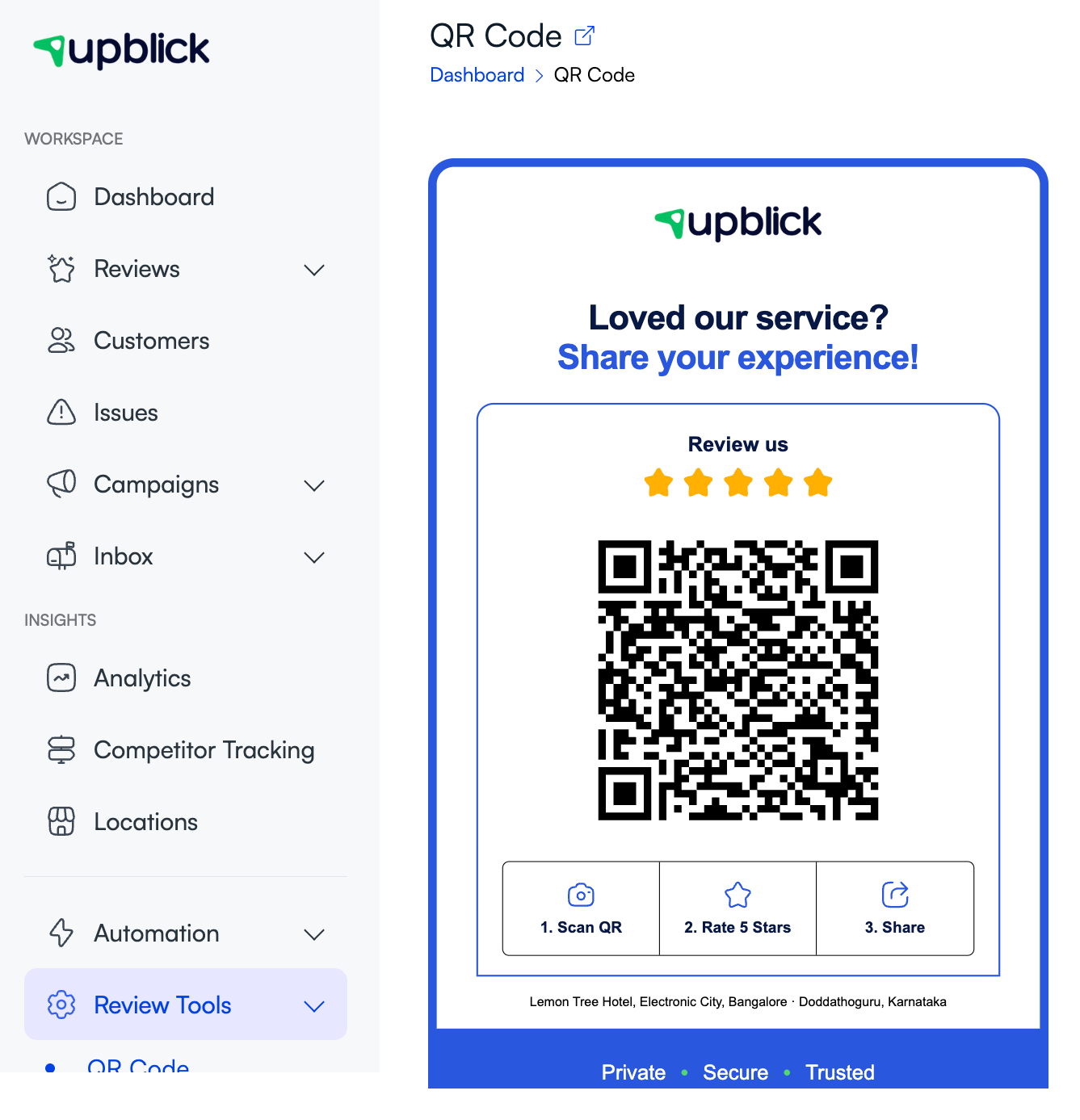
In the UpBlick sidebar, open Review Tools, then select QR Code.
Step 3: Check the preview
Confirm that the business and location shown on the QR standee match the branch you selected. The page also displays the location’s Public Review URL.
Step 4: Test the QR code
- Open the camera app or QR scanner on a phone.
- Point it at the QR code in the preview.
- Open the detected link.
- Confirm that the correct business name and location appear.
- Check that the expected review journey opens.
- Close the page without submitting a test review.
Test with both Android and iPhone devices when possible.
Step 5: Download the QR image
Select Download Images. UpBlick downloads a PNG standee containing the QR code for the selected location.
Ways to use the QR code
You can use the downloaded image in several customer touchpoints, provided the QR code remains clear and easy to scan:
- Print the complete UpBlick QR Code Standee.
- Add it to a checkout or billing counter sign.
- Include it on receipts, invoices, appointment cards, or table cards.
- Place it on menus, packaging, delivery inserts, or service-completion documents.
- Display it on a tablet or screen near the end of the customer interaction.
- Use the Public Review URL in a digital message when a QR code is not practical.
Use a separate downloaded QR image for every business location. Do not reuse one branch’s code at another branch.
How customers leave a review using the QR code
- The customer opens their phone camera or QR scanner.
- They scan the code and open the detected link.
- UpBlick opens the review journey configured for that location.
- Depending on your Review Settings, the customer may rate the experience, choose a service, select highlights, identify a staff member, or write feedback.
- When prompted, a guest may enter their name and contact details.
- The customer completes the available sharing or submission option.
The exact steps can differ because Review Settings can change the questions and collection mode. In a direct-Google configuration, the QR link can take the customer straight to the saved Google review destination.
How to ask a customer to scan
Ask after the customer’s visit, purchase, appointment, or service is complete. Keep the request neutral and optional.
For example:
“Thank you for visiting us. If you have a moment, please scan this code and share your honest experience.”
Ask eligible customers consistently. Do not request a particular star rating, offer an incentive, or show the QR code only to customers who appear satisfied.
Where to place the QR code
Choose a location where the customer has finished the experience and can scan without feeling rushed:
- Reception or checkout counters.
- Restaurant tables or payment desks.
- Clinic, salon, or service-completion areas.
- Hotel reception or checkout desks.
- Pickup, delivery, or collection points.
- Event exits or feedback stations.
Keep the code at a comfortable scanning height with good lighting and a clear line of sight.
QR code quality guidelines
- Use the image downloaded from UpBlick instead of a screenshot.
- Keep the image proportional when resizing it.
- Do not crop, redraw, recolor, or cover any part of the QR code.
- Leave clear space around the code.
- Use a sharp, high-contrast print.
- Avoid reflective surfaces, folds, glare, and curved packaging.
- Replace faded, scratched, or damaged copies.
- Scan the final printed or digital version before showing it to customers.
Review the collected feedback
Open Reviews > All Reviews to review synced UpBlick and public review activity for the selected location. You can also use the Dashboard to monitor ratings, review totals, recent reviews, and available feedback insights.
Google reviews are published and controlled by Google. UpBlick cannot guarantee that a Google review will appear immediately after the customer submits it.
Troubleshooting
Frequently asked questions
Does each location need its own QR code?
Yes. Each QR code contains the public review URL for one UpBlick business location.
Does the customer need the UpBlick app?
No. The QR code opens the review journey in the customer’s web browser.
Do I need to add the customer before they scan?
No. A guest can open the QR review journey directly. Depending on your form configuration, UpBlick may ask for their name and contact details before completion.
Can I use the QR code on a receipt, menu, or invoice?
Yes, as long as the downloaded code remains clear, uncropped, proportional, and easy to scan. Test the finished material first.
Does scanning the code always open Google directly?
No. The result depends on the location’s Review Settings. The code can open an UpBlick review journey or redirect to the saved Google review destination when direct-Google collection is configured.
Related Articles
Turn every customer touchpoint into review growth
Use UpBlick to collect feedback, request Google reviews, recover bad experiences, and understand customer sentiment.
Need help with UpBlick?
Use these guides to set up review collection, customers, WhatsApp automation, issue recovery, and reporting.
Start growing reviews with UpBlick