How to Update Your Account Information?
Getting Started
Keep your UpBlick account information accurate so your name, contact details, profile image, and timezone stay up to date.
This guide explains how to open Profile Details, edit your personal information, and save your changes.
What can you update?
From the Profile tab, you can update:
- Your profile image.
- Your title and first and last name.
- Your email address.
- Your phone code and mobile number.
- Your WhatsApp number.
- Your timezone.
Before you start
Make sure you:
- Are logged in to your UpBlick account.
- Know which account details you want to change.
- Have a clear profile image ready if you want to upload one. JPG or PNG is recommended.
How to update your UpBlick account information
Step 1: Open Profile Details
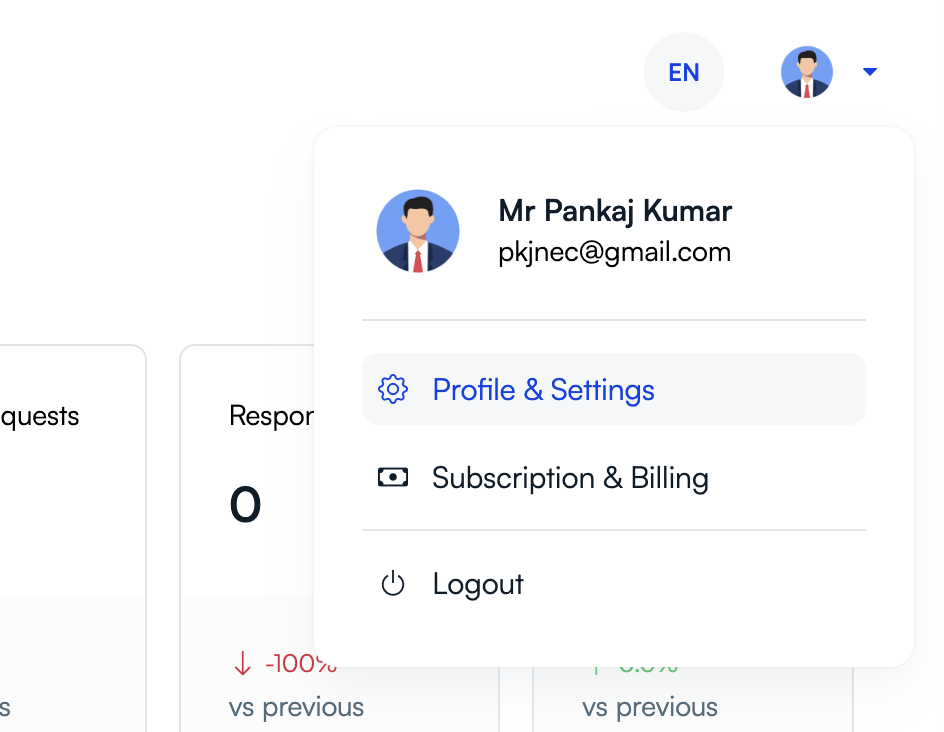
Open the account menu in the upper-right corner of your UpBlick dashboard, then select Profile & Settings. The Profile Details page opens.
Step 2: Select the Profile tab
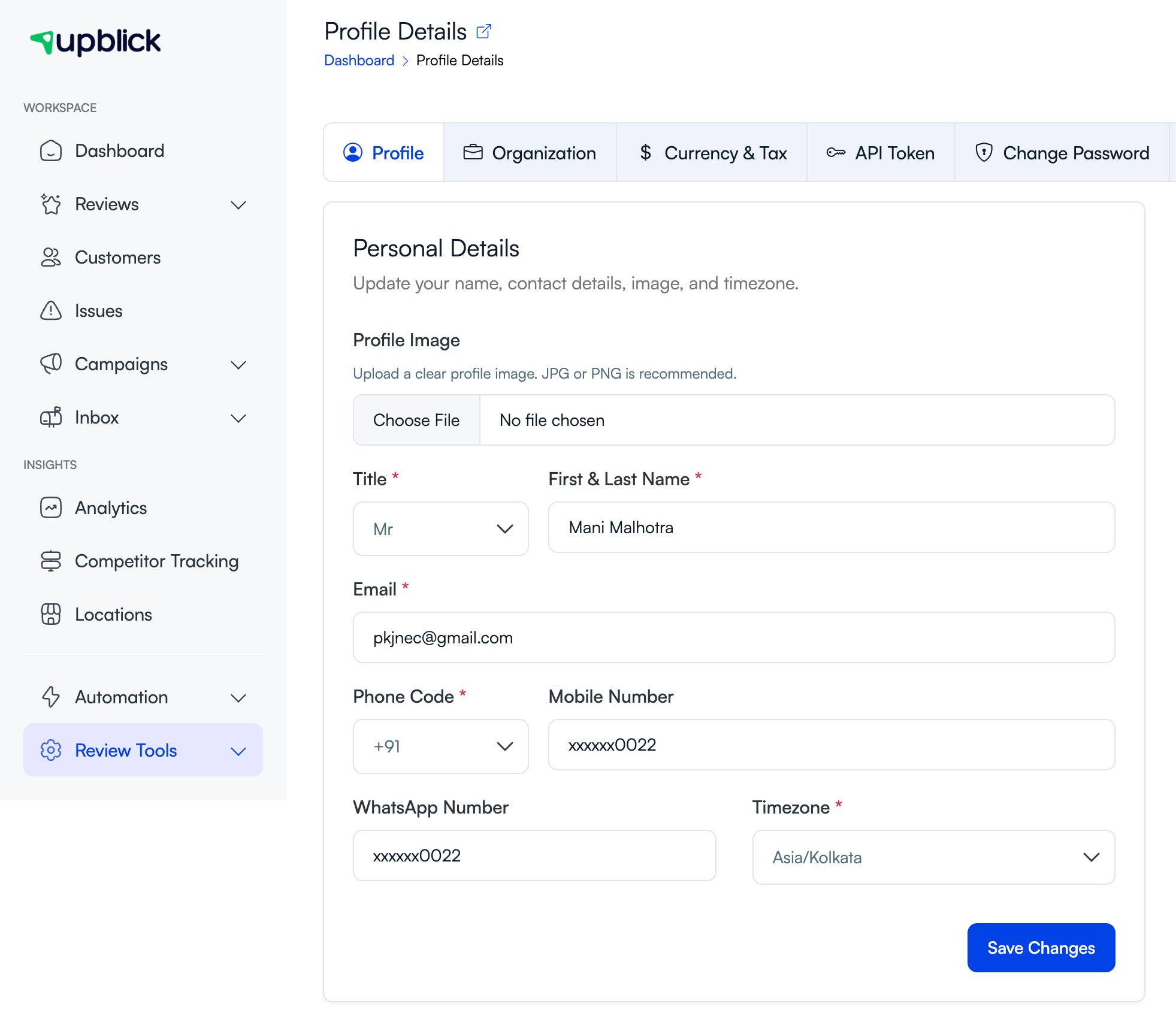
Select Profile at the top of the page. The Personal Details form displays your current account information.
Step 3: Update your details
Edit the fields you want to change:
- Profile Image: Select Choose File and choose an image from your device.
- Title: Choose the appropriate title.
- First & Last Name: Enter the name you want displayed on your account.
- Email: Enter a valid email address that is not already used by another UpBlick account.
- Phone Code and Mobile Number: Choose the correct country calling code and enter your mobile number.
- WhatsApp Number: Enter the number you use for WhatsApp, if applicable.
- Timezone: Choose the timezone that matches your location.
Fields marked with an asterisk are required.
Step 4: Save your changes
Review the updated information, then select Save Changes.
What happens next?
UpBlick saves the updated details and displays a confirmation message. Your new profile information is then used across your UpBlick account.
Tips
- Use an email address and phone number you can access.
- Check the phone code before saving your mobile number.
- Select the correct timezone so account activity follows your local time.
- Use a clear, professional profile image in JPG or PNG format.
Troubleshooting
Frequently asked questions
Can I change the email address on my UpBlick account?
Yes. Enter a valid email address that is not already connected to another UpBlick account, then select Save Changes.
Is my mobile number the same as my WhatsApp number?
They can be the same, but they do not have to be. Enter the appropriate number in each field.
Can I update my business information here?
The Profile tab is for personal account details. Use the Organization tab to update your business information.
Where can I change my password?
Select the Change Password tab on the Profile Details page.
Related Articles
Turn every customer touchpoint into review growth
Use UpBlick to collect feedback, request Google reviews, recover bad experiences, and understand customer sentiment.
Need help with UpBlick?
Use these guides to set up review collection, customers, WhatsApp automation, issue recovery, and reporting.
Start growing reviews with UpBlick