How to Use the UpBlick QR Code Standee?
Getting Started
The UpBlick QR Code Standee gives customers a quick way to open your location’s review journey from their phone. Display it at the point where a customer completes a visit, purchase, appointment, or service.
Each standee is connected to a specific UpBlick business location. Always confirm the selected location before downloading or printing it.
Before you start
Make sure you:
- Have added the correct business location to UpBlick.
- Have checked the location’s Google Review Link.
- Know where customers naturally finish their interaction with your business.
- Can print the standee clearly without cropping or stretching the QR code.
How to download your QR Code Standee
Step 1: Select the business location
If you manage more than one location, use the location switcher to select the branch whose standee you want to create.
The location name shown on the standee should match the branch where you plan to display it.
Step 2: Open QR Code
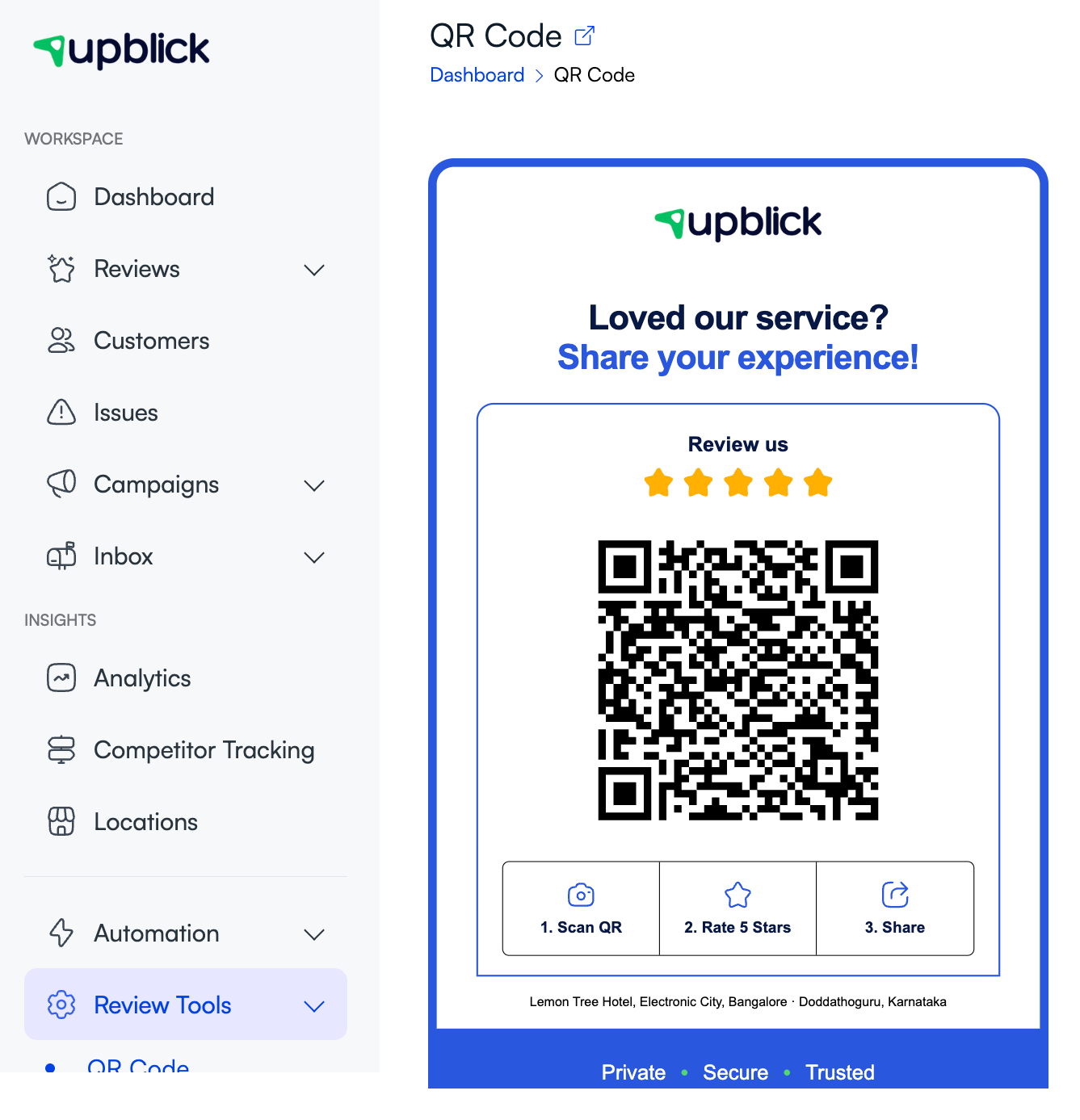
From the UpBlick sidebar, open Review Tools, then select QR Code.
Step 3: Check the standee preview
Review the business name and location shown in the preview. The QR code opens the public review URL generated for that UpBlick location.
Step 4: Test the QR code
- Open the camera app on a phone.
- Point the camera at the QR code in the preview.
- Open the detected link.
- Confirm that it shows the correct business and location.
- Close the page without submitting a test review.
Step 5: Download the standee
Select Download Images. UpBlick downloads the location-specific standee as a PNG image.
Step 6: Print the standee
Print the image at a size that keeps the QR code sharp and easy to scan. Do not crop the QR code, cover it with a logo or sticker, or stretch the image out of proportion.
Where to place the standee
Place it where customers can see and scan it without holding up other people. Useful locations include:
- Checkout or billing counters.
- Reception and waiting areas.
- Restaurant tables or payment desks.
- Clinic or salon service-completion areas.
- Hotel reception desks.
- Pickup, delivery, or collection points.
Keep the standee at a comfortable scanning height with enough light and a clear line of sight.
How customers use the standee
- The customer opens their phone camera or QR scanner.
- They point it at the QR code.
- They open the link displayed on their phone.
- They follow the UpBlick review journey and share their experience.
- When the configured flow offers it, they can continue to the location’s Google review page.
The customer does not need an UpBlick business account to open the QR code.
How to ask customers to scan
Use a short, neutral request after the service is complete. For example:
“Thank you for visiting us. If you have a moment, please scan this code and share your experience.”
Ask all eligible customers consistently. Do not offer rewards for positive reviews or ask only customers who appear satisfied.
Tips for reliable scanning
- Test the printed standee with both Android and iPhone devices when possible.
- Keep the QR code flat, clean, and free from glare.
- Do not place it behind heavily reflective glass.
- Leave clear space around the QR code.
- Replace faded, scratched, or damaged copies.
- Retest the public review URL after changing location or review settings.
- Print a separate standee for each business location.
Troubleshooting
Frequently asked questions
Do I need a different standee for each location?
Yes. Each QR code is connected to a specific UpBlick location, so every branch should use its own downloaded standee.
Can customers scan the QR code without installing an app?
Yes. Most customers can scan it with their phone camera and open the review journey in a web browser.
Can I place the QR code on a receipt or menu?
You can use the downloaded image in other printed material if it remains clear, uncropped, and easy to scan. Test the final printed version before distributing it.
Can I use a screenshot instead of the downloaded image?
Use the image downloaded from UpBlick. It provides a cleaner result and reduces the risk of cropping or lowering the QR code quality.
Should I ask customers to leave a five-star review?
Ask customers to share an honest experience without requesting a particular rating. This produces more trustworthy feedback and avoids pressuring customers.
Related Articles
Turn every customer touchpoint into review growth
Use UpBlick to collect feedback, request Google reviews, recover bad experiences, and understand customer sentiment.
Need help with UpBlick?
Use these guides to set up review collection, customers, WhatsApp automation, issue recovery, and reporting.
Start growing reviews with UpBlick