Google Business Profile Verification Guide: How to Verify Your Business on Google

Pankaj Kumar
Published on 20 Aug, 2026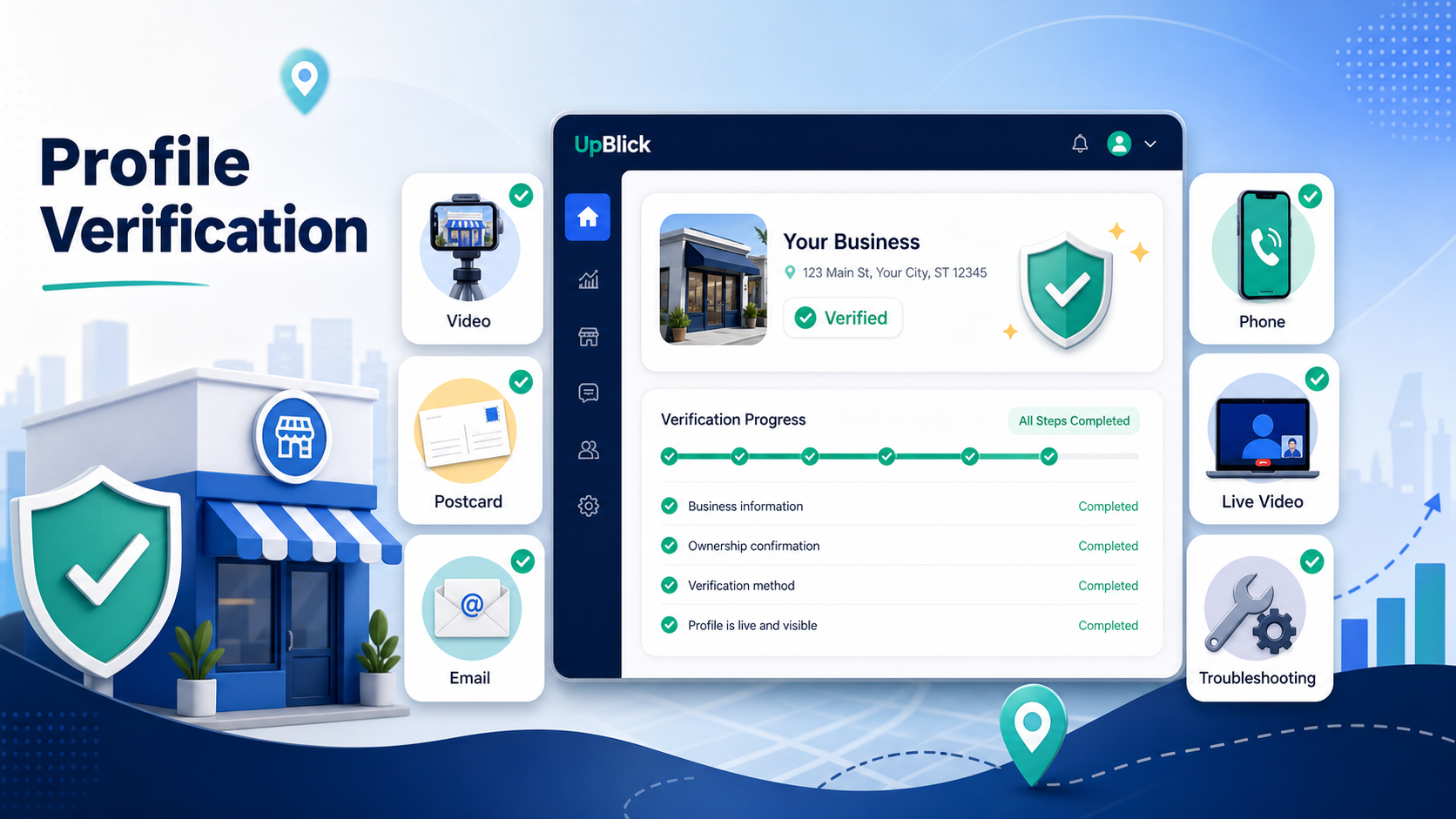
Summary
Google Business Profile verification is the process Google uses to confirm that a business exists and that the person managing its profile is authorised to represent it. Google chooses the verification methods available for each profile. Depending on the business, those methods may include a video recording, phone or SMS, email, live video call, postcard, instant verification, or bulk verification.
- Check eligibility and profile accuracy before starting.
- Use only the verification methods Google displays for your profile.
- For video verification, show location, business operations, and proof of management in one live, continuous recording.
- Do not fabricate evidence, create temporary signage, or repeatedly change profile details.
- Keep the actual business in control of profile ownership, even when an agency assists.
Verification is not simply about receiving a code. Google is checking whether the profile represents a real, eligible business and whether the person completing the process has authority to manage it. The evidence required therefore varies between a customer-facing storefront, a hybrid business, and a service-area business that travels to customers.
What Is Google Business Profile Verification?
Verification connects a Business Profile with an authorised owner or representative. Once verified, the business can properly manage key information that appears in Google Search and Maps, including its address or service area, phone number, opening hours, website, services, photos, and customer interactions.
Google does not promise every profile the same verification route. Its official verification guide says available options depend on factors such as business type, public information, region, and opening hours. A profile may also be asked to complete more than one method.
Is Your Business Eligible for a Google Business Profile?
Google generally requires an eligible business to make in-person contact with customers during its stated hours. This includes storefront businesses that receive customers, hybrid businesses that receive customers and also travel or deliver, and service-area businesses that visit customers at their locations.
Retail shops, restaurants, clinics, dentists, salons, hotels, gyms, repair companies, plumbers, electricians, and contractors can commonly qualify when their real operations meet Google’s rules. Online-only businesses, lead-generation companies, and certain property listings are among Google’s examples of businesses that are not eligible.
If customers do not visit your operating address, configure the profile as a service-area business and do not display that address as a customer-facing location. Review Google’s current eligibility and ownership guidelines before trying to solve an eligibility problem with repeated verification attempts.
How to Verify Your Google Business Profile
- Sign in with the Google Account that should manage the business.
- Find, add, or claim the correct Business Profile.
- Check that the business name, category, address or service area, phone number, website, and hours accurately represent the real business.
- Select Get verified.
- Review the verification method or methods Google offers.
- Complete the instructions without changing or fabricating business evidence.
- Wait for Google’s review when one is required.
You cannot force phone, email, postcard, or video verification to appear if Google has not offered it. If one method fails, review the stated issue and use another method only when it appears as an available option.
Google Business Profile Verification Methods
1. Video Verification
Google may ask for a business video recorded and uploaded from a mobile device through the Business Profile. The recording must be live—not recorded earlier—unique, unedited, complete, at least 30 seconds long, and continuous without breaks.
The video needs to establish three things: where the business operates, that the business genuinely exists, and that the person recording manages or represents it. Avoid showing bank details, tax or identification numbers, private information, or other people’s faces. Google’s video verification requirements explain the evidence expected for each business type.
2. Phone or SMS Verification
If phone or SMS appears as an option, select it, receive the call or text, and enter the verification code in the profile. The business phone must be accessible. Google notes that interactive voice-response systems may not receive the code. If this method is not shown, it cannot be manually enabled by the business.
3. Email Verification
When email verification is available, confirm that you can access the email address displayed on the verification screen, select the option, and follow the instructions in the message. Check spam or junk folders if it does not arrive promptly. Email verification is available only when Google offers it.
4. Live Video Verification
A live video call is a real-time verification session. It may not be available to every business and is offered only within the location’s opening hours. Be physically present and ready to show the surrounding location, business signage or equipment, and proof that you control the premises or business-only assets, such as keys, a cash register, a kitchen, or a staff area.
5. Postcard Verification
Postcard verification is still offered to some businesses, but it is not universal or the default for every profile. Confirm the postal address, request the card, and enter the code when it arrives. Google says most postcards arrive within 14 days and verification codes expire after 30 days.
While waiting, avoid changing the business name, address, or category because these changes can invalidate the code. Requesting another code also invalidates the previous one. Keep the code private; Google says it will not ask you to share it with someone managing the profile.
How to Prepare for Google Business Profile Video Verification
Plan a short route before tapping record. Your continuous video must show all required evidence, so begin with the surrounding location, move to the business presence or working equipment, and finish with proof of management. Make profile details accurate first—the evidence in the video should match the name, location, category, and operating model shown on the profile.
What Storefront and Hybrid Businesses Should Show
- Location: street signs, building number, nearby businesses, or recognisable surroundings.
- Business existence: storefront, showroom, and permanent signage displaying the same name as the profile.
- Management: access to a point-of-sale system, cash register, kitchen, storage room, equipment, or another employee-only area.
Permanent signage matters. Do not temporarily install a sign solely to pass verification or show a location that does not represent the business’s real operations.
What Service-Area Businesses Should Show
- Operating location: street signs, nearby landmarks, building number, or identifiable surroundings.
- Business existence: professional tools, machinery, products, workspace, business cards, or branded apparel.
- Management: performing a relevant service, unlocking a branded vehicle, accessing business equipment, or showing an appropriate permit, invoice, or utility bill matching the business.
A plumber, electrician, locksmith, cleaner, or contractor may operate from an address customers never visit. The address can still support verification evidence without being publicly displayed as a storefront.
How Long Does Google Business Profile Verification Take?
The time depends on the method. Google says a submitted verification may require up to five business days for review, including video verification. Most postcard codes arrive within 14 days, although delivery can vary. Phone or email may complete more quickly when offered, but no method should be treated as universally fastest.
Can Google Verify a Business Instantly?
Instant verification can happen in some circumstances, including when a website is already verified with Google Search Console or through eligible bulk-verification arrangements. It is not guaranteed. Google still determines whether the profile qualifies and which verification steps appear.
Google Business Profile Bulk Verification for Multiple Locations
Businesses with 10 or more eligible locations of the same business may request bulk verification through Business Profile Manager. The locations must accurately reflect the business, and Google may request evidence about the chain, location count, and the requester’s authority.
Bulk verification is not intended for an agency to combine unrelated client businesses into one verification request. Google’s bulk-verification documentation says an agency account containing more than one business cannot use that arrangement to bulk verify them together.
Why Is Google Business Profile Verification Failing?
Verification problems usually mean the profile, business model, or submitted evidence does not give Google enough consistent information. Review the specific issue before submitting again.
Your Business Is Not Eligible
An online-only business or lead-generation operation cannot become eligible by submitting more verification evidence. Confirm that your business meets Google’s in-person customer-contact requirement or a documented exception.
Your Video Does Not Prove the Business Exists
Showing only a door, building exterior, or generic street may not connect the profile to an operating business. Include the required combination of location, permanent business presence or working equipment, and management access.
Business Name or Signage Does Not Match
The name on permanent signage should match the profile and the way the business is represented in the real world. Do not add keywords to the profile name or manufacture temporary evidence to influence verification.
Insufficient Proof of Business Management
Publicly visible signage alone does not prove authority. Show access that an employee or authorised operator would reasonably have, without exposing sensitive personal or financial information.
Incorrect Address or Service-Area Setup
A customer-facing address must represent a location customers can visit. If the business travels to customers and does not serve them at its operating address, use the service-area setup and prepare evidence appropriate to that model.
Invalid or Expired Verification Code
A postcard code can stop working if it expires, profile details change, or another code is requested. Use the latest valid code and avoid changing key information while waiting.
What to Do If Google Asks You to Re-Verify
Google may request re-verification after important profile information changes or when it needs more confirmation that the information remains accurate. If Get verified appears again, first review the business name, category, address or service area, phone, website, and hours. Then complete the method Google provides.
For a rejected video, select Review issues, note what was missing, and record a new continuous video that includes the original evidence plus the missing proof. Avoid repeatedly editing profile information unless it is genuinely inaccurate.
Can an SEO Agency Verify or Manage Your Google Business Profile?
An agency can act as an authorised representative with the owner’s express consent, but the actual business should retain ownership and control. Google recommends that the business creates the account, owns the profile, and adds the representative as a manager where possible.
Make sure the owner can sign in, knows who has access, and can remove or change agency access. An agency should never claim a profile without consent or withhold ownership from the business.
What to Do After Your Business Profile Is Verified
Verification is the start of profile management, not the finish. Review the business name, category, address or service area, phone, website, and opening hours. Add authentic photos, keep services or products current where available, monitor reviews, and respond professionally.
Create a policy-compliant process that makes it easy for genuine customers to leave honest reviews. Use a direct link, QR code, WhatsApp, SMS, or email after a real customer interaction. Do not buy reviews, offer incentives, or request a particular rating.
How UpBlick Helps After Google Business Profile Verification
Once the profile is verified, UpBlick helps turn it into an active customer and reputation workflow: customer interaction → feedback → review request → Google review → response → analytics → improvement.
Businesses can use review generation, WhatsApp automation, reminders, customer feedback, customer management, AI-assisted review responses, analytics, competitor tracking, and multi-location management. These tools do not replace Google verification; they help maintain the customer experience and reputation after verification.
Final Takeaway
Treat Google Business Profile verification as an identity, eligibility, and ownership check—not an obstacle to bypass. Make the profile match the real business, prepare evidence for the method Google offers, and keep ownership with the business. When verification succeeds, maintain accurate information and build a consistent process for customer feedback, honest reviews, thoughtful responses, and reputation improvement.
Want to grow faster with better reviews?
Explore how automation, customer feedback workflows, and local reputation tools can help your business win more trust.
Google Business Profile Verification Guide: How to Verify Your Business on Google FAQs
Grow your local reputation with confidence
Use UpBlick to monitor reviews, improve customer experience, and turn happy customers into long-term advocates.
Start your review growth journeyNo Credit Card Required • Setup in Minutes • Built for Local Businesses